
Overview
The Attach File Viewer module in quote•hapily allows you to embed a file viewer directly into your HubSpot quote templates. This provides buyers with instant access to supporting files — like contracts, spec sheets, or presentations — without leaving the quote.
This guide walks you through adding the module to an existing HubSpot quote template.
Prerequisites
Before you begin, ensure you have:
-
HubSpot Super Admin or Marketing access to edit templates.
-
quote•hapily installed in your HubSpot portal.
-
An existing custom quote template to edit.
Step-by-Step Instructions
Step 1 – Open Your Quote Template in HubSpot
-
In HubSpot, go to Settings (gear icon).
-
Navigate to Objects → Quotes → Quote templates.
-
Locate the template you want to edit and click Edit CMS Template.

Step 2 – Open the Module Panel
In the left-hand panel of the template editor:
-
Search for "qh_attach_file_viewer" in the module list.
-
Open up the module and grab the snippet code (bottom right hand corner)
File #1


File #2


Step 3 – Add the Attach File Viewer Module
-
Drag the Attach File Viewer module from the left panel into the desired section of your quote template.
-
Position it where you want the file viewer to appear for buyers. Most customers insert above the Signature Module.
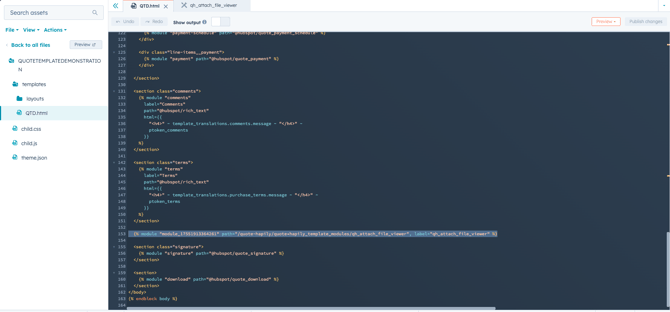
Step 4 – Publish Changes and Review the the Module
-
Publish the changes and go back to your template in hubspot
-
Click on settings and refresh the page
-
You should now see the module added to your quote, no need to configure anything else.
Step 5 – Test your template
- Review the attach file prompt user setup to make sure you've enabled this inside of the quote builder
- Once configured select the template you added the module to, and publish the quote!
Related Articles