
Learn how to automatically update registrant statuses to "Did Not Attend" for contacts who missed your event.
During an event, any registrant you check in using the event·hapily check-in page is automatically marked as Attended. However, those who do not show up will remain marked as Registered. By creating a simple HubSpot workflow, you can automatically update these remaining registrants to Did Not Attend once the event has concluded.
This approach allows you to:
-
Automatically clean up your post-event registrant statuses
-
Keep your event data accurate without manual record updates
-
Easily segment and target "no-shows" for post-event follow-up emails
🎥 Video Walkthrough:
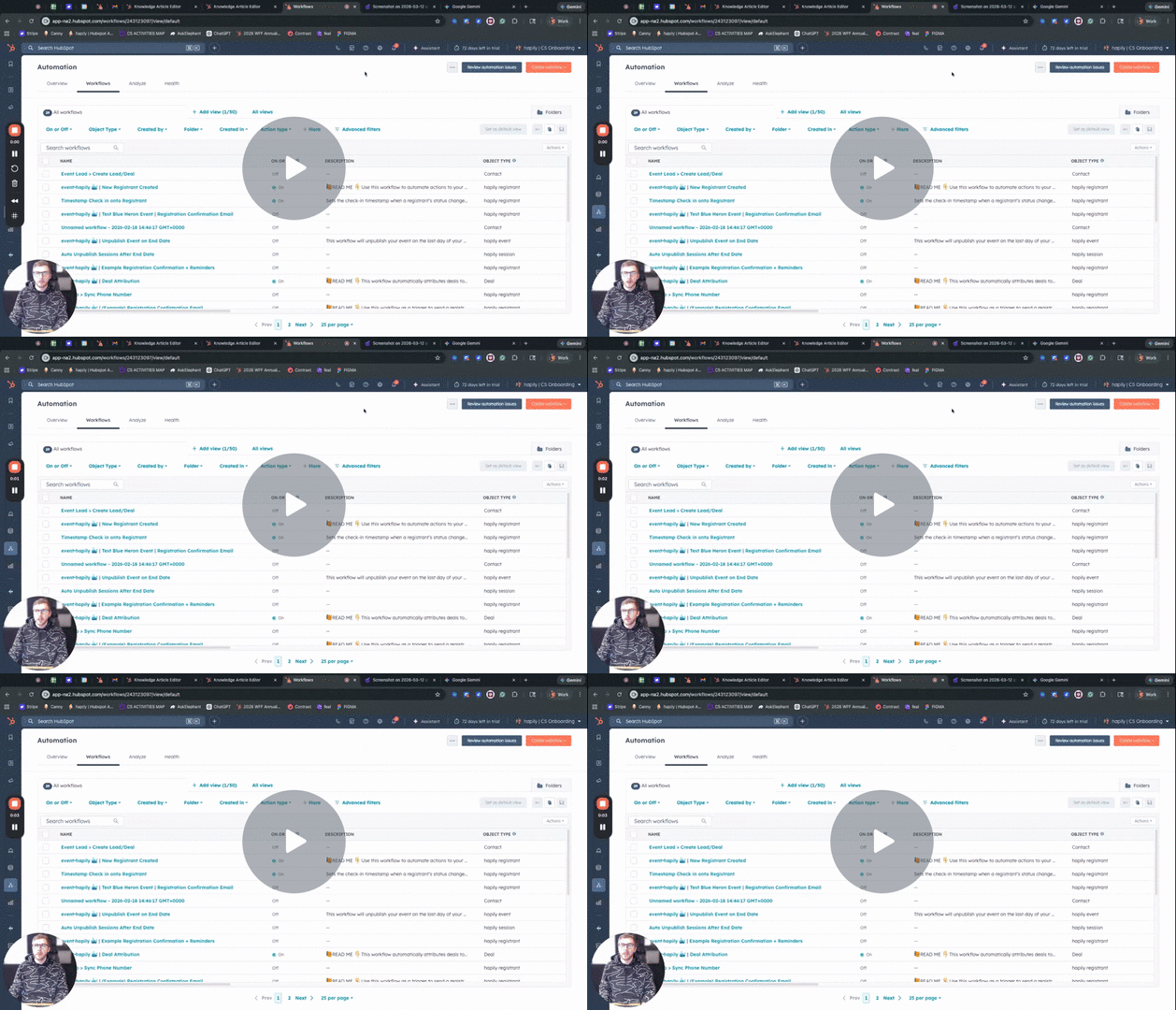
How To | Automatically Mark No-Shows as 'Did Not Attend' - Watch Video
Step 1: Create a New Workflow
-
Navigate to your workflows in HubSpot and create a new workflow.
-
Name the workflow something recognizable, such as event hapily did not attend update.
-
Set the workflow to enroll based on the Registrant record.
Step 2: Set the Enrollment Criteria
You need to target registrants who are still marked as "Registered" after the event has completely wrapped up.
-
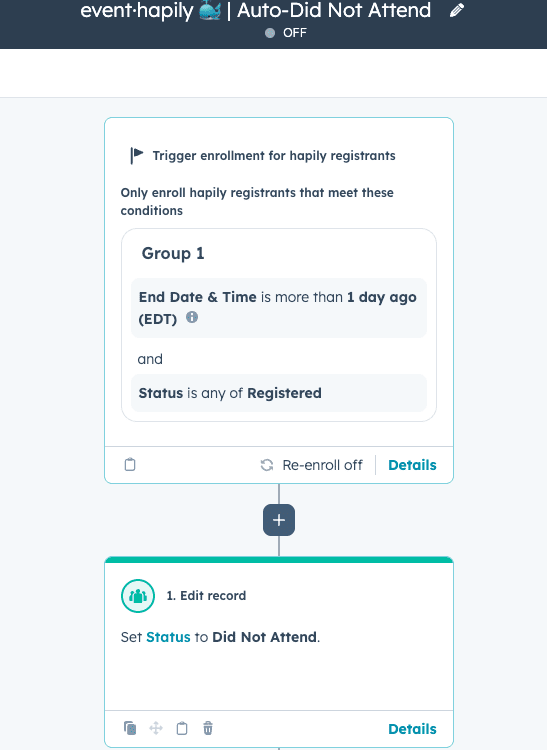
Set your first filter criteria so that the Registrant Status property is any of Registered.
-
Add an AND condition for the event's end date.
-
Set the end date criteria to be more than 1 day ago (you can also use hours or whatever time parameter works best to ensure nobody is still being checked in).
-
Leave re-enrollment turned off. We only need this workflow to trigger once per registrant!
Step 3: Add the 'Edit Record' Action
-
Add a new action to your workflow.
-
Select CRM, then choose Edit record.
-
Choose to edit the Status property of the Registrant record.
-
Set the new property value to Did Not Attend.
-
Save and turn on your workflow. You can also add additional steps here if you have a more complex post-event process.
Step 4: Use the Updated Status for Follow-Up
Now that your registrants are properly categorized, you can easily leverage this data for your post-event marketing.
-
Build lists looking for contacts that have the Did Not Attend association label for the event.
-
Target these specific contacts with tailored post-event follow-up emails (e.g., "Sorry we missed you! Here's the recording.").
Summary
Using this post-event automation, you can:
✅ Automatically identify registrants who didn't show up ✅ Change lingering "Registered" statuses to "Did Not Attend" ✅ Ensure accurate attendance reporting ✅ Seamlessly trigger targeted post-event follow-ups
Next Steps: