
🧭 Overview
Learn how event•hapily tracks attendance and updates registration statuses across your event, session, and contact records. This guide explains how manual status updates and QR check-ins affect association labels within HubSpot, helping you maintain accurate reporting and segmentation.
1️⃣ Understand Registration Status Options
Each hapily Registrant record includes a Registration Status property that reflects the attendee’s current state.
The available options are:
- Registered
- Attended
- Did Not Attend
- Canceled
📸 Suggested Screenshot: Registrant record showing the “Registration Status” dropdown.
2️⃣ How event•hapily Updates Association Labels
When a registration status is updated — either manually on the Registrant record or automatically via the QR check-in page — event•hapily immediately syncs this status to all related records.
The following association labels are updated to reflect the same status:
|
Relationship |
Example Label |
|---|---|
|
hapily Registrant ↔ hapily Event |
Registered, Attended, etc. |
|
hapily Registrant ↔ hapily Session |
Registered, Attended, etc. |
|
Contact ↔ hapily Event |
Registered, Attended, etc. |
|
Contact ↔ hapily Session |
Registered, Attended, etc. |
💡 Example:
If a registrant’s status changes from Registered to Attended, event•hapily updates all four associations so that both the Contact and Registrant are labeled “Attended” for the linked Event and Session records.
📸 Suggested Screenshot: Event record showing Contact and Registrant associations with “Attended” label.
3️⃣ How Attendance Is Recorded via the Check-In Page
When an attendee is scanned or marked on the event•hapily check-in page, their Registration Status is immediately updated to Attended via API — no delay or background sync required.
This triggers the same label updates as manual status changes.
📸 Suggested Screenshot: Check-in page showing successful scan confirmation.
🪄 Suggested Screenshots
- Registrant record showing the “Registration Status” property
- Event record showing Contact and Registrant association labels
- Check-in page with successful scan confirmation message
🔗 Suggested Related Articles
- [Understanding the Event Object Structure in event•hapily]
- [How to Set Up Registration Forms]
- [Troubleshooting Session Check-In QR Codes]
OLD ARTICLE
A packed event is a happy event! But whether you have only a small handful of attendees or a full house, you’ll want to keep track of attendance.
But if you’re using event·hapily, you can relax! It will keep track of who attends your Events and Sessions for you. It does so through the use of Contact Association labels.
- Contact Attended Event
- Contact Attended Session
When a contact is registered for a hapily event or hapily session, his contact record will become associated to them. If he joins a Zoom meeting or webinar, the Contact Attended Event label will be added to his association with the Event.
The Contact Attended Session label will be applied to whichever Session(s) in that Event he was present for as well! 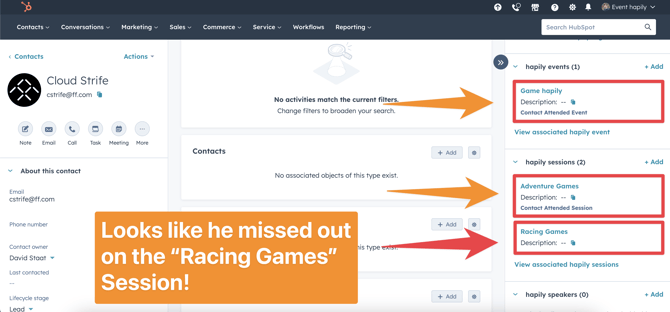
These labels will also be applied if the contact uses event·hapily’s Check-In module to let you know that he’s arrived.
Still have questions? Email us at care@hapily.com!