
With a simple HubSpot workflow, you can automatically update registrant records after an event ends—ensuring:
-
Your dynamic lists stay accurate
-
Follow-up communications target the right people
-
Event performance reporting is complete
This guide walks you through creating an automation that marks registrants as Did Not Attend if they registered but were never checked in.
Automating Event Registrant Status Updates 🎉 - Watch Video
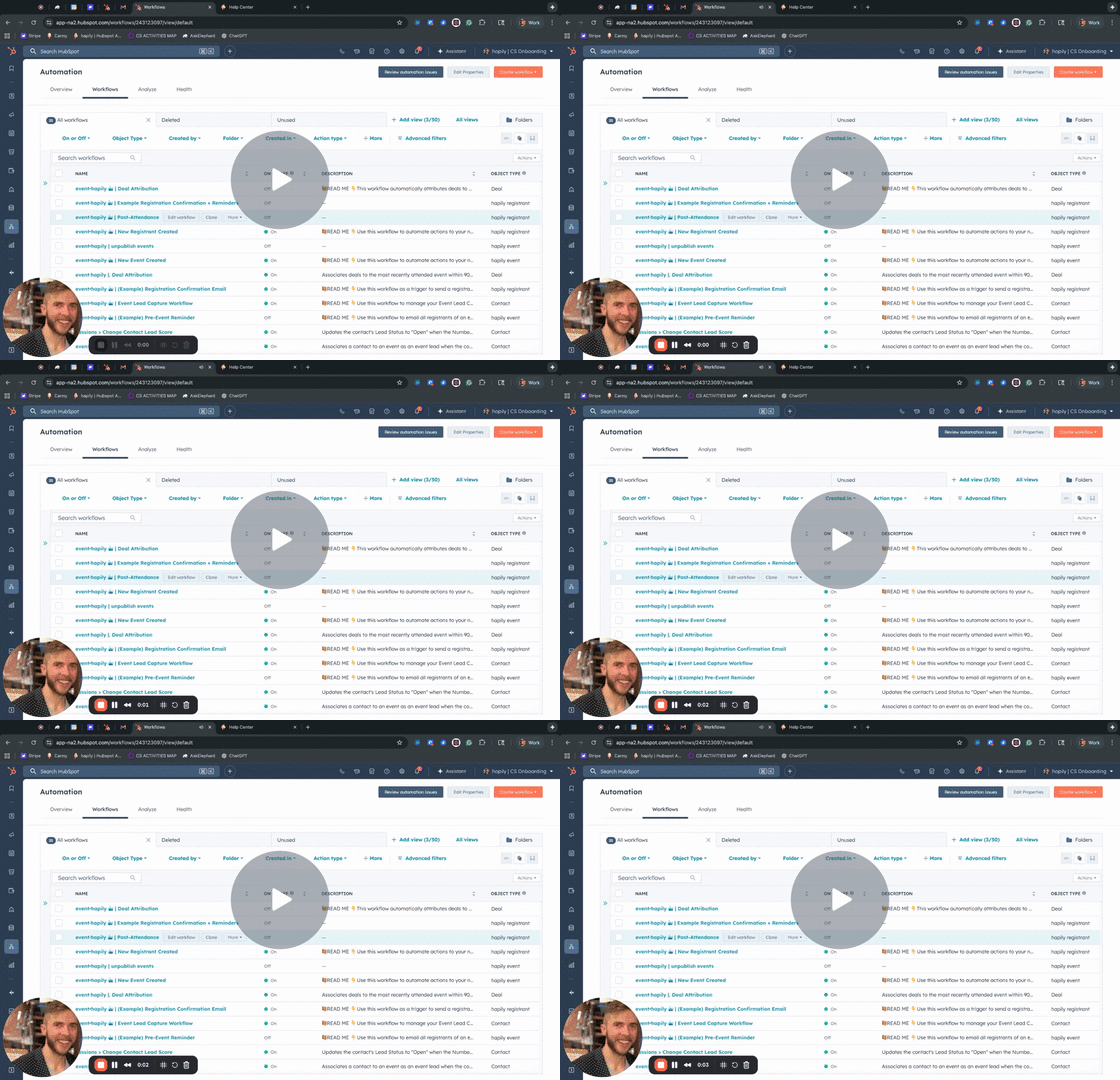
Step 1: Create a New Workflow
-
Go to Automation → Workflows in HubSpot.
-
Click Create workflow from scratch.
-
Set the workflow type to Hapily Registrant.
📸 Screenshot placeholder: Create workflow for Hapily Registrant object
Step 2: Set Enrollment Triggers
Your workflow needs to find registrants who:
-
Registered for an event
-
Were not checked in
-
The event has already ended
To set this up:
1. Add the Event End Date filter
-
Choose: Hapily Registrant → Event End Date
-
Condition: is more than 1 day ago
You may adjust this timeframe based on your event cadence.
2. Add the Registrant Status filter
-
Choose: Hapily Registrant → Registrant Status
-
Condition: is “Registered”
This ensures the workflow only enrolls attendees who signed up but were never marked as Attended.
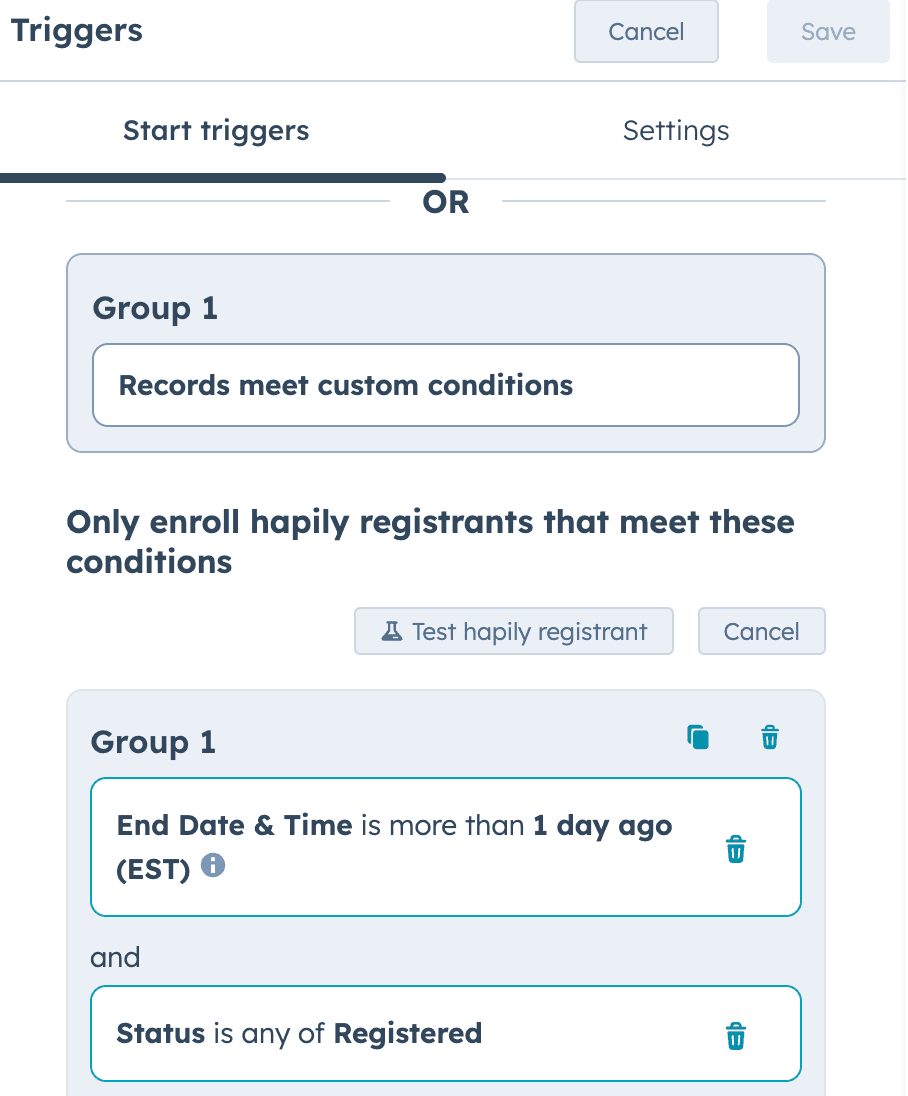
Step 3: Update Registrant Status to “Did Not Attend”
-
Click + Add Action.
-
Select Edit Record.
-
Choose the Registrant Status property.
-
Set the value to Did Not Attend.
This updates the registrant record so it can be used in reporting, lists, and follow-up.
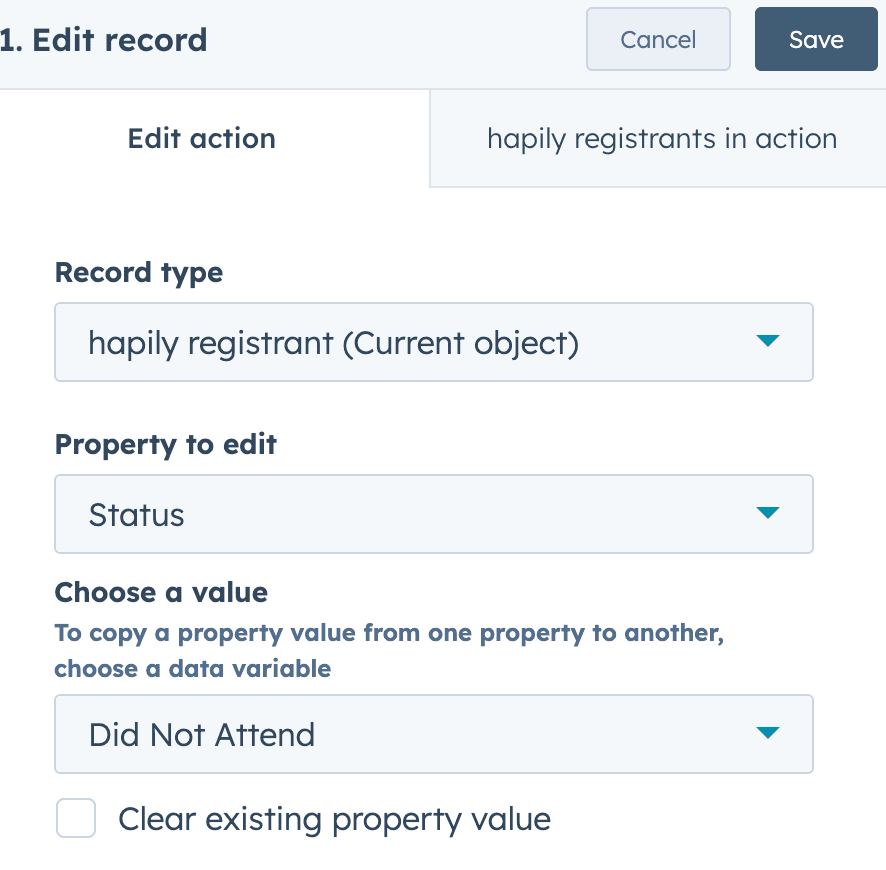
Step 4: Name and Publish the Workflow
Give your workflow a clear name, such as:
Auto-Mark Did Not Attend
Then click Publish.
Your automation will now run continuously—keeping your attendance data clean and accurate.
Summary
With the “Did Not Attend” automation, you can:
✅ Automatically identify registrants who didn’t check in
✅ Update data for more accurate event analytics
✅ Use “Did Not Attend” in lists and post-event follow-ups
✅ Reduce manual cleanup and improve reporting consistency