
We're going to show you a couple of popular reports you can build on your dashboards using Lead Capture data sent to HubSpot from hapily.
🏆 How to Create a “Leads Captured Leaderboard” Report in HubSpot
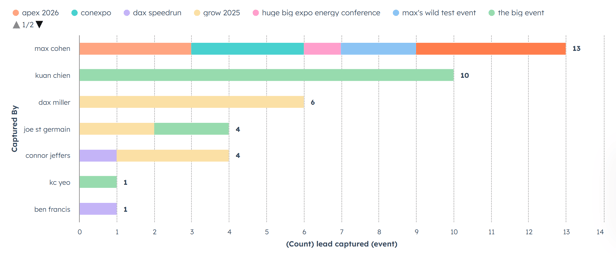
This guide shows you how to build a Leaderboard Report in HubSpot using hapily’s App Events data from the Event Lead Capture app. The report will visualize which team members captured the most leads at your events — perfect for dashboards and performance tracking.
Step 1: Open the Reporting Tool
-
In HubSpot, click Reporting on the left-hand sidebar.
-
Select Reports to open the reporting dashboard.
-
Click Create Report in the top-right corner.
-
Choose Custom Report and click Next.
Step 2: Select the Data Source
-
Select Create Report on Your Own.
-
In the data source search bar, type App Events and select it.
-
Why App Events?
hapily’s Lead Capture app sends App Event records into HubSpot whenever specific actions occur — such as registrations, check-ins, cancellations, or lead captures.
These events act as time-stamped activity logs you can report on.
-
-
Click Next to proceed.
Step 3: Choose the Correct App Event Type
-
In the left-hand panel, under App Events, open the dropdown list.
-
Change the default selection (often “Event Check-In”) to Lead Captured Event.
-
You’ll see two options:
-
Lead Captured Event (Event)
-
Lead Captured Event (Contact)
-
-
Choose Lead Captured Event (Event) — this version counts event-level lead captures.
-
(You can also use the Contact version if needed; both are valid depending on your goal.)
-
Step 4: Set Up the Chart Type
-
Change the visualization to a Horizontal Bar Chart.
-
This layout is ideal for ranking people from top to bottom.
-
-
Add Count of Lead Captures to the X-Axis.
-
This represents the total number of leads captured.
-
-
The bars will extend horizontally to show who captured the most leads.
Step 5: Group by the Person Who Captured the Lead
-
Drag the property Captured By to the Y-Axis.
-
This property identifies the user who physically captured the lead in the mobile app (not the HubSpot contact owner).
-
-
Your report should now display each user’s name and their total lead captures.
Step 6: Sort the Leaderboard
-
On the Y-Axis, hover over Captured By and click the pencil icon (✏️).
-
Under Sort By, choose Count of Lead Captures.
-
Change the order from Ascending to Descending.
-
Click Apply.
-
Now, your top performers appear at the top of the chart, and the lowest appear at the bottom.
-
Step 7: (Optional) Break Down by Event Name
-
To see where each lead was captured, drag Event Name into the Break Down By section.
-
This will display a breakdown of leads by user and by the event where they were captured.
-
Example: You can see who captured the most leads at INBOUND, Dreamforce, or any other specific event.
-
-
This view helps you identify both top performers and high-performing events.
Step 8: Customize and Save the Report
-
Once your chart looks right, you can:
-
Add it to a dashboard for ongoing visibility.
-
Share it with your team to encourage friendly competition.
-
Filter by date ranges or event types for deeper insights.
-
-
Save the report with a clear name, like:
“Lead Capture Leaderboard (App Events)”
✅ You now have a real-time leaderboard showing which team members capture the most leads across your events!
📊 How to Create a Report Breaking Down Leads by Product Interest in HubSpot
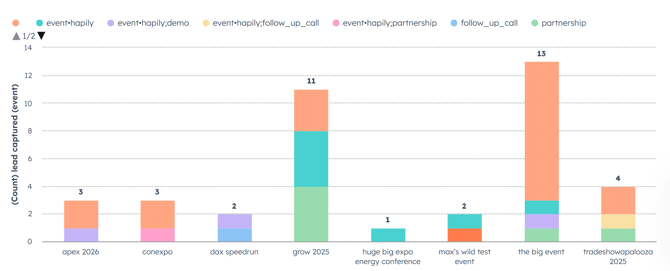
This guide walks you through creating a HubSpot report using hapily’s App Events data to visualize leads captured by product interest. Product Interest is a field in the Event Lead Capture app that identifies which products or services a lead is interested in. hapily automatically writes this data into HubSpot’s App Events, making it easy to analyze and report on.
Step 1: Open the Reporting Tool
-
In HubSpot, click Reporting on the left-hand sidebar.
-
Select Reports to open the reporting dashboard.
-
Click Create Report in the top-right corner.
-
Choose Custom Report and click Next.
Step 2: Choose the Data Source
-
Select Create Report on Your Own.
-
For the Primary Data Source, search for and select App Events.
-
Why App Events?
hapily’s Lead Capture app sends lead capture data to HubSpot as App Events.
Each App Event represents an instance of a lead being captured, so this method ensures you’re reporting on every individual capture — not just the latest values on a contact record.
-
-
Click Next.
Step 3: Choose the Correct App Event Type
-
On the left-hand side, open the App Events dropdown.
-
Select Lead Captured as the event type.
-
You can choose either Lead Captured (Event) or Lead Captured (Contact).
-
For this example, use Lead Captured (Event) for simplicity.
-
Step 4: Choose the Chart Type
-
For a clear visual breakdown, choose a Pie Chart.
-
This shows the proportion of leads by product interest.
-
-
If you encounter issues, note that Product Interest is a multi-select field in HubSpot, which can cause quirks in how data is grouped.
-
You may see combined results when multiple interests are selected.
-
Step 5: Set Up the Chart
-
Under Values, add Count of Leads Captured.
-
This will represent the total number of captured leads.
-
-
Under Break Down By, search for and drag Product Interest into that section.
-
You’ll now see your captured leads broken down by their indicated product interests — such as event hapily, quote hapily, or Partnerships.
Step 6: Understanding Multi-Select Reporting
Because Product Interest is a multi-select field:
-
Contacts with multiple interests may appear in more than one category.
-
HubSpot sometimes counts these in combined values, depending on the data structure.
-
If you want cleaner reporting:
-
Encourage users to select only one product interest per lead, or
-
Use a workflow that copies values into a single “primary interest” field for reporting.
-
Step 7: Alternative Visualization — Leads by Event and Product Interest
If you’d like to compare product interests across different events:
-
Switch to a Vertical Bar Chart.
-
Replace the X-Axis with Event Name.
-
This shows how many leads were captured per event.
-
-
Drag Product Interest into the Break Down By section.
-
Now, each bar will show a breakdown of product interests for that specific event.
-
-
This visualization helps you understand which events generated the most leads and which products were most popular at each event.
Step 8: Save and Share the Report
-
Name your report something like:
“Leads by Product Interest (App Events)” -
Add it to your HubSpot Dashboard to track trends over time.
-
Share it with your team to help focus marketing and sales efforts around the products that attract the most leads.
✅ You now have a report showing how many leads were captured for each product interest using hapily’s App Events data!