
Setting up the Payments tab in hapily ensures that the revenue generated from your paid event registrations is securely and automatically deposited directly into your organization's bank account.
This approach allows you to:
-
Connect your organization's financial infrastructure to hapily.
-
Securely authenticate your company's bank account.
-
Customize how charges and receipts appear to your registrants.
-
Receive automated, daily deposits of registration type revenue.
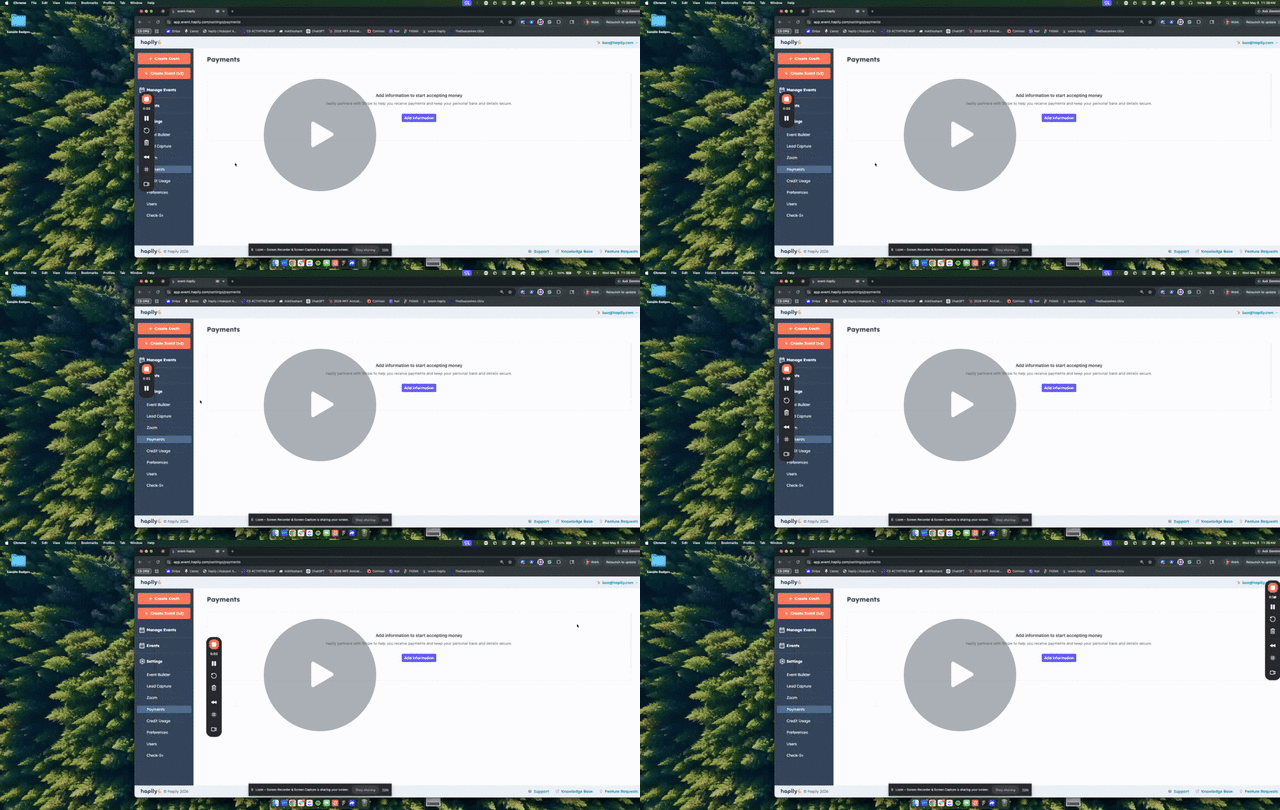
🎥 Video Walkthrough:
hapily Payments Setup - Watch Video
What you'll need:
- Your organization's legal structure details
- Your company's EIN (if applicable)
- Banking information including Account and Routing numbers OR the login information for your major bank's portal
Who should complete this:
Because this process requires sensitive financial details and identity verification, you will also want to loop in a member of your executive or finance team and have a mobile device ready for two-factor authentication.
Step 1: Access the Payments Tab
-
Navigate to the hapily admin section.
-
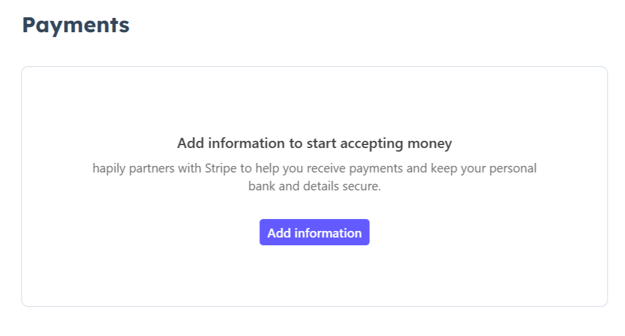
Click on the Payments tab.
💡 Tip: Because this process requires sensitive organizational structure data and financial information, we highly recommend involving a member of your executive team or finance department (such as a CFO or CRO) to complete these steps.
Step 2: Set Up Account Verification & Two-Factor Authentication
-
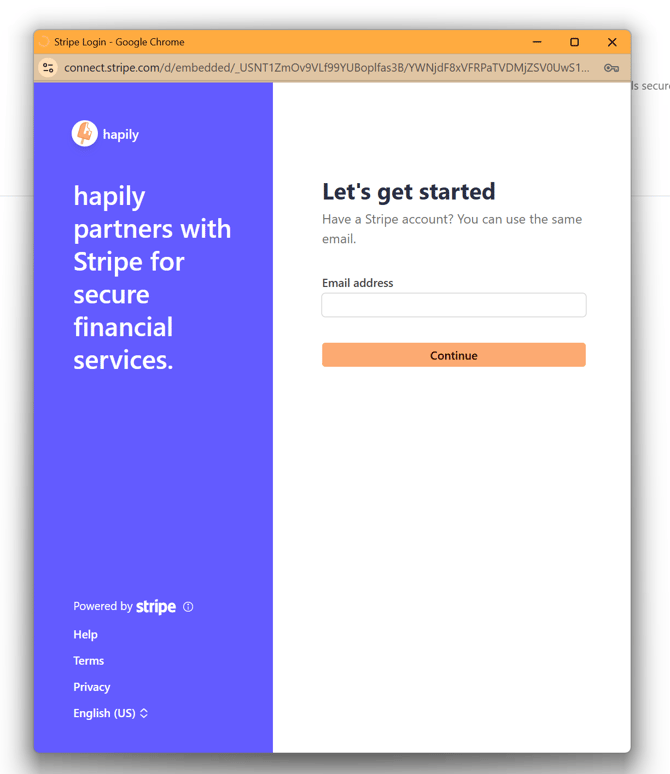
Click the button to add your information, which will open a secure pop-out window powered by Stripe.
-
Enter the Email Address for the primary user managing the account.
-
Provide a Mobile Number. A text message containing a verification code will be sent to this number to establish two-factor authentication.
-
Enter the verification code on the screen to proceed.
Step 3: Select Your Organizational Structure
-
Select your company's official legal structure from the available options (e.g., LLC, Corporation, 501c3/Tax-Exempt, or Sole Proprietorship).
-
Enter your EIN (Employer Identification Number) if applicable.
-
Click Continue.
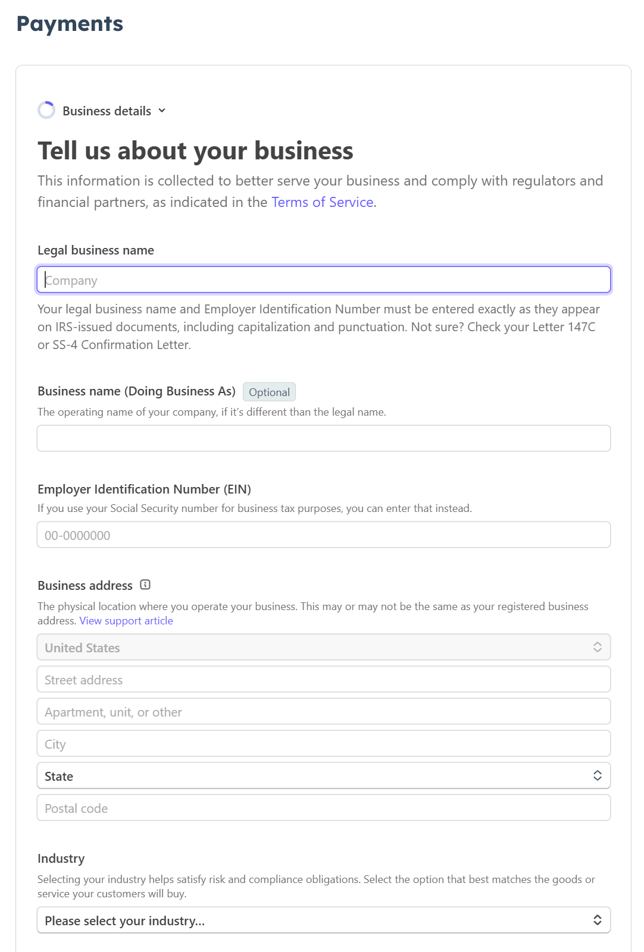
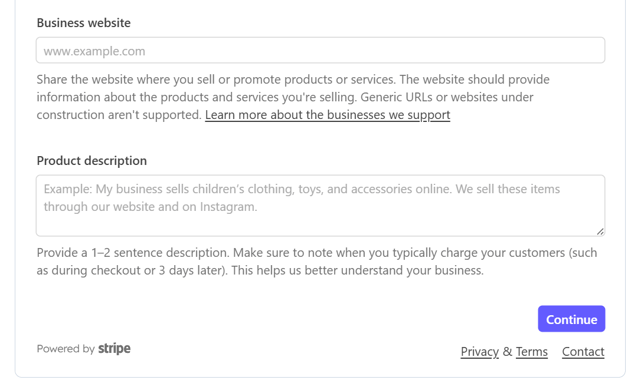
Note: The onboarding screens and requested information will vary slightly based on the company structure you select.
Step 4: Verify Individual Representative Details
-
Provide the required personal information for the individual affiliated with and representing your organization.
-
Fill out all requested identity verification fields based on your previously selected company structure.
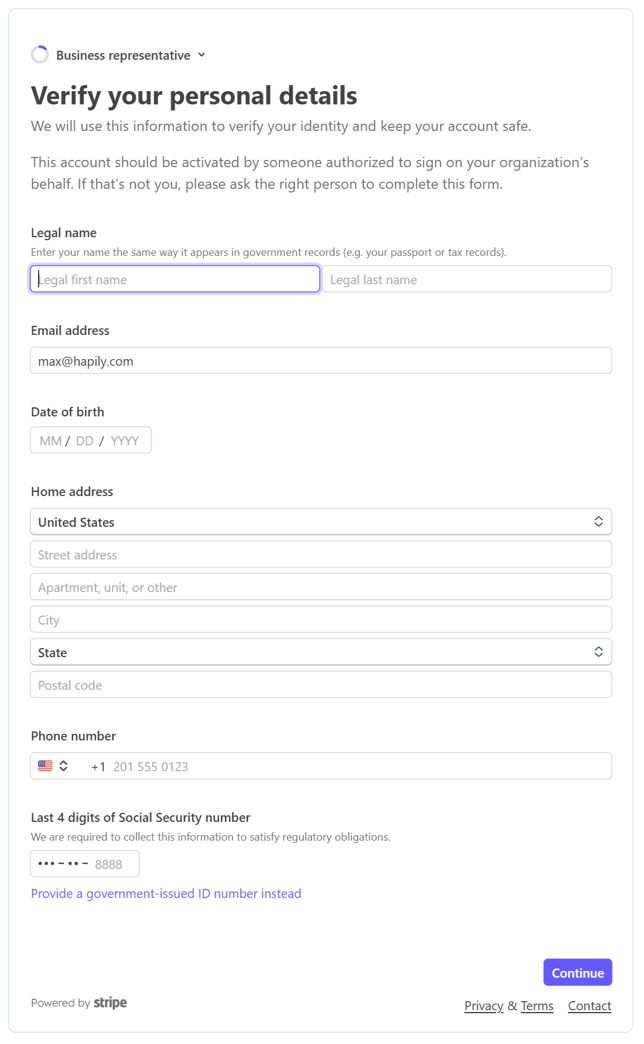
Step 5: Link Your Bank Account
You can connect your bank account using one of two methods:
-
Instant Verification: If you use a major financial institution, select your bank from the list and log in using your online banking credentials to instantly authenticate the account.
-
Manual Entry: If your bank is not listed, select the manual option and enter your Routing Number and Account Number (twice for confirmation).
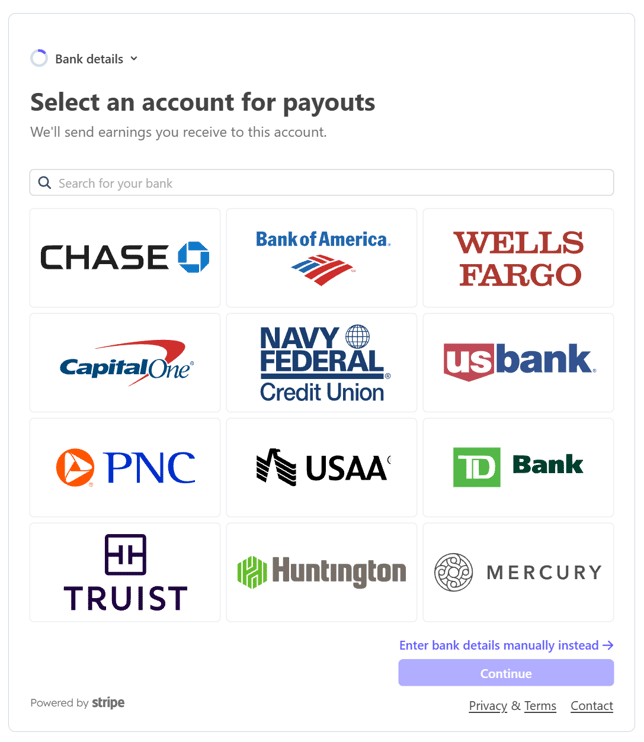
You can also add your bank details manually: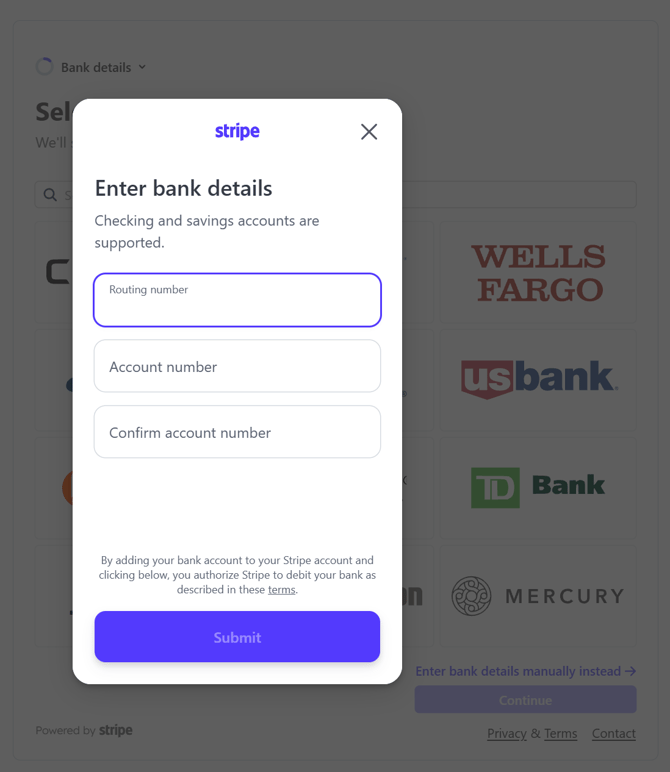
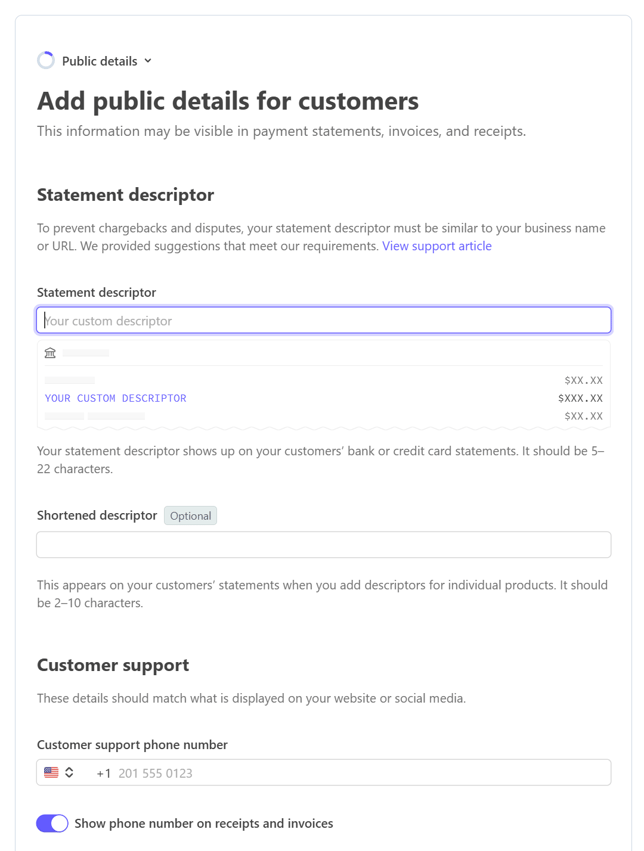
Step 6: Customize Statement Descriptor and Customer Support Details
-
Enter a Statement Descriptor (e.g., your business name or website). This is the text that will appear on your customers' bank statements for their registration type charges.
-
Add a Shortened Descriptor that will appear on receipts.
-
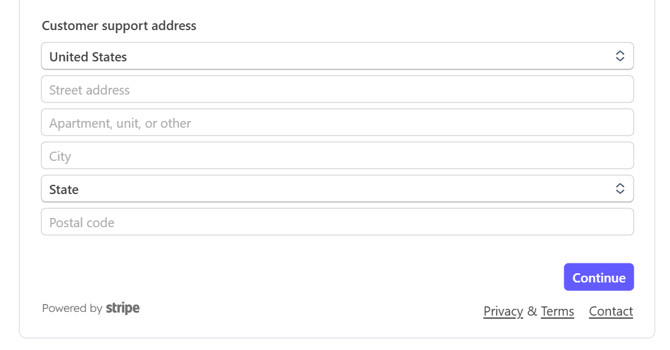
Provide a Customer Support Phone Number and optional Contact Address so registrants know how to reach you with questions.
Step 7: Review and Submit
-
Review all the organizational, individual, and banking information you have entered.
-
Click Agree and Submit to complete the verification process.
Once approved, your bank account is officially linked to hapily, and your registration type revenue will begin depositing automatically on a daily schedule.
FAQs
- What fees are charged for paid event registration? hapily adds a 1% fee to Stripe's fees. On average, this comes to 4%, but this fee may vary based on the payment method and country. To read more about Stripe's fees, check out this resource
- Are fees charged for offline payment methods? No!
- What payment methods are supported through hapily? Credit Cards and wallets such as Apple Pay, PayPal, Google Wallet, etc.
Summary
✅ Connected your organization's financial profile to hapily.
✅ Completed secure two-factor authentication and identity verification.
✅ Configured your bank account using instant login or manual routing details.
✅ Customized registration type statement descriptors for your customers.
✅ Enabled automated, daily revenue deposits directly into your bank account.