
Managing complex events with multiple tracks, keynotes, and breakout sessions requires a flexible agenda and registration setup. Using hapily, you can build full multi-day agendas, enforce capacity limits, and tailor session selection based on the attendee's specific registration type.
This approach allows you to:
- Build out a visual multi-day calendar with keynotes, breakout sessions, and networking blocks.
- Auto-register attendees for mandatory or shared sessions (e.g., breakfasts, general sessions, lunches).
- Restrict specific session tracks or breakout options to designated registration types.
- Enforce selection rules (such as requiring attendees to pick at least one session in a time slot) with dynamic capacity adjustments.
- Provide attendees with a self-service portal to review their personalized agenda and update their sessions post-registration.
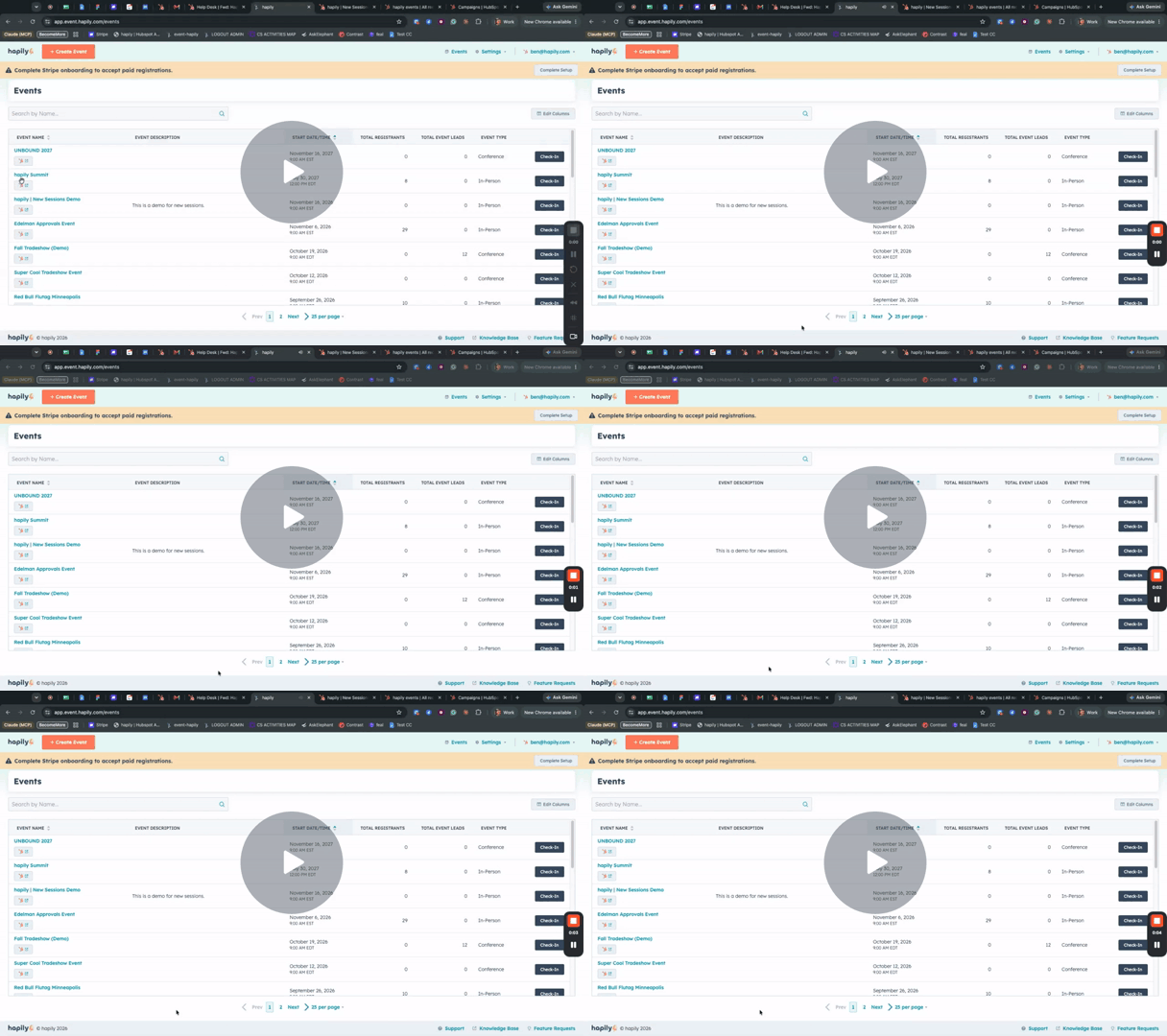
How to | Create a Multi-Session Event (v2) - Watch Video
Step 1: Access the Sessions Workspace
- Log in to hapily and select your event (ensure you have already created the base event record).
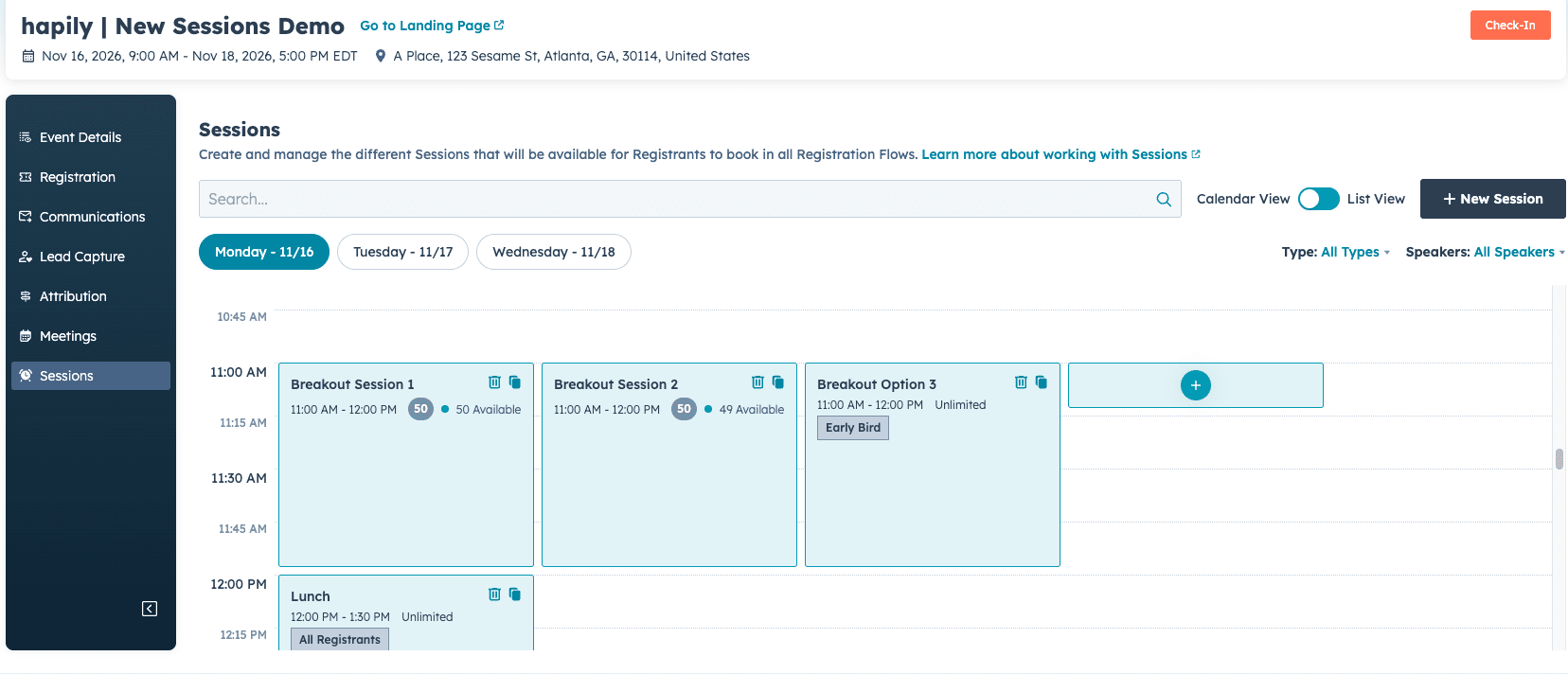
- Click the Sessions tab from the main event navigation.
- Choose your preferred display layout: Calendar view or List view. If your event spans multiple days, start with Day 1 on the timeline.
Step 2: Create and Configure Event Sessions
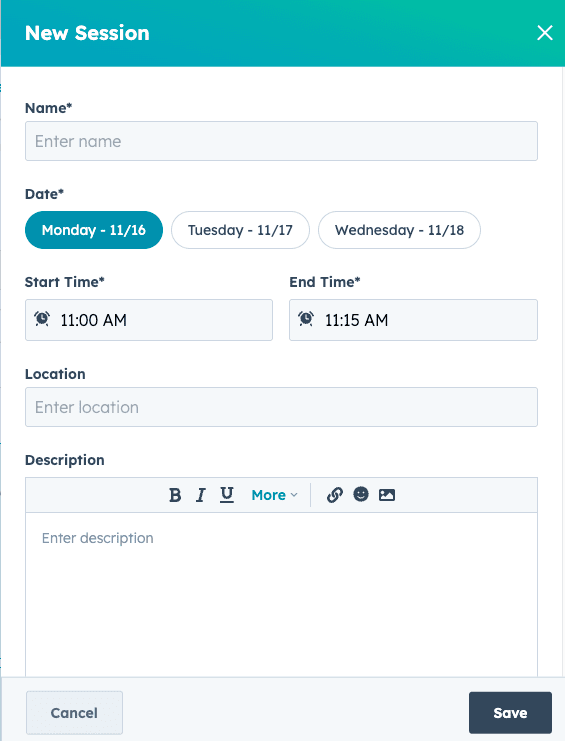
- Click and drag the desired time block directly onto your calendar grid to create a new session.
- In the session configuration panel, define the following fields:
- Session Name: Enter a clear, descriptive title (e.g., Welcome Breakfast or Breakout Session 1: Option A).
- Speaker: Select or enter the designated speaker name and title (e.g., Connor Jeffers, CEO of hapily).
- Description: Add contextual details, bios, or room information in the rich text area.
- Capacity Limit: Enter a maximum attendee limit if the room or session is capped. Leave blank if capacity is unrestricted.
- Configure registration assignment rules:
- Auto-register registrants: Enable this option for all-hands items like general breakfasts or lunch holds so every registrant is automatically enrolled.
- Registration Type Scope: Restrict session access or auto-registration to specific registration types (e.g., an exclusive VIP breakfast or a pre-assigned session for an early bird registration type).
- Repeat this process for all concurrent breakout slots, panels, and schedule blocks across each day of your event.
Step 3: Add Sessions to Your Registration Flow
- Click on the Registration tab within your event and navigate to Registration Flows.
- Select the registration flow you want to configure (such as your default flow).
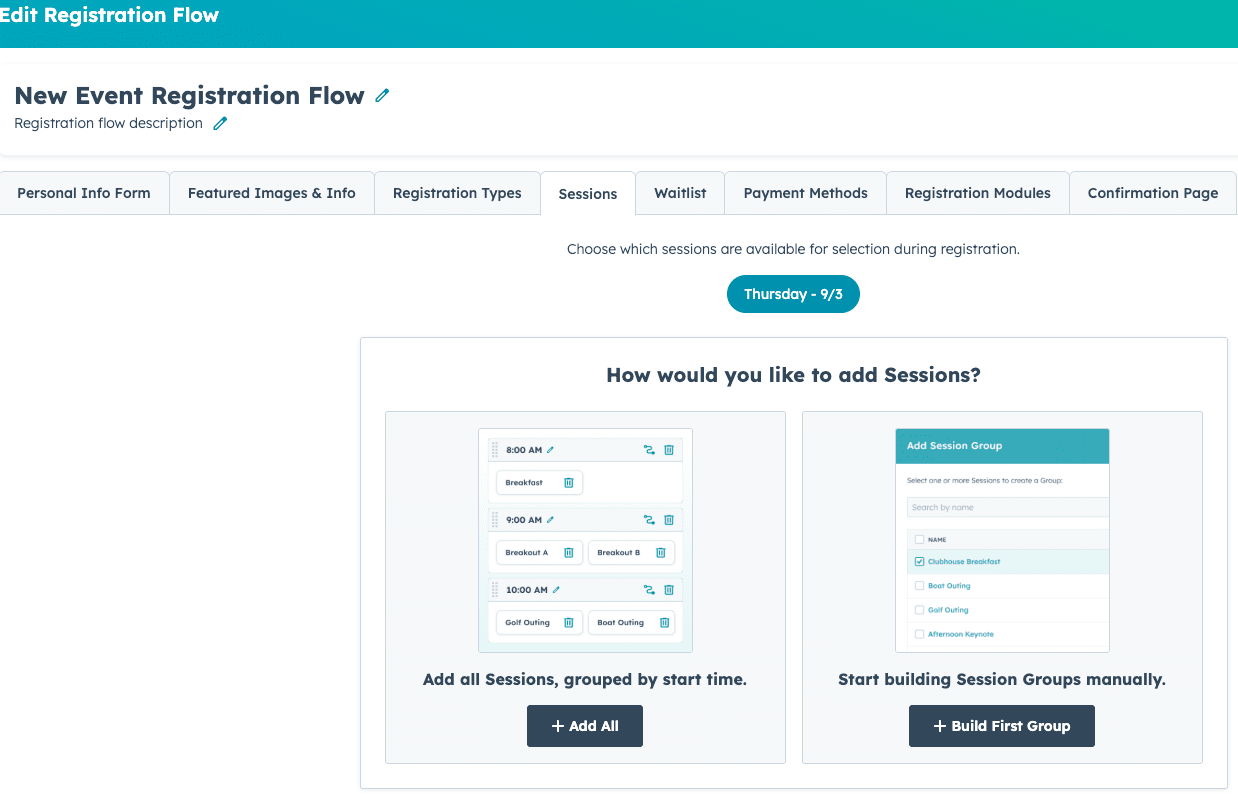
- Select the Sessions step in the flow builder.
- Choose how to populate your sessions:
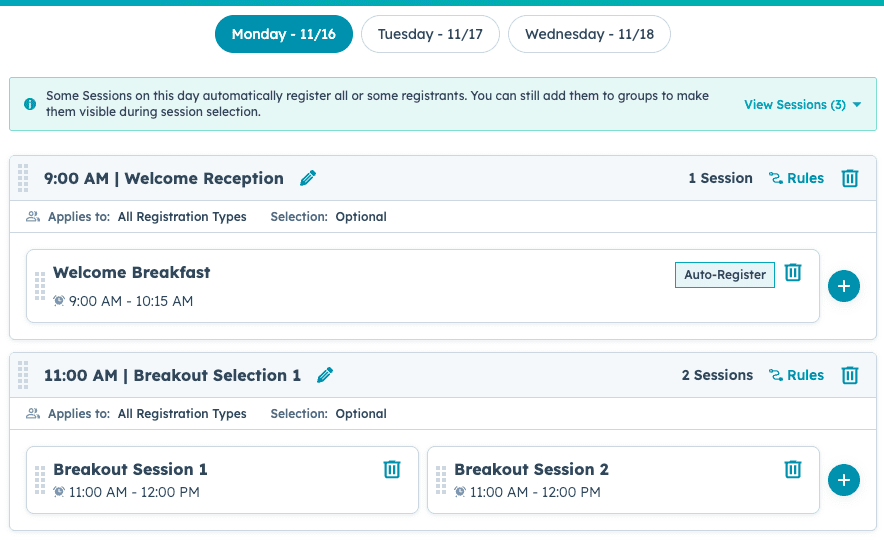
- Click Add all sessions grouped by start time to automatically import all existing sessions into organized time blocks.
- Alternatively, add individual custom session groupings manually.
Step 4: Configure Grouping, Selection Rules, and Visibility
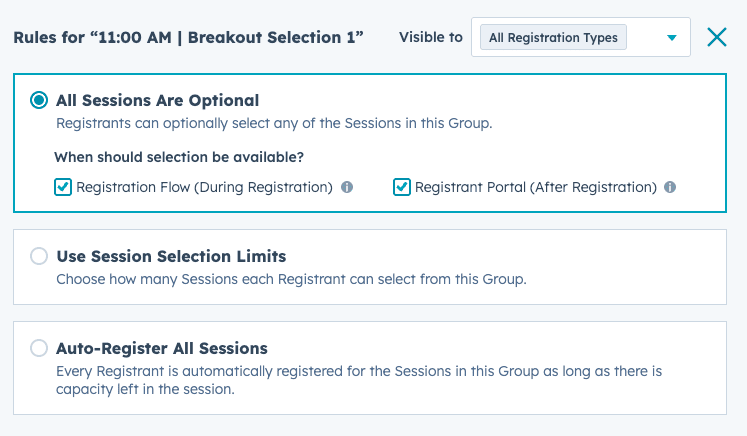
- Click on an individual session grouping to customize its settings:
- Group Name: Label the block clearly for registrants (e.g., 11:00 AM Breakout Selection 1 or 2:00 PM Breakout Selection 2).
- Selection Limits: Define whether all sessions are optional or if registrants must select a required number of sessions (e.g., require at least one session).
- Dynamic Capacity Protection: If sessions within a required group reach maximum capacity, hapily automatically lowers the minimum requirement so registrants can complete their registration without getting blocked.
- Set selection timing:
- Specify whether selections must be made during initial registration checkout or if registrants are allowed to select and modify their choices later.
- Set audience visibility:
- Configure the group to be visible to all attendees or restrict visibility strictly to specific registration types.
- (Optional) Add non-selectable or auto-registered agenda items (such as lunch or welcome receptions) into the flow display so registrants can view their full day-of agenda while registering.
Step 5: Save, Publish, and Test the Registrant Experience
- Click Save and Publish to make your registration flow live.
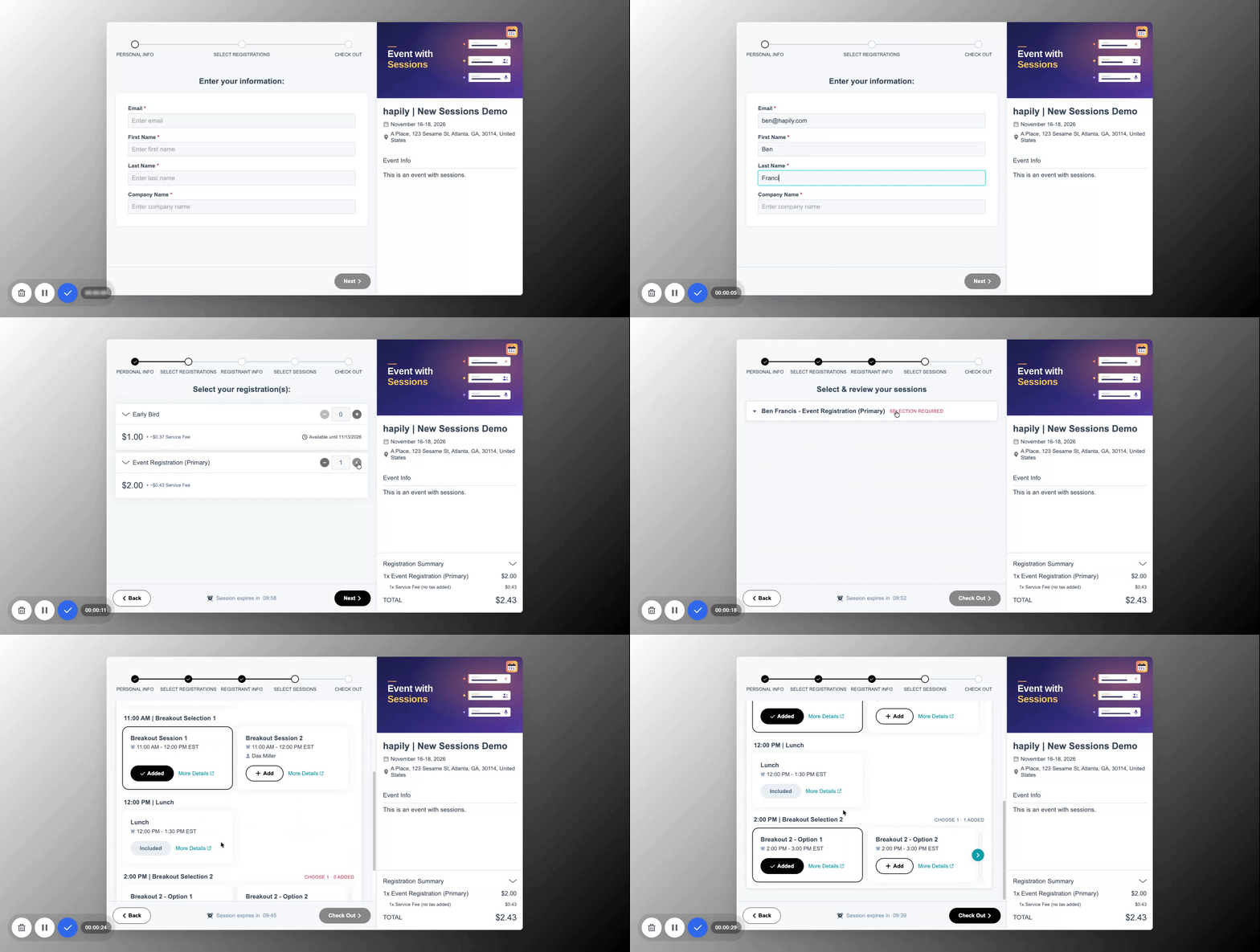
- Open the published flow URL in a new window to verify the user experience:
- Select a registration type (e.g., early bird registration type).
- Verify that auto-registered sessions appear as included and that required breakout options prompt for a choice.
- Complete checkout (entering promo codes or choosing offline payment if enabled).
- Check the confirmation email and open the registration type holder portal link to verify that the attendee's personalized, chronological agenda displays accurately and allows session updates if permitted.
Summary
✅ Built multi-session, multi-day agendas directly inside the hapily calendar view.
✅ Configured session-level auto-registration, speakers, descriptions, and capacity limits.
✅ Scoped session access and pre-registration rules to specific registration types.
✅ Grouped sessions within registration flows and established required selection rules.
✅ Enabled dynamic capacity handling to prevent checkout roadblocks when sessions sell out.
✅ Verified the attendee registration checkout flow and post-registration self-service portal.
Frequently Asked Questions & Notes:
- Sessions will only be managed within hapily. Changes made to a HubSpot record for a hapily Session will not be synchronized back to the session in hapily.
- Legacy Customers: Use of a HubSpot registration form module to show associated sessions on an event record in HubSpot will not be negatively impacted, however, no future changes will be implemented to that method of managing sessions.