
The Registration Holder Portal provides a centralized location for attendees to manage their information and registrations after signing up for an event through a hapily registration flow. This self-service tool reduces administrative overhead by allowing registrants to handle their own updates and transfers.
Using the Registration Holder Portal allows users to:
-
View all active registrations for one or multiple events.
-
Update personal information and custom registration questions.
-
Transfer registrations to other individuals.
-
Resend confirmation emails and add events to digital calendars.
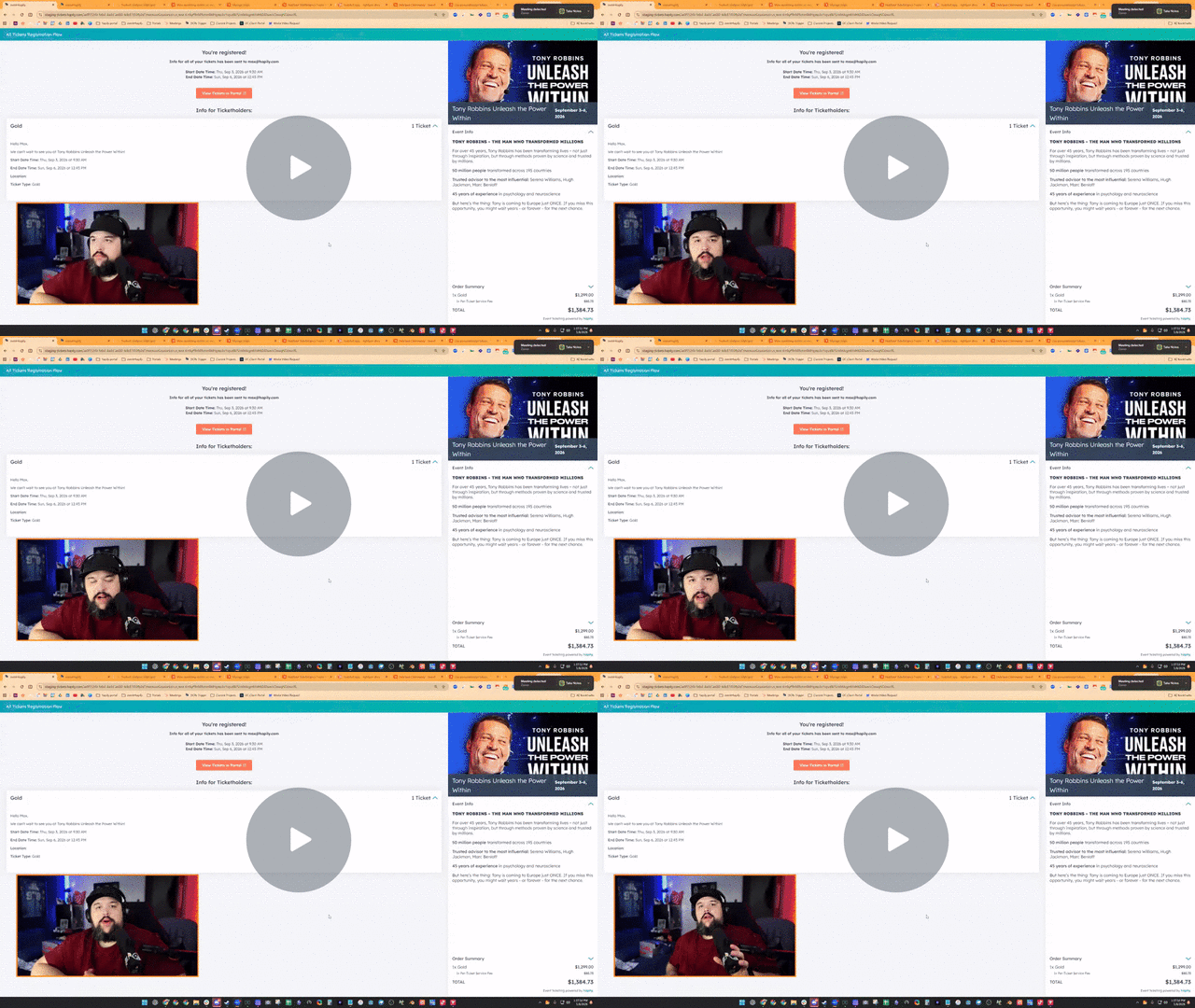
🎥 Video Walkthrough:
hapily Ticketholder Portal Overview - Watch Video
Step 1: Accessing the Portal
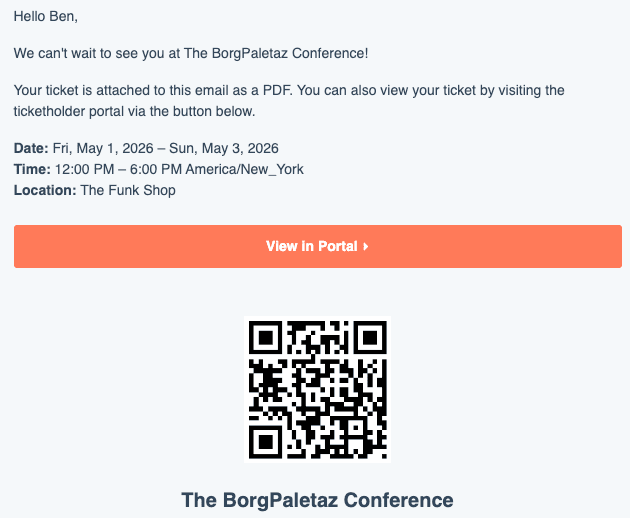
Registrants can access the portal immediately after completing their registration flow.
-
On the registration confirmation page, click the View Registrations in Portal link.
-
Alternatively, click the portal link included in the automated confirmation email sent after registration.
Step 2: Navigating the Dashboard
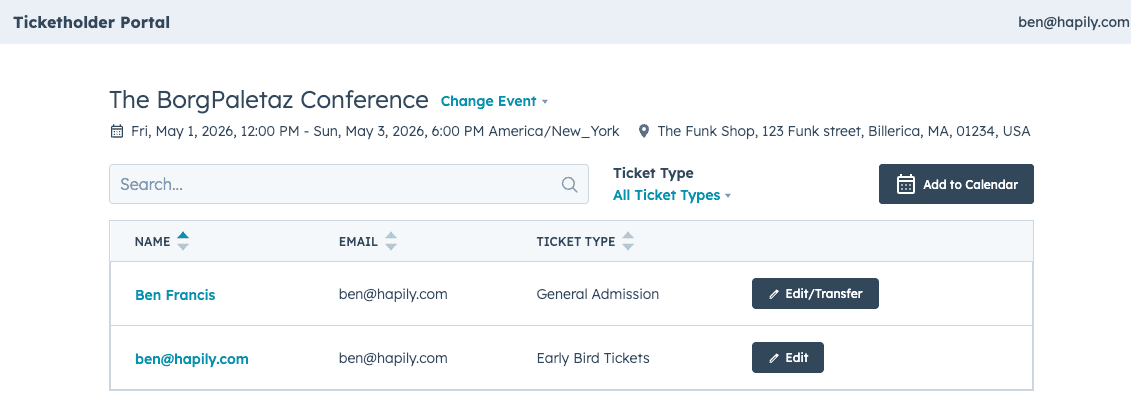
The portal dashboard displays a high-level view of the registrant's activity.
-
Switch Events: Use the event selector to toggle between different events you have registered for.
-
Review Details: View event logistics, such as the date, time, and location.
-
Filter and Search: Locate specific registrations by searching for names or filtering by registration type.
Step 3: Managing Registration Details
Users can ensure their information is accurate and integrated with their personal schedules.
-
Add to Calendar: Click Add to Calendar to export the event to Google, Apple, Outlook, or download an ICS file.
-
Edit Information: Click Edit on a registration to update fields like name, email, or custom questions (e.g., meal preferences or t-shirt sizes).
-
Resend Email: If a confirmation was lost, click Resend Email to trigger a new registration summary
Step 4: Transferring a Registration Type
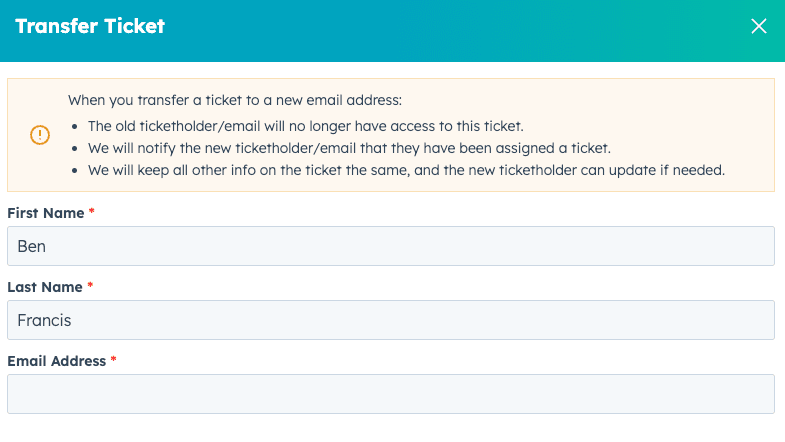
If the event organizer has enabled transfers, registrants can reassign their spot to another person.
-
Select the specific registration you wish to move and click Transfer.
-
Enter the New Registrant's Name and Email Address.
-
Click Complete Transfer.
-
The system will automatically update the record in hapily and send a notification email to the new attendee.
Summary
The Registration Holder Portal empowers attendees to take control of their event experience.
- ✅ Self-Service Updates: Attendees can fix typos or update preferences without contacting support.
-
✅ Flexible Transfers: Easily reassign guest registrations or transfer a spot if an attendee can no longer make it.
-
✅ Centralized View: See all registrations for various events in one unified interface.