
Automatically Setting Payment Terms with Quote Rules in quote•hapily
1. What are Quote Rules?
Quote Rules in quote•hapily allow you to automatically set certain fields, text, or terms on a quote based on conditions you define.
Instead of manually adding payment terms each time, you can let quote•hapily detect deal properties (from HubSpot or quote details) and insert the correct terms for you.
ie. If quote amount is over $10,000 we set these terms from the library or If Customer Type is Reseller we set specific terms for these customer types.
2. Why use Quote Rules for Payment Terms?
Use Case:
Your company offers different payment terms for monthly vs. annual customers. Without automation, sales reps must remember and manually add the right text — which can lead to mistakes or inconsistencies.
With Quote Rules, you can set a condition like “If the Payment Terms property in the deal is Annual” → “Insert Payment Terms Annual” into the quote automatically.
3. How to create a Payment Terms rule
Step 1 — Go to Quote Rules
From the left menu, click Rules → Quote Rules.
Then click Create Quote Rule
Step 2 — Name your rule
Give it a clear name, like Payment Terms Annual.
Step 3 — Set the conditions
In the Conditions section:
-
Choose the object (e.g., Deals).
-
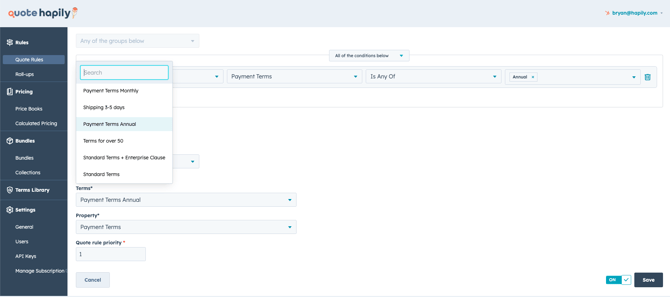
Select the property (Payment Terms).
-
Set the operator (Is Any Of).
-
Enter the value (Annual).
(Screenshot: Condition set for Deals → Payment Terms → Is Any Of → Annual)

Step 4 — Define the outcome
-
In Outcome, choose Insert Template Terms.
-
In Terms, select the saved term from your Terms Library (e.g., Payment Terms Annual).
-
In Property, choose Payment Terms (this tells quote•hapily where to insert the text).
-
Set a Quote Rule Priority if you have multiple rules that could apply.

Step 5 — Save and activate
Toggle the rule ON, then click Save.
How it works in action
-
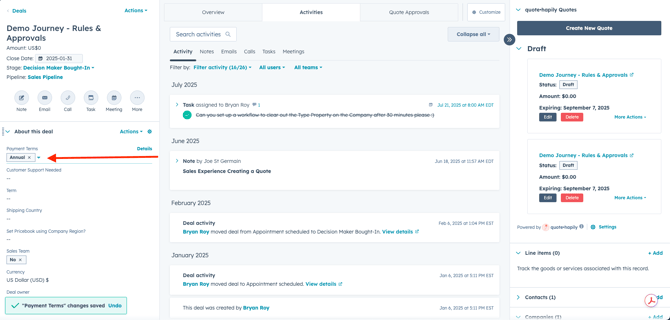
In HubSpot, set the deal’s Payment Terms property to Annual.
(Screenshot: Deal record in HubSpot with Payment Terms = Annual) -
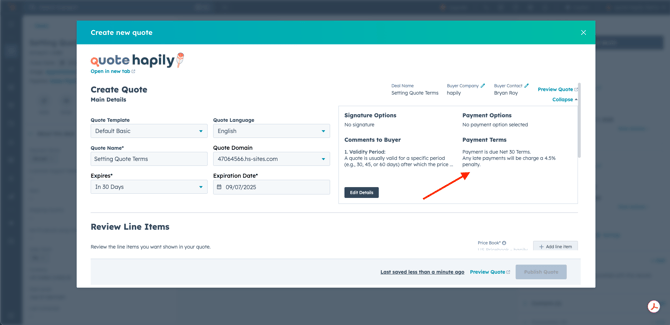
When you create a new quote for that deal, quote•hapily will automatically insert the correct payment terms into the Payment Terms section.
(Screenshot: Quote preview with Payment Terms populated automatically) -
At this point these terms will be locked and not editable by the sales rep
Now Let's do an example to set Comments to the Buyer
Automatically Adding “Comments to Buyer” with Quote Rules in quote•hapily
1. What are Comments to Buyer Rules?
In quote•hapily, Comments to Buyer is a section in your quotes where you can add helpful notes, disclaimers, or clauses your customers should see before accepting the quote.
By creating a Quote Rule, you can automatically insert these comments when certain conditions are met — saving time and ensuring important information is never missed.
2. Why automate Comments to Buyer?
Use Case:
Your enterprise customers require additional legal clauses (like Intellectual Property, Governing Law, or Enterprise-specific agreements) in every quote. Rather than relying on sales reps to remember to add them, you can set a rule so that whenever the quote contains an Enterprise product, the correct text appears automatically.
3. How to create a Comments to Buyer rule
Step 1 — Open Quote Rules
From the left-hand menu, go to Rules → Quote Rules.
Click Create Quote Rule (or edit an existing one).
Step 2 — Name your rule
Give it a descriptive title, like Enterprise Terms.
(Screenshot: Rule Name set to “Enterprise Terms”)
Step 3 — Set the conditions
In the Conditions section (eg. if any products are Enterprise, we want to include certain terms)
-
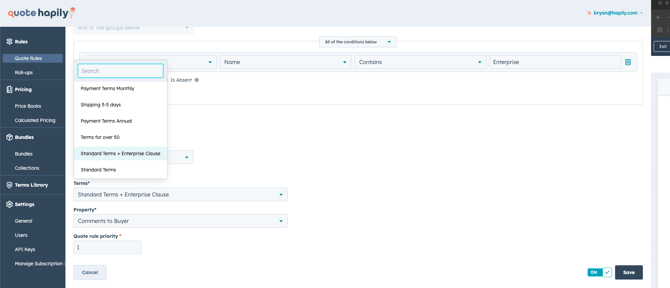
Choose Line Items as the object.
-
Select the property Name.
-
Use the operator Contains.
-
Enter the keyword (e.g., Enterprise).
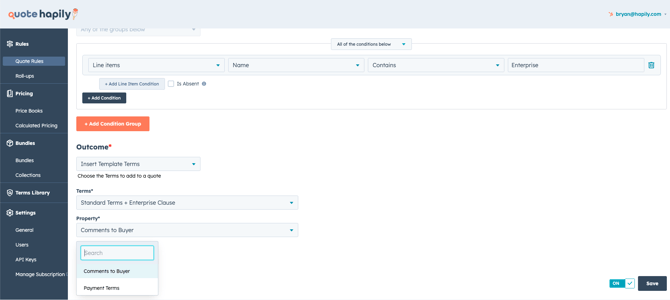
(Screenshot: Condition set for Line items → Name → Contains → Enterprise)

Step 4 — Define the outcome
-
For Outcome, choose Insert Template Terms.
-
In Terms, select the saved term from your Terms Library (e.g., Standard Terms + Enterprise Clause).
-
In Property, select Comments to Buyer — this ensures the text appears in the correct section of the quote.
-
Set a Quote Rule Priority if you have multiple rules that might apply.
(Screenshot: Outcome with Term selected and Property set to Comments to Buyer)
Step 5 — Save and activate the rule
Toggle the rule ON, then click Save.
How it works in action
-
A sales rep creates a quote that includes an Enterprise product.
-
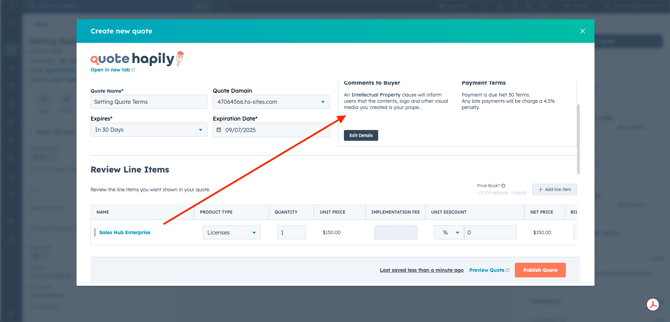
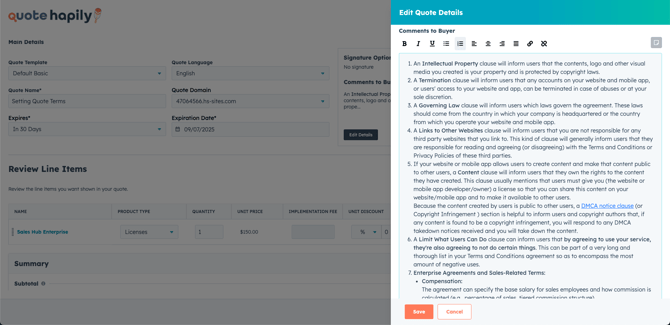
The rule automatically inserts your pre-written Enterprise Terms into the Comments to Buyer section.
-
The comments appear in the quote preview and can still be edited for that specific quote if needed.
(Screenshots: Quote preview showing Enterprise clauses in Comments to Buyer, and expanded editor view)
Tips & Best Practices
-
Keep term templates updated – Changes in your Terms Library instantly apply to all future quotes using that term.
-
Use descriptive rule names – This helps quickly identify rules when you have many.
-
Set rule priority thoughtfully – Lower numbers run first; use this to control which rule wins when multiple match.
-
Test your rule – Create a test deal in HubSpot to confirm the right terms populate.