
What is a block rule?
Block Rules in quote•hapily prevent a quote from being submitted if it doesn’t follow specific business rules—like making sure that certain products are only sold when paired with others.
Why use it?
This feature is perfect for enforcing required products. For example: If a customer selects the Enterprise product, they must also include an Implementation Fee.
Using a Block Rule ensures your reps never forget to include the required service, keeping quotes accurate and consistent.
Use Case: Software Requires an Implementation Fee
Let’s say your company sells an Enterprise Software Package that always requires a one-time Implementation Fee. If someone tries to quote the software without the implementation, the system should stop them.
With quote•hapily, you can set up a Block Rule that looks for:
-
The product Enterprise is included on the quote
-
The product Implementation Fee is not included
If both are true—block the quote.
How to Set It Up in quote•hapily
1. Go to Rules > Quote Rules
From the left-hand menu, click Quote Rules under the Rules section.
2. Click New Rule or edit an existing one
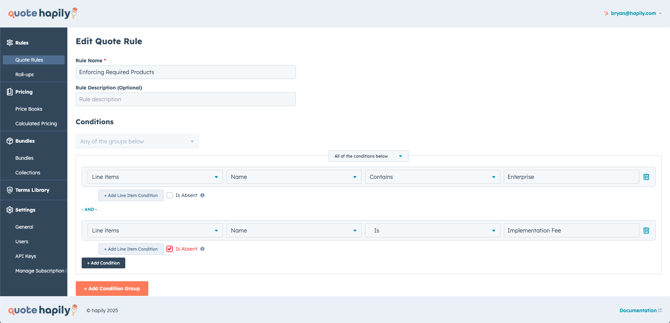
You’ll be brought to the “Edit Quote Rule” screen.
Example setup:
-
Rule Name:
Enforcing Required Products -
Condition 1: Line Item Name contains "Enterprise"
-
Condition 2: Line Item Name is "Implementation Fee" → Check Is Absent (this looks at the quote to make sure that line item is there or not)
Together, these conditions say:
If a quote has Enterprise but doesn't include Implementation Fee → block the quote.
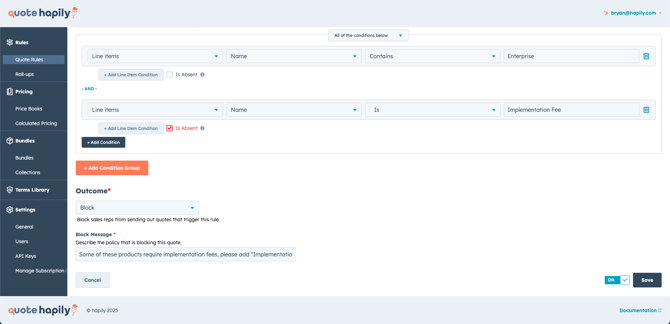
3. Set the Outcome to Block
Scroll to the Outcome section.
-
Outcome: Block
-
Block Message: Feel free to write whatever custom message you want in here to convey to the sales rep why they're being blocked.
This message will appear when someone tries to publish a quote that doesn't include the required product.
4. Save the Rule and Test It
What the Sales Rep Sees
When trying to publish a quote with just the Enterprise product:
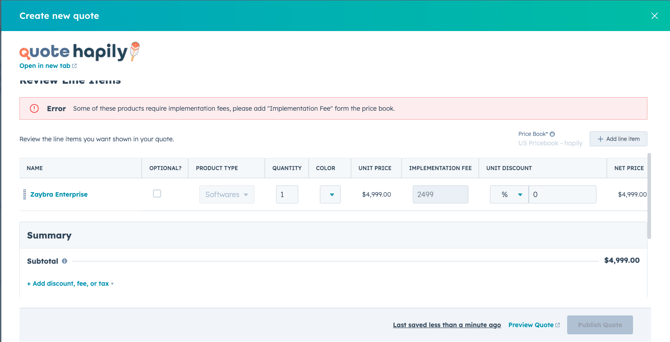
They’ll see a clear error message and won’t be able to submit the quote until they add the missing Implementation Fee.
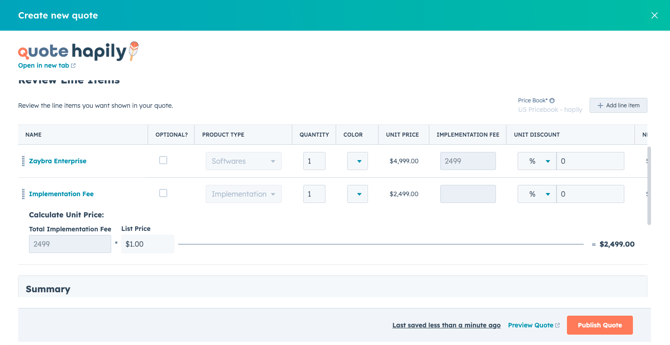
Once they add the fee, they can proceed:
Tips & Best Practices
-
Use “Contains” carefully: It’s great for partial matches like “Enterprise,” but if you have similar product names, consider using “Is” for exact matches.
-
Make your error message helpful: Tell the user exactly what’s missing.
-
Test different bundles: Make sure your Block Rules don’t overlap or contradict other rules.
-
Use "Notify" Rules for warnings, and "Block" Rules when submission must be stopped.