
The Prompt User outcome is the key. Based on whatever Quote Rule conditions you want to set up, you can create a flow where users answer questions before (or during) quote creation in order to streamline line item creation.
Here's how to set it up:
1. Create Deal Properties
Prompt User will require that specific properties are filled out when rule criteria are met. To start, create properties on the Deal for each question you want your reps to answer.
2. Navigate to Quote Rules
-
Sign in to the quote•hapily Admin.
-
Click “Quote Rules”.
3. Create a New Rule
-
Click “Create Quote Rule”.
-
Give it a name (e.g., "Quote Questionnaire").
4. Set the Triggering Conditions
These determine when the rep should be prompted complete the questions. Like any quote rule, you can specify any number of conditions, using any data related to the quote.
Quick Tips:
- If you want to always start with the questionnaire you can run a blanket rule. (e.g. "If Deal Name is Known...")
- If you plan on initiating other automation actions after the user answers the questions, it's a good idea to make sure the conditions for your Prompt User rule also include "[prompt user field] is unknown".
5. Set the Outcome to “Prompt User”
-
Scroll to the Outcome section.
-
Set the dropdown to Prompt User.
This means that when the conditions are met, the rep will be blocked from publishing the quote until they answer the questions you've specified.
6. Select the properties you want the user to answer
In the “Properties Requiring Input” section, choose the Deal properties that represent the questions you want to ask:
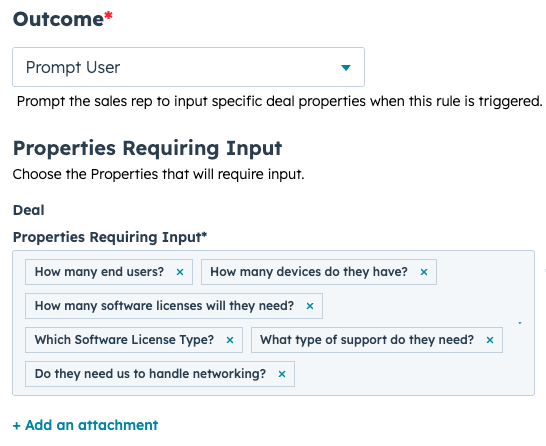
You can specify as many questions as you'd like.
6. Save the Rule and Turn It On
-
Click Save.
-
Make sure the rule is switched ON using the toggle (bottom right hand corner)
7. Now Generate a quote and test your rule
When the rule conditions have been met inside HubSpot or the quote builder your sales reps should be prompted with the following prompt.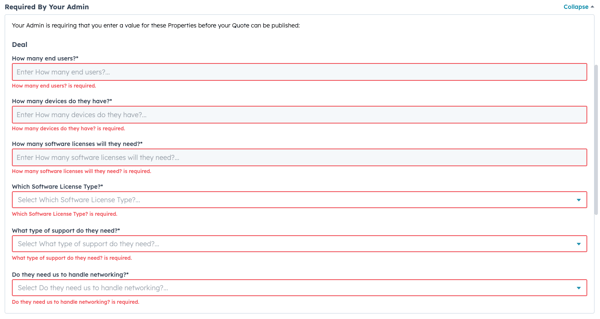
They cannot publish the quote until the properties are all completed.