
The Event Details card provides a single place to manage your event’s key information — including start and end times, dates, time zone, and location — while keeping everything in sync across your hapily event and registrant records.
When you save changes, event•hapily automatically formats your date and time values into text-based Display fields and ensures your data stays consistent everywhere it’s used — from emails to webpages and automations.
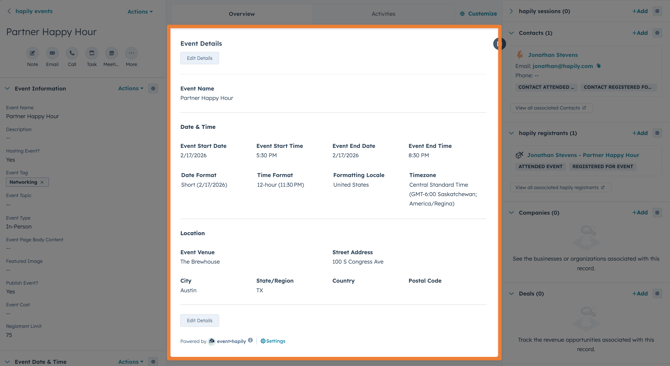
💡 Tip: Use the Event Details card to avoid formatting issues and ensure all event data stays synced and accurate throughout your system.
🪄 How to Use the Event Details Card
-
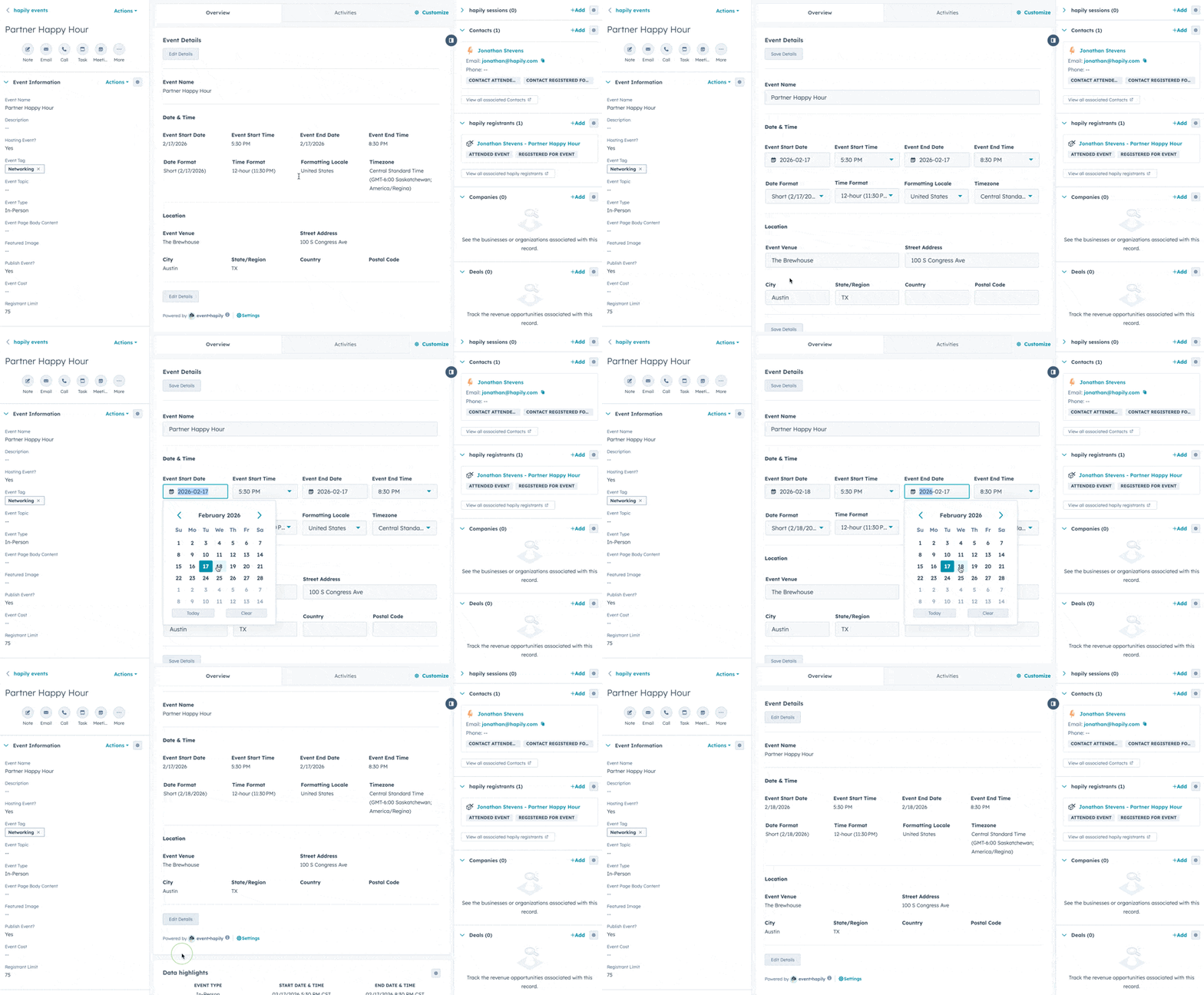
Open a hapily Event record in HubSpot.
-
Locate the Event Details card in the middle column (If you do not see the Event details card see section below for instructions on how to add the app card.).
-
Click Edit Details to open the editable fields and update relevant information such as the event name, dates, location, etc.
-
Click Save Details.
⚙️ How to Add the Event Details Card to a Record View
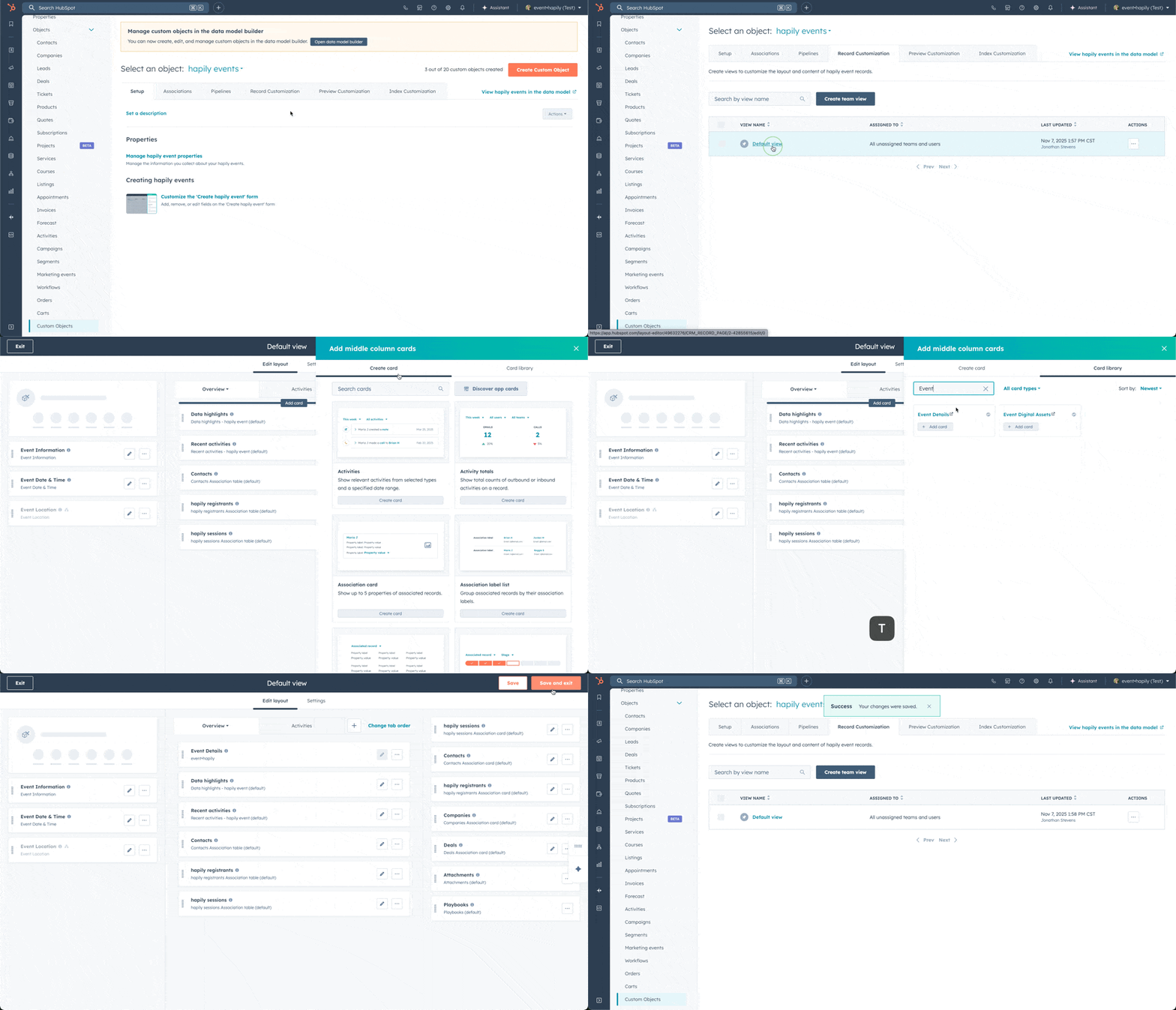
- Go to the hapily event Record Customization
- In HubSpot, navigate to Settings → Custom Objects → hapily events → Record Customization
- Click Default view (or your preferred layout)
- Click Add Card in the middle column
- Switch to the Card Library tab and click + Add card on the Event Details app card
- Click Save and Exit to apply your updates