
This guide outlines how to use a custom contact property and a HubSpot workflow to automatically link a list of imported contacts (such as trade show or conference attendees) to a specific hapily event record.
By following this process, you can:
-
Import a CSV of known attendees directly into HubSpot.
-
Automatically create associations between contacts and your event record.
-
Differentiate between "Known Registrants" and "Actual Attendees" for better ROI reporting.
-
Maintain a clean cross-reference of everyone who was expected at the event.
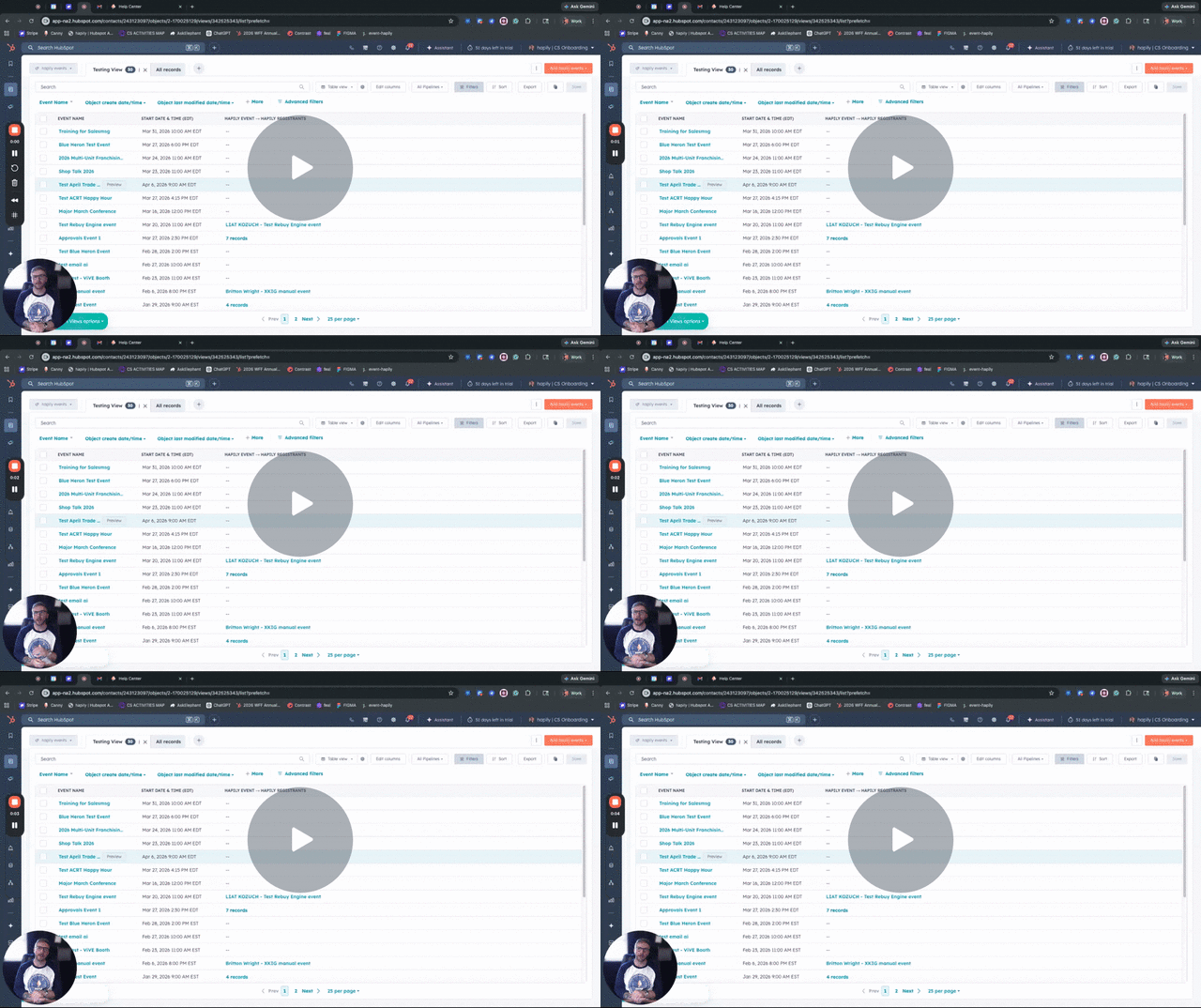
🎥 Video Walkthrough:
How to | Import Event Registration Lists as Known Attendees - Watch Video
Step 1: Create the Custom Contact Property
Before importing your list, you need a place to store the unique ID of the event.
-
In HubSpot, navigate to Settings > Objects > Properties.
-
Select Contact as the object type.
-
Click Create property.
-
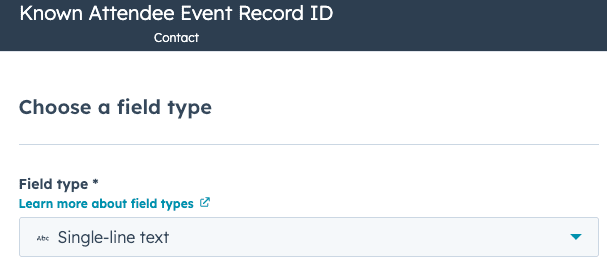
Set the Label to Known Attendee Event Record ID (or a similar clear name).
-
Set the Field Type to Single-line text.
-
Click Create.
Step 2: Create the Association Label
To distinguish these imported contacts from other associated records, create a specific label.
-
Navigate to your hapily event settings.
-
Create a new Association Label between the Contact object and the hapily Event object.
-
Set the Label name to Known Attendee.
Step 3: Build the Automation Workflow
This workflow will handle the heavy lifting of linking the contact to the correct event record.
-
Create a new Contact-based workflow.
-
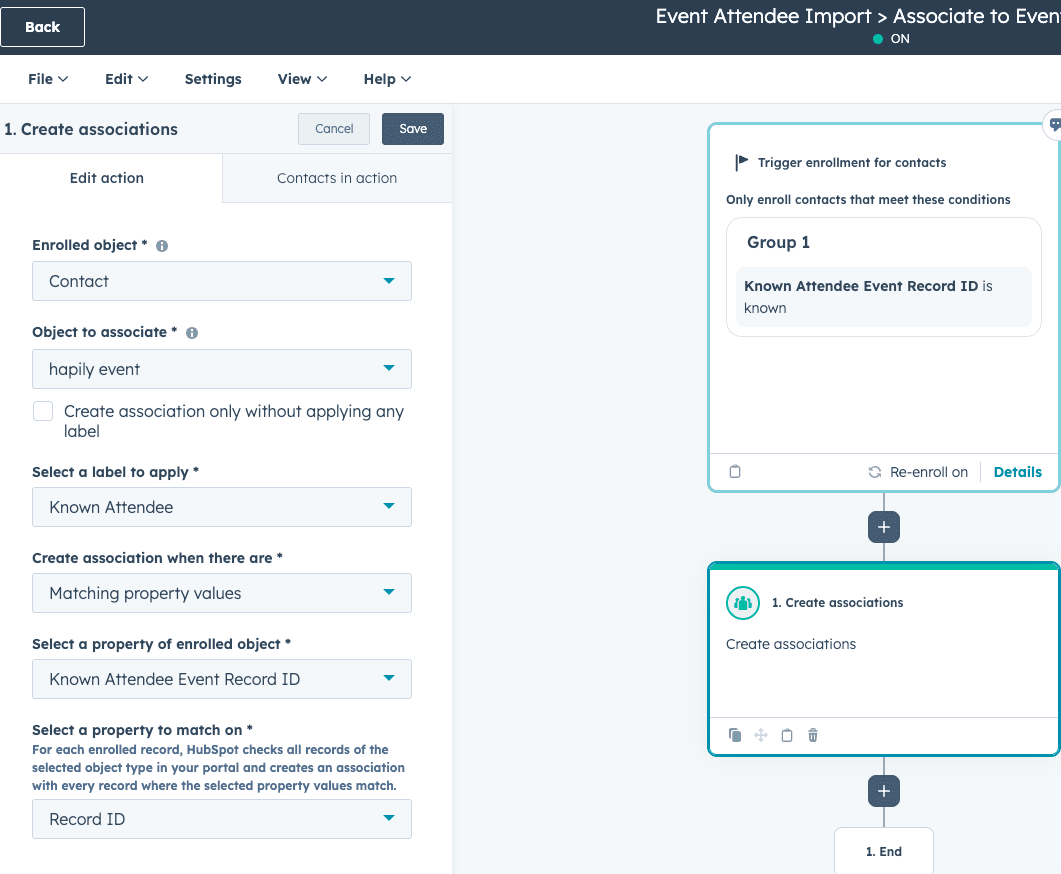
Name it: Event Attendee Import - Associate to Event.
-
Set the Enrollment Trigger to: Known Attendee Event Record ID is known.
-
Enable Re-enrollment for this trigger so you can reuse this process for future events.
-
Add the action: Apply association labels.
-
Configure the labels to be applied between the Contact and the hapily Event.
-
Select the Known Attendee label created in Step 2.
-
Choose to apply this when the Known Attendee Event Record ID on the contact matches the Record ID of the event.
-
Review and Turn on the workflow.
Step 4: Import Your Contact List
Now you are ready to bring your data into HubSpot.
-
Open your spreadsheet of trade show attendees.
-
Add a column for Known Attendee Event Record ID.
-
Copy the Record ID from the specific hapily event record in HubSpot and paste it into this column for every contact in your sheet.
-
Import the CSV into HubSpot, ensuring you map your new column to the Known Attendee Event Record ID property.
-
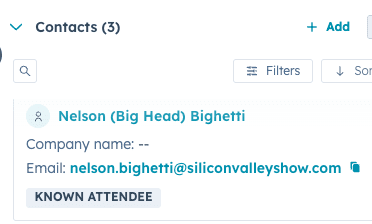
The workflow will trigger, and the contacts will appear on your event record with the correct label.
Summary
✅ Created a custom contact property to hold the Event ID. ✅ Established a specific association label for tracking. ✅ Built an automated workflow to link contacts to events based on ID matching. ✅ Streamlined the import process for trade show and conference data.