
When you collect leads through a trade show's external scanning tool or have a list from a past event, you need a way to bridge that data into your CRM. This process allows you to bulk-associate contacts with a specific event record automatically.
This approach allows you to:
-
Bulk-add contacts to a specific event using a unique Record ID.
-
Automatically apply the Event Lead association label to imported contacts.
-
Centralize lead data within hapily for accurate ROI reporting and follow-up.
🎥 Video Walkthrough:
How to | Import Event Leads - Watch Video
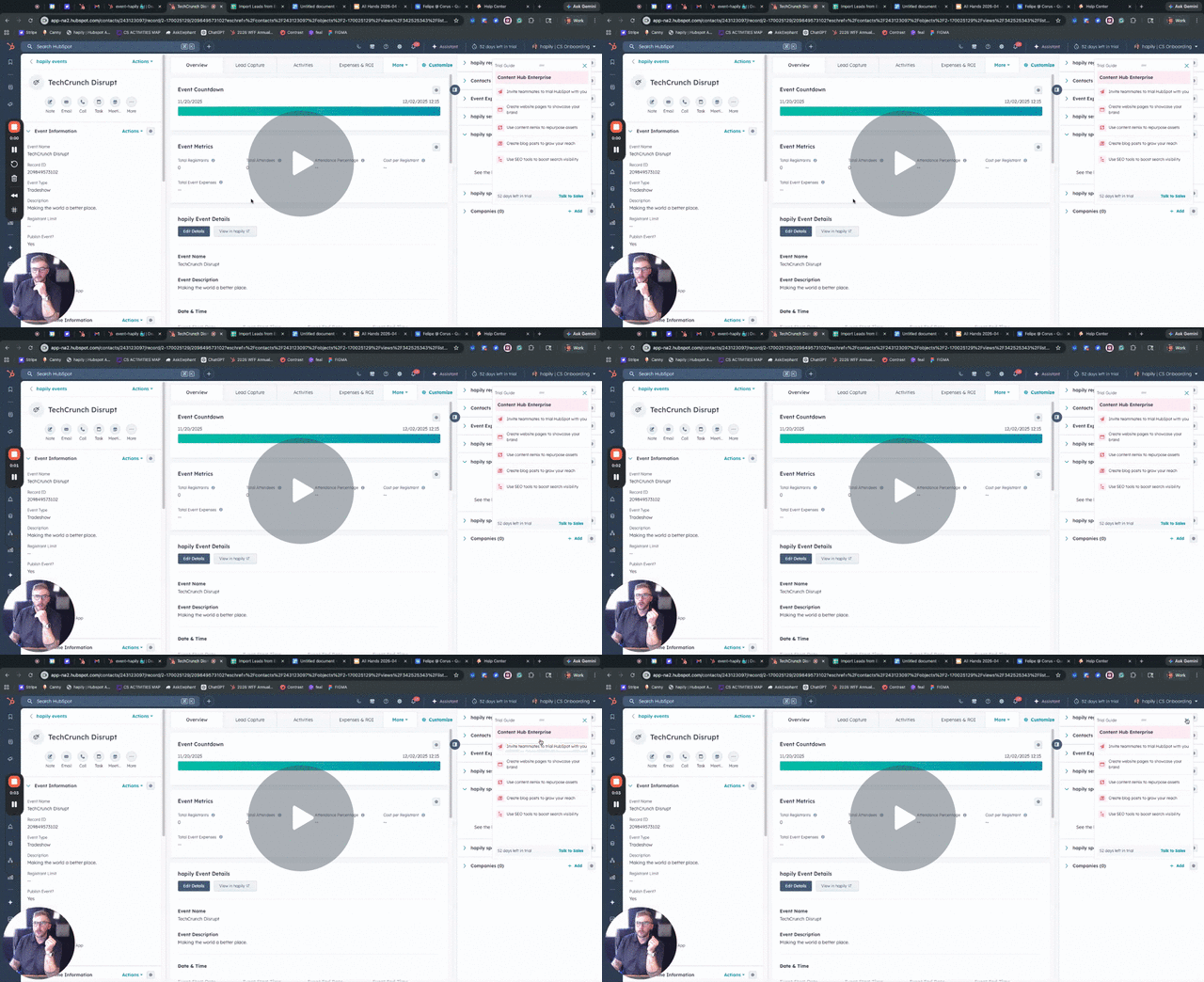
Step 1: Set up the workflow
- Create a Contact-based workflow that is triggered when 'a property value changes' and use the 'Lead Capture Trigger' property on the Contact object. I like to use 'is known'
- Be sure to turn on re-enrollment
- Add the hapily workflow action 'Create Event Lead'
- Publish your workflow
Lead Capture Workflow for Property Value Changes - Watch Video
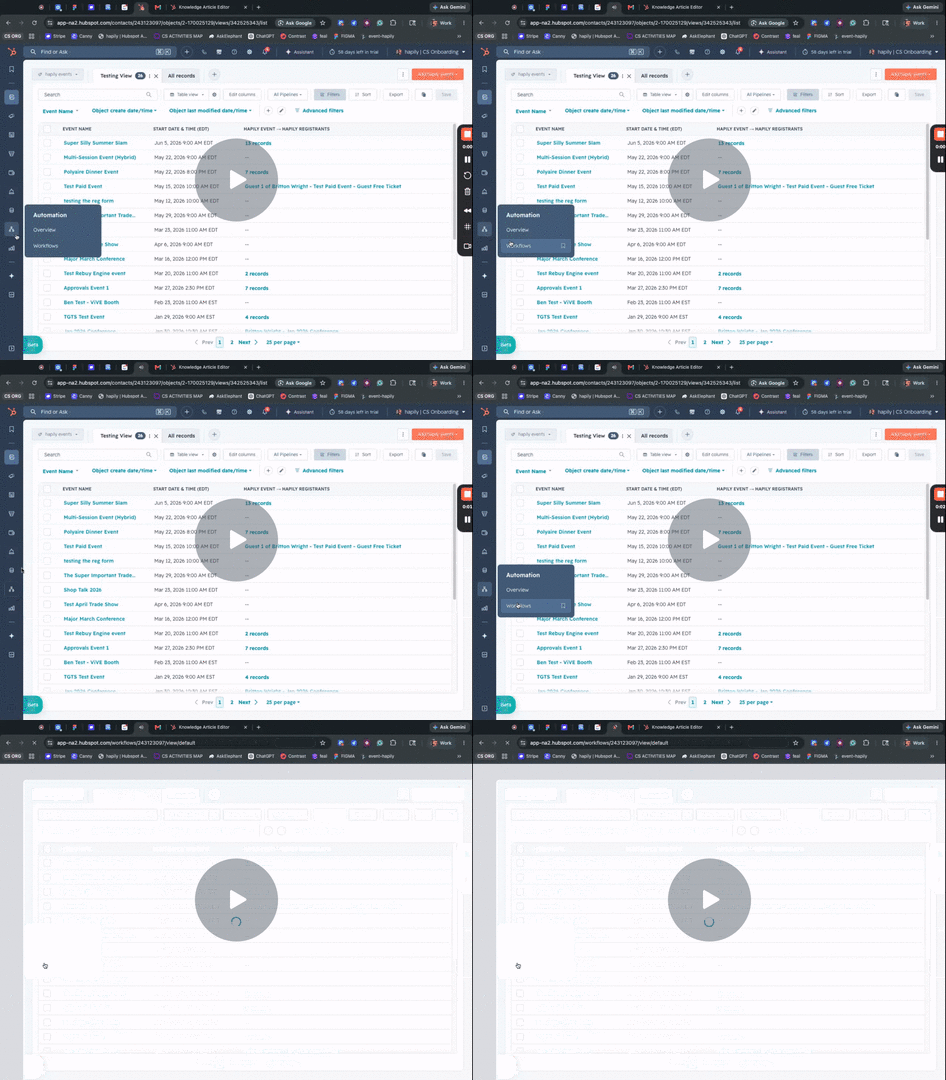
Step 2: Copy the Event Record ID
-
Open the hapily Event Builder or navigate to your specific event record in the CRM.
-
Locate and copy the Record ID of the event (this is the unique numerical string found in the URL or the "Record ID" property).
Step 3: Prepare Your Spreadsheet
-
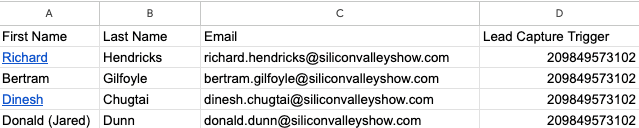
Open your lead list spreadsheet containing columns like First Name, Last Name, and Email.
-
Add a new column titled Lead Capture Trigger.
-
Paste the Record ID you copied in Step 1 into this column for every lead on the list.
-
Download or save the file as a .csv.
Step 4: Run a HubSpot Contact Import
-
In your CRM, navigate to Contacts > Import.
-
Start a new import and select File from computer > One file > One object > Contacts.
-
Upload your CSV file.
Step 5: Map the Properties
-
Map the standard identity fields (First Name, Last Name, Email).
-
Ensure the column Lead Capture Trigger is mapped specifically to the HubSpot property: Event Lead Capture Trigger.
-
Complete the import process.
Step 6: Verify the Sync
-
Once the import is finished, hapily works in the background to create/update the contacts.
-
The system will see the ID in the trigger property and automatically associate those contacts with your event.
-
Navigate to your event in hapily and check the Lead Capture section to see your new leads populated with the correct association labels.
Summary
✅ Found and copied the unique Event Record ID.
✅ Prepared a CSV with the Lead Capture Trigger column to bridge data.
✅ Imported contacts directly into the CRM to trigger automatic event association.