
The hapily Invite Manager is a new UI extension that helps you manage event invites and invitation emails directly from your event record in HubSpot.
Instead of tracking invite lists and emails across multiple areas of HubSpot, the Invite Manager centralizes everything in one place—giving you clear visibility into:
-
Who you plan to invite
-
Which lists are being used
-
Which invite emails have been sent
-
How invite efforts convert into registrations
This makes invite management more organized, more transparent, and far easier to manage at scale.
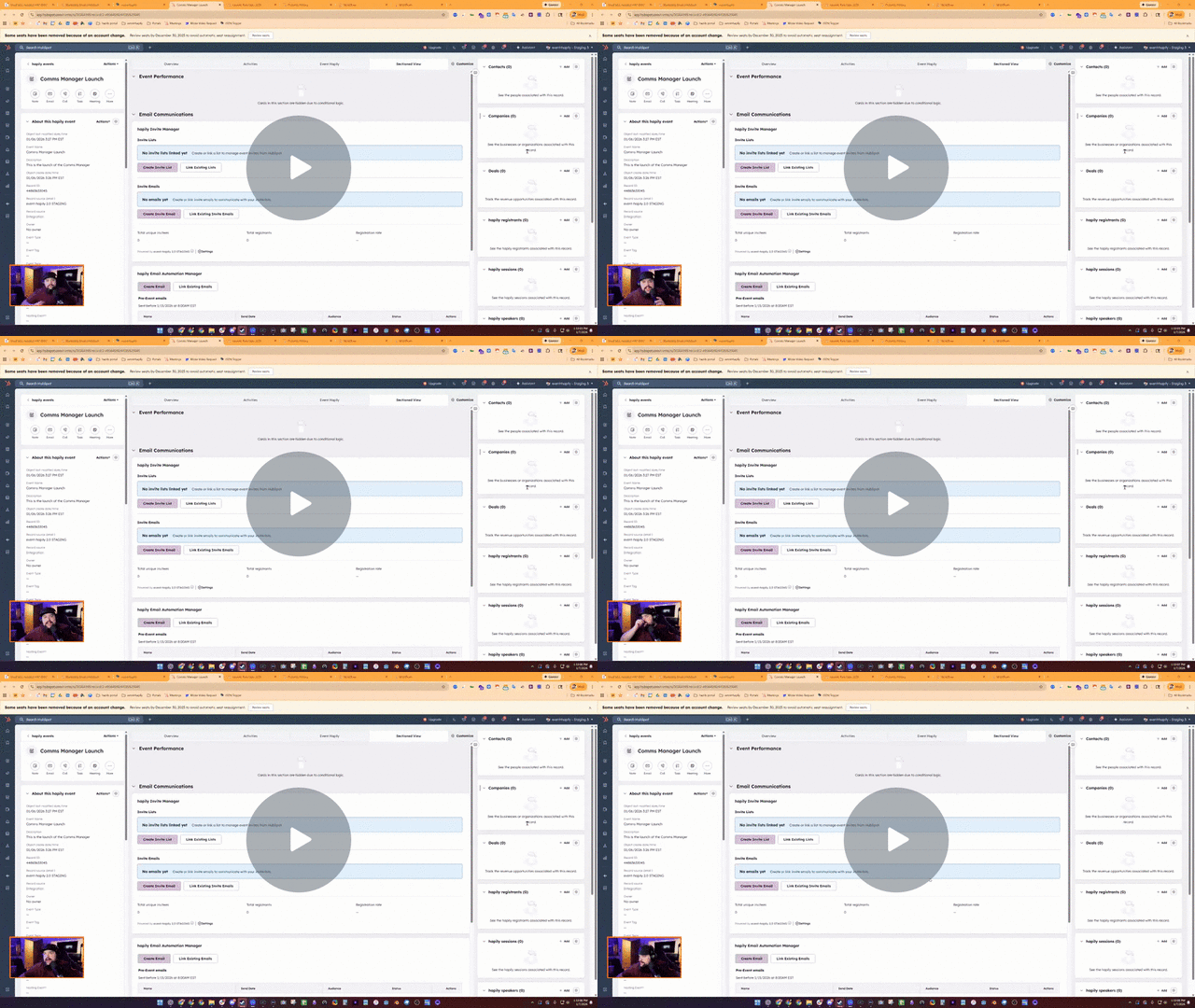
hapily | Invite Manager Overview - Watch Video
What Is the Invite Manager?
The Invite Manager is a HubSpot UI extension that lives directly on your hapily Event record. Once added to your record layout, it allows you to:
-
Link existing HubSpot lists as invite lists
-
Create new invite lists directly from the event
-
Track total unique invitees
-
Create and manage invite emails tied to the event
-
See invite performance alongside event registration data
Everything stays connected to the event—no more guessing which list or email was used for which event.
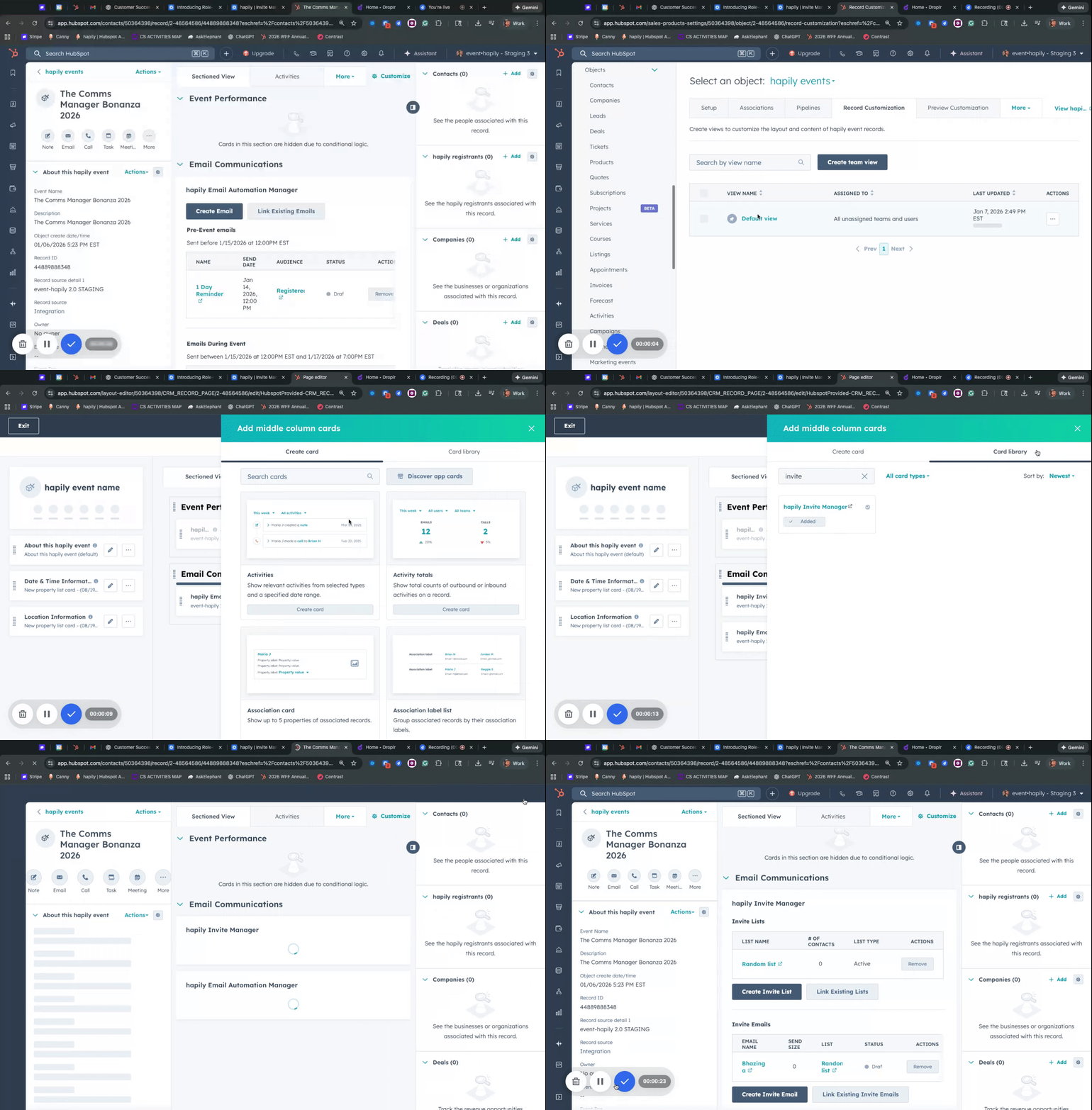
Step 1: Add the Invite Manager to Your Event Record
Before using the Invite Manager, you must add it to your event record layout.
-
Open an Event record in HubSpot.
-
Click Customize record (or Customize at the top of the page).
-
Select the tab where you want the Invite Manager to live (e.g., Overview, Invites & RSVPs).
-
Click Add Card.
-
Open the Card Library and search for Invite Manager.
-
Add the card, then Save and Exit.
The Invite Manager will now appear on all event records using that layout.
Step 2: Add Invite Lists
Invite lists represent groups of people you intend to invite (or have already invited) to an event.
You can add invite lists in two ways:
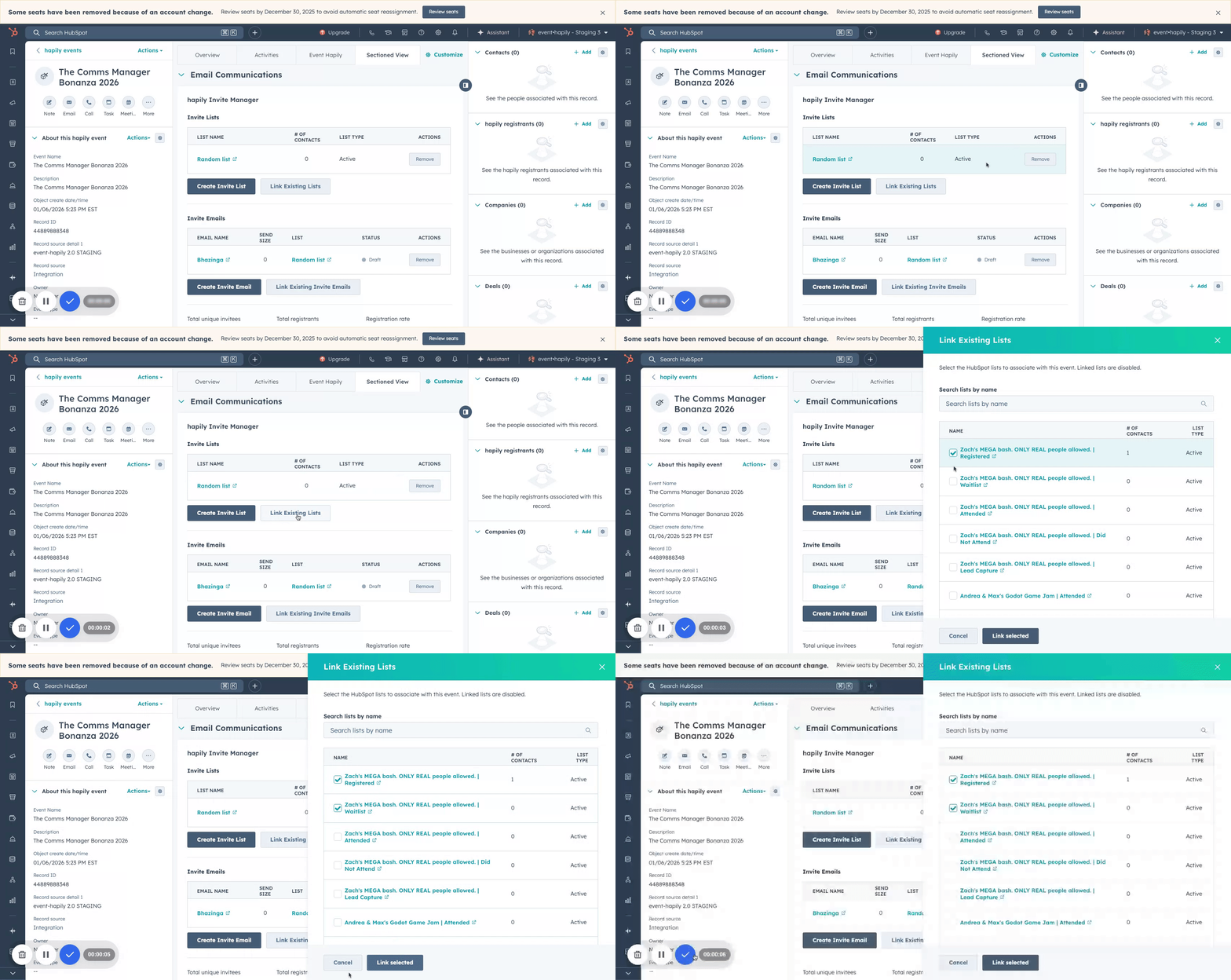
Link an Existing List
-
Click Link Existing List.
-
Search for any HubSpot list (e.g., attendees from a past event).
-
Select the list and click Link Selected.
Create a New List
-
Click Create List.
-
Give the list a name (e.g., Current Prospects).
-
The Invite Manager will:
-
Create an active list in HubSpot
-
Automatically name it using the event name
-
Open the list builder so you can define filters
-
You can edit the filters however you like (e.g., lifecycle stage, region, account type) and save the list.
Once created, the list is permanently linked to the event.
Step 3: Review Invite Coverage
As you add lists, the Invite Manager displays:
-
The number of contacts in each invite list
-
A total unique contact count across all lists
This helps you understand your true invite reach, even if contacts appear in multiple lists.
Step 4: Create Invite Emails
From the Invite Manager, you can create invite emails that are automatically associated with the event.
-
Click Create Invite Email.
-
Enter:
-
An internal email name
-
A subject line (you can refine this later)
-
-
Select one or more invite lists as the audience.
-
Click Create Email.
hapily will automatically:
-
Associate the email with the event
-
Injects the correct list(s)
-
Tracks the email in the Invite Manager
You can now edit the email design and content just like any other HubSpot marketing email.
Step 5: Send or Schedule Invite Emails
Once your email is ready:
-
Click Review and Send.
-
Choose to:
-
Send immediately, or
-
Schedule for a later date
-
-
Confirm scheduling.
This is standard HubSpot email sending—Invite Manager simply ensures everything stays connected to the event.
Step 6: Track Invite Performance
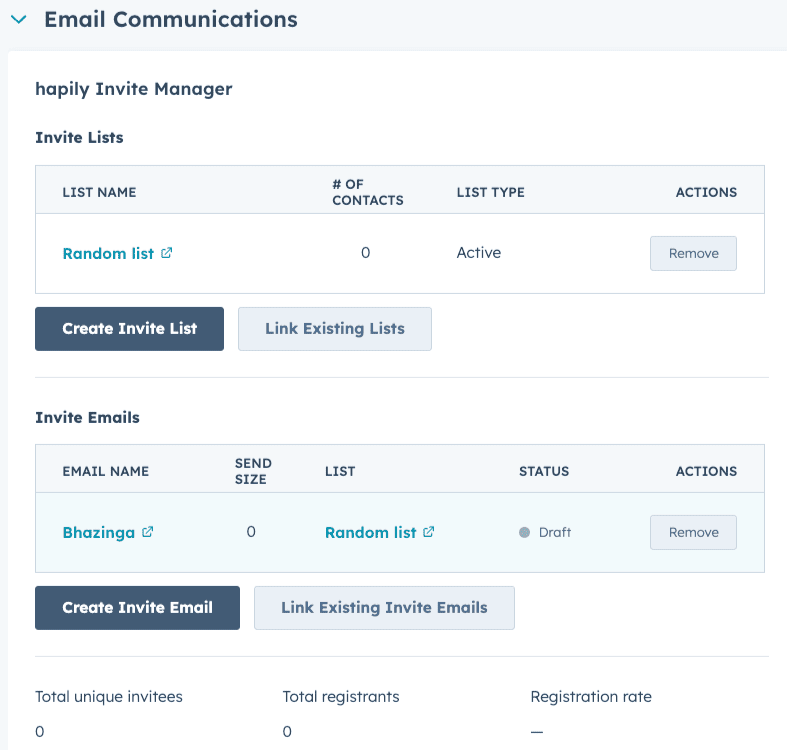
Back on the Event record, the Invite Manager shows:
-
Which invite emails exist
-
Which lists they were sent to
-
Email status (Draft, Scheduled, Sent)
-
Send size once delivered
-
Total event registrants
-
A rough registration-to-invite comparison
This gives you a quick sense of how your invites are converting without leaving the event record.
Step 7: Link Existing Emails (Optional)
If you already built invite emails elsewhere in HubSpot, you can link them to the event.
-
Linked emails will appear in the Invite Manager
-
If an email is sent to a list not linked as an invite list, you’ll see a warning
-
This helps ensure your invite reporting stays accurate
Summary
The hapily Invite Manager helps you:
✅ Organize invite lists in one place
✅ Create and manage invite emails directly from the event
✅ Keep emails, lists, and events connected
✅ Track invite reach and registration impact
✅ Eliminate guesswork and manual tracking