
Taking notes during a busy trade show or conference can be a bottleneck. The Record with AI feature in the hapily Lead Capture app allows you to dictate your conversations on the fly. Our AI then intelligently separates your general notes from specific commitments, syncing everything directly to HubSpot so you can stay present with your leads.
This approach allows you to:
-
Save time by ditching manual typing between booth visits.
-
Improve data accuracy by capturing details while they are fresh.
-
Automate organization by letting AI distinguish between notes and action items.
-
Streamline follow-ups by instantly syncing structured data to your CRM.
🎥 Video Walkthrough:
hapily Lead Capture | Record with AI - Watch Video
Step 1: Access the Lead Capture Screen
Open the hapily Lead Capture app on your mobile device. After scanning an attendee's badge or manually entering their information, you will be directed to the lead details page.
Step 2: Launch the AI Recorder
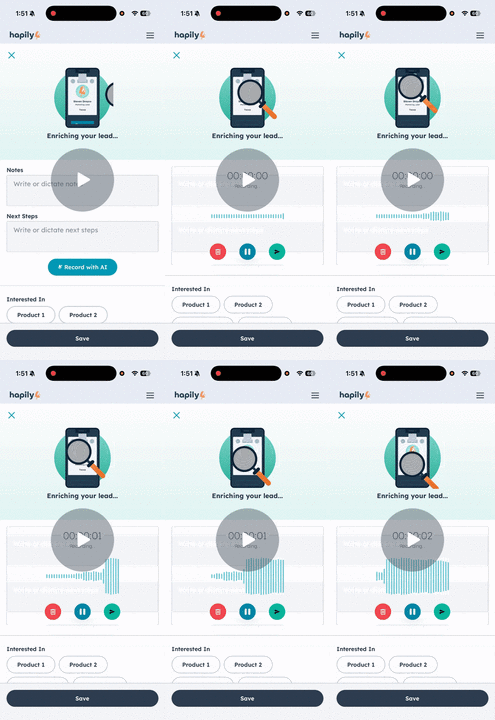
Locate the Notes and Next Steps section. Instead of tapping into the text field to type, tap the Record with AI button.
Step 3: Dictate Your Notes
Once the recording starts, speak naturally into your phone. Describe your interaction, mention any specific products discussed, and list any follow-up items you promised.
-
Example: "Met with Max at the booth. We did a demo of the app. I promised to follow up next Tuesday to book a discovery call and share the 2026 roadmap."
Step 4: Save and Process
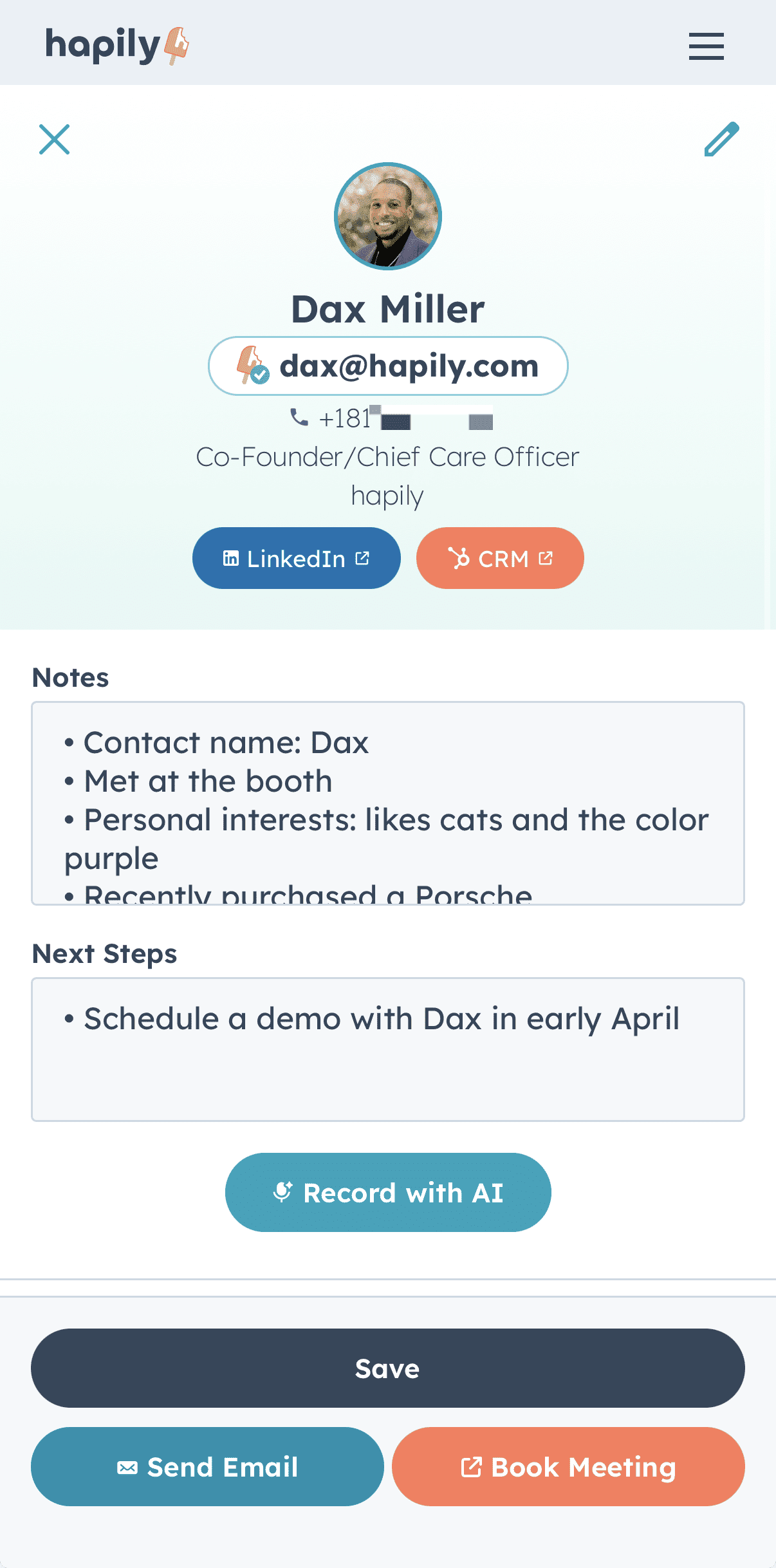
Tap Save once you are finished speaking. The AI will take a moment to process your speech, interpreting the raw audio into "nice and clean" formatted text.
Step 5: Review Categorized Data
Review the output. The AI automatically categorizes your dictation into two distinct areas:
-
General Notes: High-level details about the conversation.
-
Next Steps: Specific commitments and action items.
Step 6: Finalize the Lead
Fill out any remaining custom fields on your lead form and tap Save Lead. All notes and next steps will be sent directly to the HubSpot timeline for that contact.
Summary
✅ Eliminated the need for manual typing during busy events. ✅ Automatically separated general conversation notes from actionable next steps. ✅ Ensured all voice-captured data is synced instantly to HubSpot. ✅ Increased the speed of the lead capture process for booth staff.
Next Steps: