
1. What are Line Item Columns?
Line Item Columns control the fields that your sales team sees (and can edit) for each product in a quote. These include details like product name, type, quantity, unit price, discounts, billing frequency, and more.
With quote•hapily, you can decide:
-
Which columns are visible
-
The order they appear in
-
Whether sales reps can edit them or not
2. Why manage Line Item Columns?
Use Case:
Your company might want to display the Unit Price and Quantity fields for sales reps to edit but keep Implementation Fee locked so it can’t be changed. You may also want to control the order of columns so your quote layout matches your pricing logic and is easy for sales reps to work with.
3. How to configure Line Item Columns
Step 1 — Go to General Settings
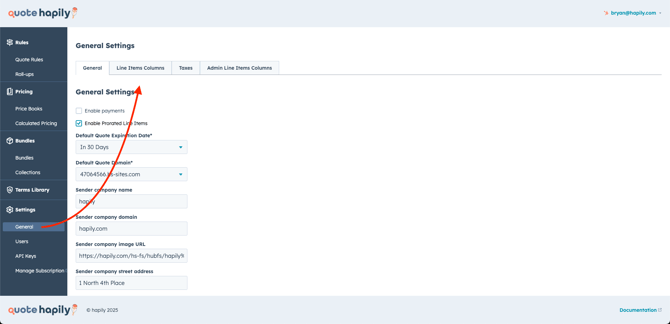
From the left menu, select Settings → General.
Then click the Line Items Columns tab at the top.
(Screenshot: General Settings screen with Line Items Columns tab highlighted)
Step 2 — Choose which columns to display
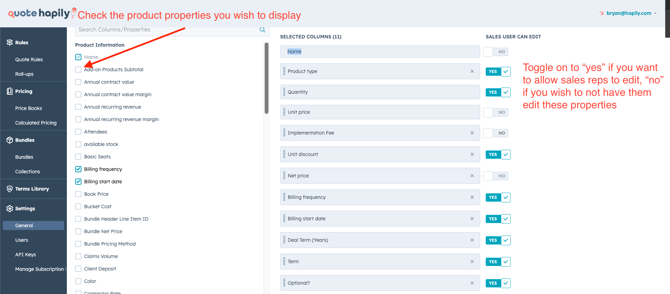
In the Product Information list, check the boxes for the columns you want your sales team to see when creating quotes.
(Screenshot: Column list with checkboxes)
Step 3 — Arrange the column order
On the right side, under Selected Columns, drag and drop the fields into the order you want them to appear in the quote editor.
(Screenshot: Selected Columns drag-and-drop list)
Step 4 — Control edit permissions
For each column, use the Sales User Can Edit toggle:
-
YES → reps can edit this field when building a quote
-
NO → field is locked and will be greyed out in the quote
(Screenshot: Edit toggle column with YES/NO options)
Step 5 — Save your settings
Once you’ve chosen your columns, arranged them, and set edit permissions, your changes will apply to all new quotes.
How it works in a quote
-
Fields you locked will appear greyed out in the quote editor.
-
Columns display in the order you set in General Settings.
(Screenshot: Quote editor showing greyed-out fields and column order)

5. Tips & Best Practices
-
Keep it simple – Show only the columns your team needs to work efficiently.
-
Lock sensitive fields – Prevent changes to pricing, costs, or other fixed values.
-
Review periodically – As your quoting process evolves, update columns and permissions to match.
-
Match your workflow – Arrange columns in the order reps naturally fill them out.