
This guide covers how to access the Leads tab within the hapily Admin dashboard to monitor lead capture performance, review interaction details, and export data for your CRM.
By using the Leads tab, you can:
-
Track real-time lead capture and enrichment statistics.
-
Review specific notes, next steps, and interaction data recorded by your team.
-
Access badge photos and contact details for every attendee scanned.
-
Export comprehensive CSV files for external processing or HubSpot imports.
🎥 Video Walkthrough:
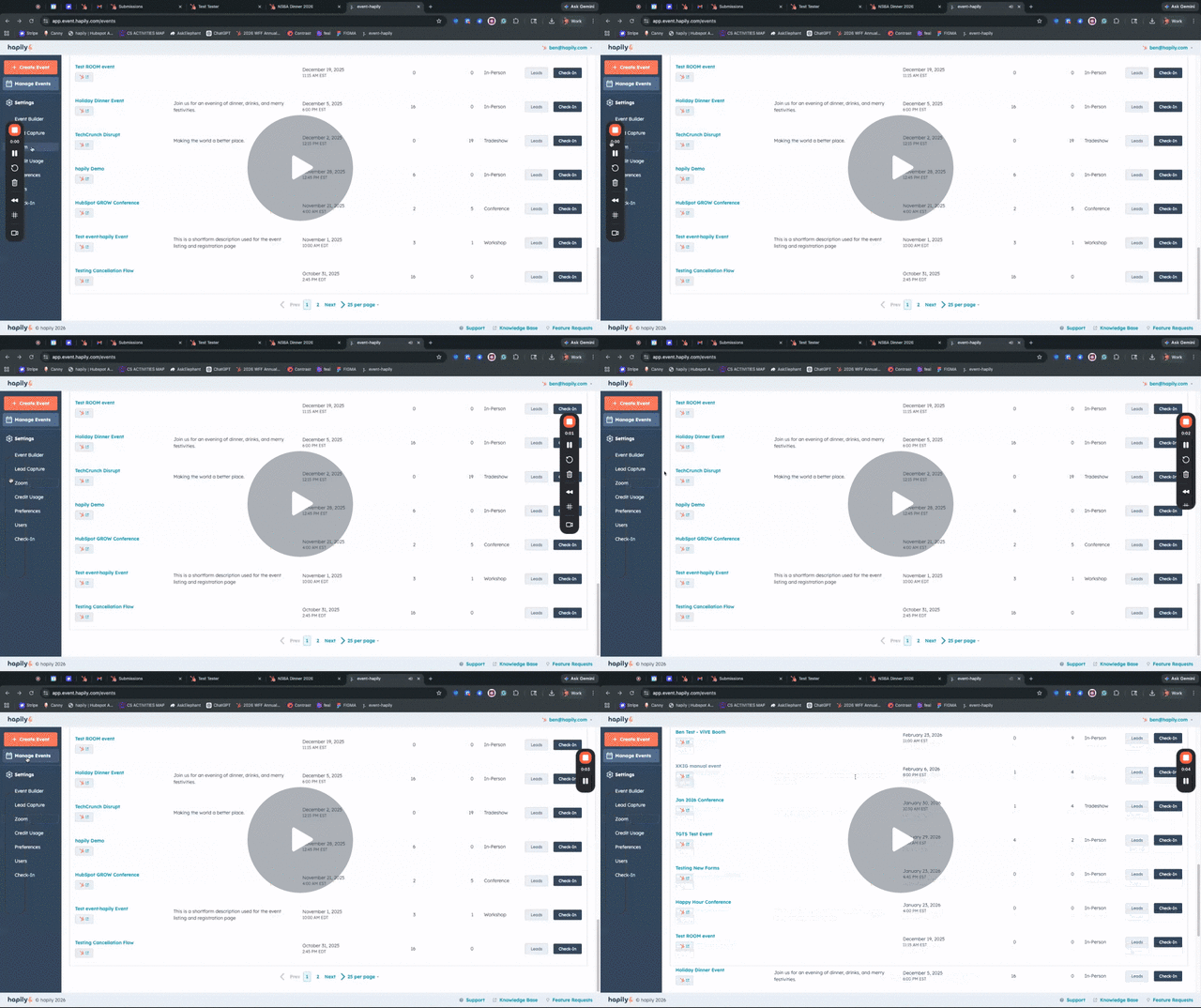
hapily Admin | Leads Overview - Watch Video
Step 1: Access the Leads View
-
Navigate to the Events button in the top-right corner in the hapily Admin dashboard.
-
(Optional) Customize your dashboard view by organizing columns to display high-level metrics like Total Event Registrations, Total Event Leads, or Cost Per Lead.
-
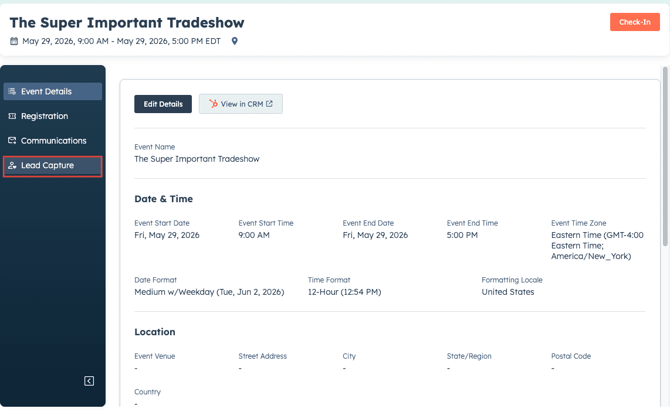
Locate your specific event (e.g., "HubSpot Grow Conference") and click the Leads button.
Step 2: Review Lead Statistics and Enrichment
-
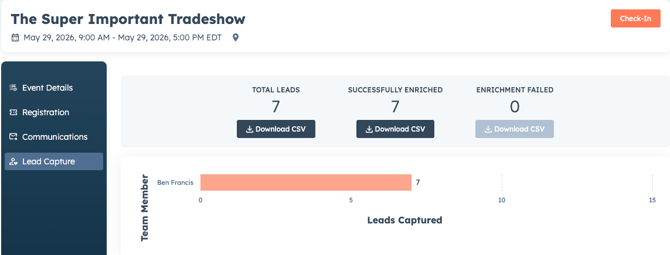
Once inside the Leads tab, view the summary cards at the top of the page.
-
Review the Total Number of Leads captured for the event.
-
Monitor the enrichment status to see how many leads were Successfully Enriched versus how many Failed.
Step 3: Analyze Interaction Details
-
Scroll through the lead table to see which Team Member captured each specific lead.
-
Review the Notes and Next Steps recorded by your team during the conversation.
-
View all Interaction Information and Enriched Information associated with the contact.
-
Click the provided link to view the Badge Photo uploaded during the initial interaction.
Step 4: Export Lead Data
-
To move your data into another system, click Download CSV.
-
Use this file to run external enrichment processes or to manually import Unenriched Leads directly into HubSpot.
-
The export includes all captured interaction data, enriched contact details, and links to badge images.

Summary
✅ Monitor total leads, enrichment success rates, and failure counts. ✅ Access detailed team notes and "Next Steps" from the event floor. ✅ View badge photos and enriched contact data for every lead. ✅ Export full datasets via CSV for HubSpot or external reporting.