
What is the Optional Line Items Module?
The Optional Line Items module from quote•hapily lets you customize your HubSpot quote templates to show both required and optional products. This is especially useful when you want to upsell or cross-sell, while keeping the core quote clear and easy for customers to understand.
Instead of just showing all line items in one table, this setup gives you two separate sections:
-
Primary Line Items (agreed-upon products)
-
Optional Add-ons (extra items a customer can choose to include on a published quote)
Use Case
Let’s say your sales rep is quoting a customer for a software license (required) but wants to suggest premium support and onboarding services as optional add-ons. Instead of cluttering one line-item list, optional items are displayed separately, clearly marked, and subtotaled accordingly.
How to Set It Up in Your HubSpot Quote Template
Step 1: Navigate to Your Custom Quote Template
-
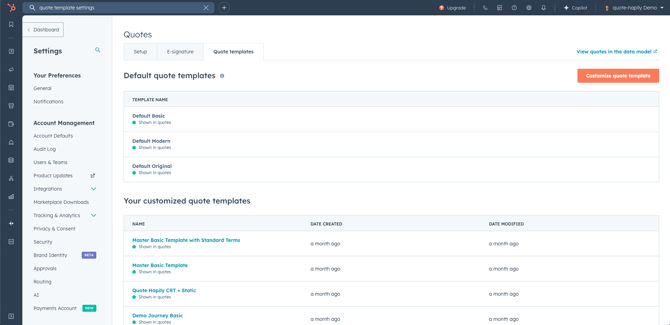
In your HubSpot account, go to Settings → Quotes → Quote Templates
-
Find the quote template you want to edit
Step 2: Open the CMS Template Editor
-
In the template editor, switch to the Settings tab.
-
Click Edit CMS Template at the bottom of the screen.

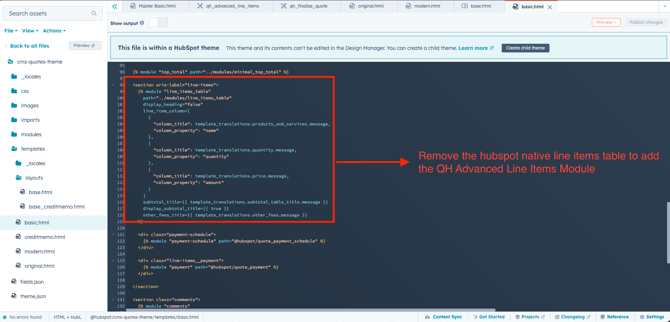
Step 3: Remove the Native Line Items Table
To replace the default line items table with quote•hapily's version:
-
Locate the native module:
-
Remove that block entirely from your HTML.
Step 4: Find the Quote•hapily Advanced Line Items Module
-
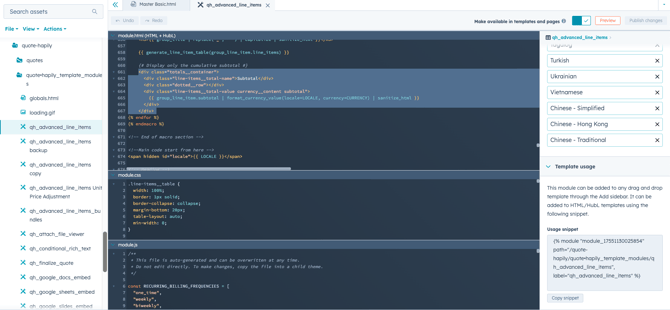
In the search assets bar, search for qh_advanced_line_items
-
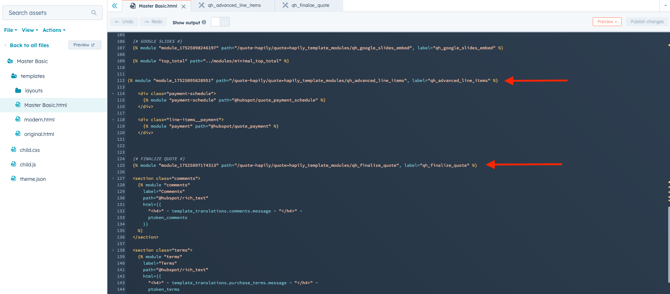
Insert the module using the snippet:
Step 5: Find the Finalization Logic (Optional but Recommended)
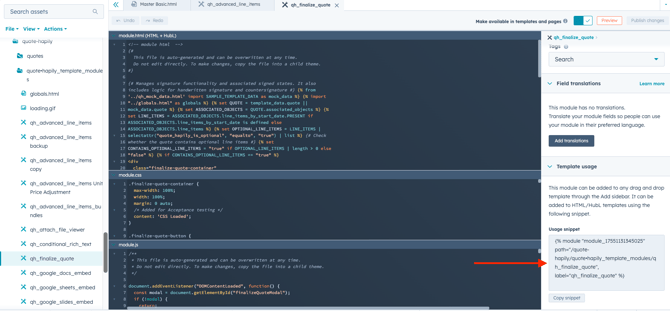
To include logic that controls display behavior based on whether optional items exist:
-
Search for and include the
qh_finalize_quotemodule: -
This checks for optional items and updates the quote’s subtotal logic accordingly.
Step 6: Insert these modules into your custom quote template
Step 7: Save & Publish Your Template
Once you’ve replaced the default line items block and inserted the quote•hapily modules, click Publish Changes in the upper right corner. Now got to the content tab of the quote template and you should see these modules added to your quote.
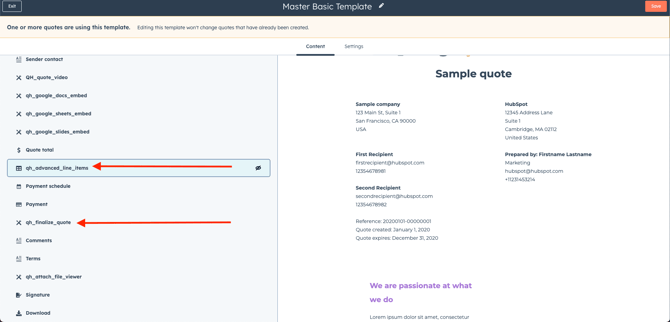
Step 8: Customize the qh_advanced_line_items Module
Once you've added the module, you can visually edit it from the quote editor:
-
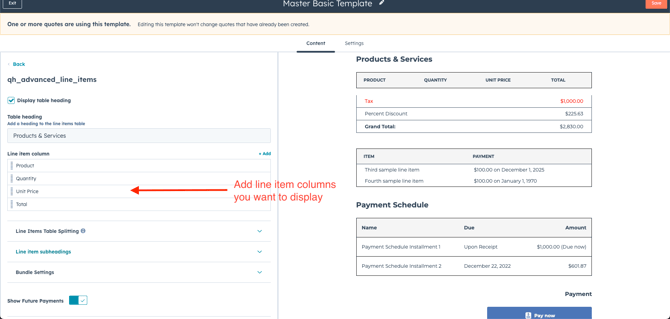
In the left sidebar, click on qh_advanced_line_items
-
Add or remove Line item columns like:
-
Product
-
Quantity
-
Unit Price
-
Total
-
-
Scroll to Optional Line Item Settings
-
Set the Title for the optional section (e.g., “Optional Quote Items”)
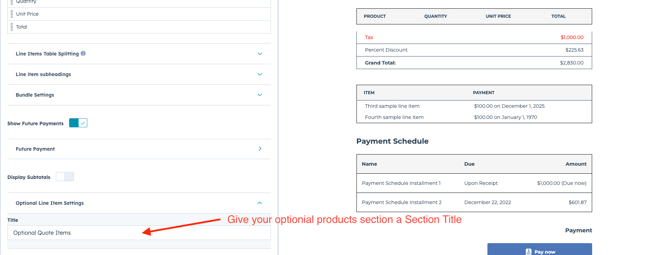
This will control the label your customer sees when viewing optional products on the quote.
✅ Step 6: Save & Publish Your Template
Once you’re happy with the layout and settings, click Save in the upper-right corner.
Your customized quote template is now fully configured to support Optional Line Items using quote•hapily’s advanced modules.