
What is This Feature?
The Update Line Item Property feature in quote•hapily allows you to automatically change any product property on one or more quote line items when certain conditions are met. This can include things like applying a discount, delaying billing, controlling quantity, changing terms etc.
Why Use It?
This feature is great when you want to:
- Apply conditional discounts.
- Delay billing for Future products.
- Add or change fees like margins, upcharges for different customer types.
- Enforce quantity levels, product tiers
It helps you save time, reduce manual changes, and avoid pricing mistakes.
How to Set It Up
Here’s a step-by-step guide to creating a quote rule that dynamically updates line item properties:
1. Navigate to Quote Rules
Go to the left-hand menu and click Rules > Quote Rules. Then click + Create Rule or edit an existing one.
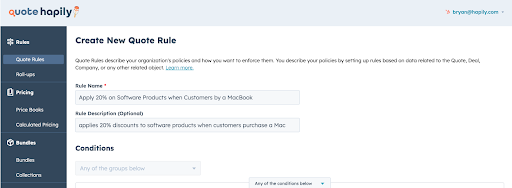
2. Enter Rule Details
- Rule Name: Give your rule a clear name, like "Apply 20% on Pre Installed Software Products when Customers by a MacBook ."
- Rule Description (Optional): Add a short note to explain what the rule does.
3. Set Conditions
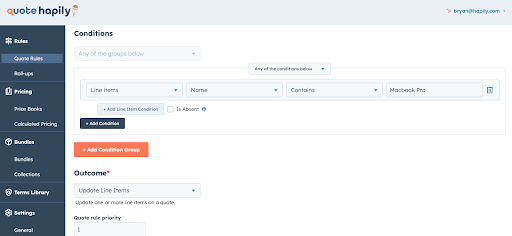
Conditions define when the rule will trigger.
- If Line Item Name contains “MacBook Pro
Click + Add Condition to build your logic. Use Condition Groups if you need multiple condition sets.
4. Set the Outcome
Under Outcome, choose:
- Update Line Items (to change quote line item values)
- Quote rule priority: Use "1" unless you're stacking multiple rules.
5. Line Item Selection Criteria
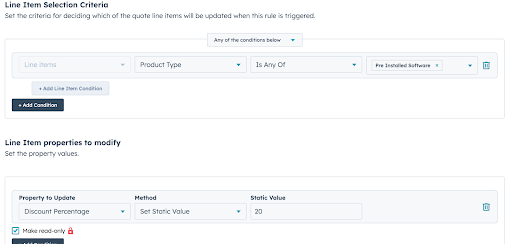
Define which line items should be updated.
- For example in this case we want to use Software Product Types
6. Set Line Item Properties to Modify
This is where the magic happens!
You can now:
- Update Discount Percentage (e.g. set to 20%)
Use Set Static Value for fixed values. You can also check "Make read-only" to lock the change on the quote. You can also copy values from existing deal, company or roll up fields
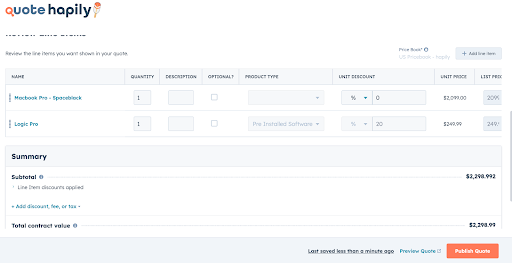
Now test the rule and watch the magic happen:
Tips and Best Practices
- Name Your Rules Clearly: This helps your team know exactly what each rule does.
- Use Specific Conditions: The more targeted your conditions, the fewer errors or unexpected updates.
- Test Your Rules: Always test with sample quotes before deploying widely.
- Combine with Calculated Pricing: These updates work great with formulas ex. Unit Cost= (Our Cost)* (Margin). Where we can update the margin for various customer types.