
What is the Optional Line Items Feature?
The Optional Line Items feature in quote•hapily helps sales reps show which products are part of the core quote and which ones are optional add-ons. This keeps your quotes clear, gives customers flexibility, and opens the door for easy upsells.
When enabled, reps can check a box to mark a product as optional. These items show in a separate section on the final quote—without affecting the main total unless selected by the customer.
Use Case
Imagine your customer is buying a Bucket Golf Game Pack, but your sales team also wants to offer extra Clubs and Balls as optional add-ons. These extras will appear separately in the quote, giving the customer the choice to include them before finalizing their order.
How to Use Optional Line Items in quote•hapily
Step 1: Enable the Optional Column
Before reps can mark items as optional, the column must be enabled in the settings.
-
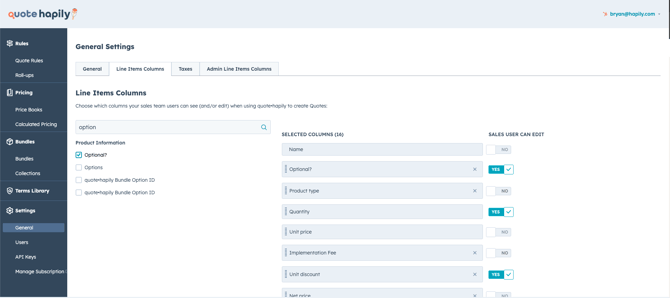
Go to Settings → General → Line Items Columns
-
Search for "option" in the column search
-
Check Optional? to add the column to the quote builder
-
Set Sales User Can Edit to YES
Step 2: Start a New Quote
-
Open the deal and click Create Quote
-
Choose the quote template that supports optional line items (Article linked below on how to set this up)
Step 3: Mark Products as Optional
In the Review Line Items section:
-
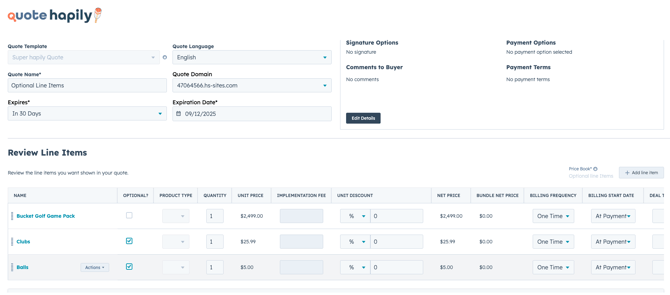
Use the Optional? checkbox to mark any product as optional
-
Leave required items unchecked
In this example:
-
"Bucket Golf Game Pack" is the main product the customer wanrted
-
"Clubs" and "Balls" are marked as optional but not required to buy.
Step 4: Preview the Quote
Click Publish Quote to see how it appears to the customer.
-
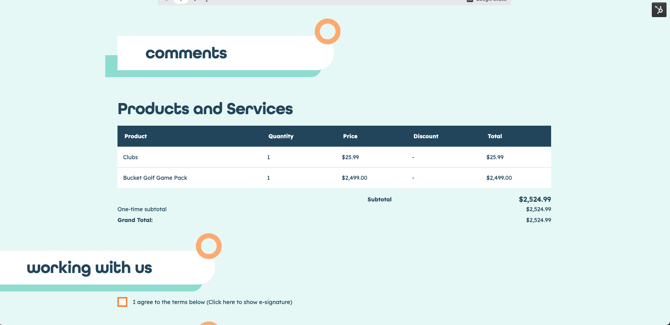
Required items show under “Products and Services”
-
Optional items are in their own section labeled Optional Items
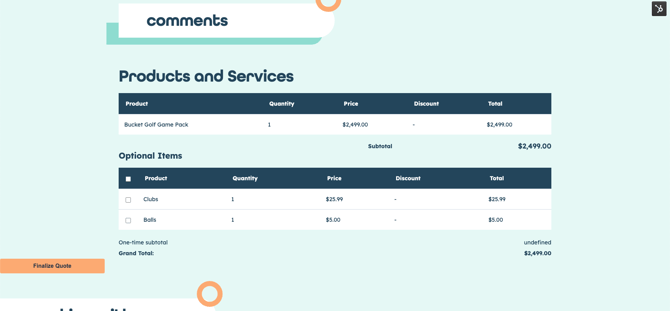
- If the customer doesn’t check any optional items, the total only includes required items.
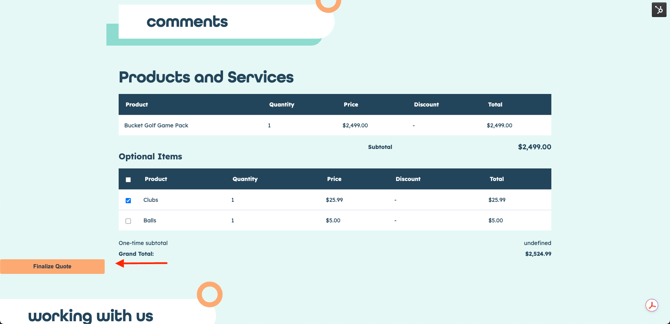
- If they select one or more optional items (like "Clubs"), the Grand Total updates.
- Once optional items are added, they appear in the Products and Services section of the final signed quote, and are included in the total.
Step 5: Finalize the Quote
After reviewing, the customer will Finalize Quote. Optional selections will be saved, and the updated total reflects everything the customer agreed to. These line items will also be added to your deal once the quote is signed!
Tips and Best Practices
✅ Use optional items to upsell add-ons, extended support, or bonus features
🧠 Make sure your quote template is properly configured to show optional items
🧪 Always preview the quote before sending to catch any missing settings
📢 Train your reps to clearly explain optional vs. required line items