Table of contents
- How to manually Sync a Meeting or Webinar created in Zoom to a hapily Event record in HubSpot.
- How to create a Zoom Meeting / Webinar from the hapily Event Builder.
- How to automatically sync Meetings & Webinars to hapily Event records.
- How registration works from HubSpot → Zoom.
- How registration works from Zoom Registration Pages → HubSpot.
- How attendance is tracked with Zoom Meetings + Webinars.
Here is a full video overview, but feel free to scroll down to get all kinds of guidance on how this integration works.
- Ensure that the meeting or webinar that you created in zoom has Registration set to Required, otherwise it cannot sync into an event in HubSpot.
- Once you've created your meeting or webinar in Zoom, head to event.hapily.com and log in.
- Navigate to "Settings" on the top-right
- If you haven't already, click on the 'Connect Zoom' button to integrate Zoom with hapily and follow the steps
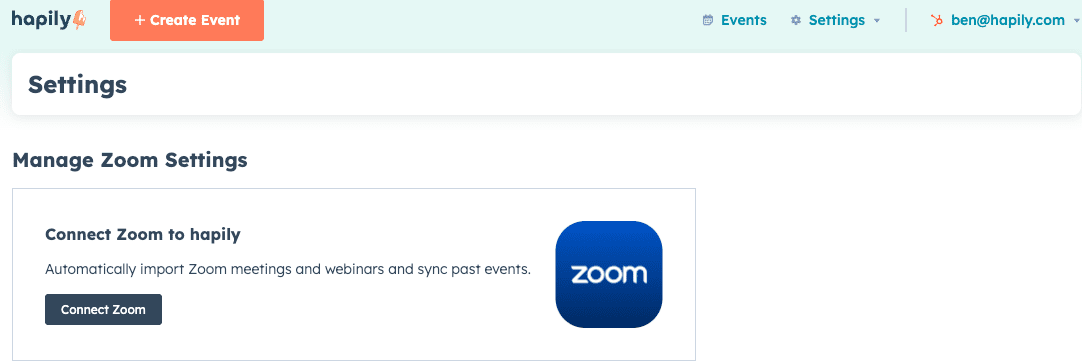
- On the table of Zoom Meetings and Webinars, use either the Webinars or Meetings tab to find the webinar or meeting you'd like to sync into HubSpot as an event. You can filter by user, date, and even search by name.

- Once you've found the Meeting or Webinar you would like to sync, hover over its name, and a "+Sync" button will appear.
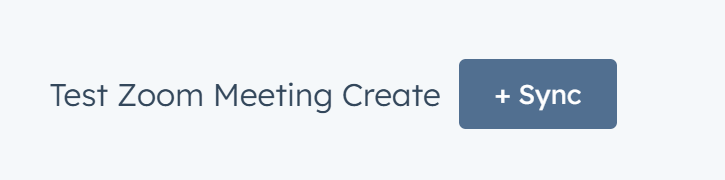
- Click the sync button, and give it about 30 seconds to allow the sync from Zoom to HubSpot to take place. You will see the button switch to this yellow color and say "syncing."

- You can navigate away from the page once you see the yellow syncing button. It will remain this way until you refresh/revisit the page. If you refresh you will see the green Synced button to let you know it worked.

- Navigate to HubSpot, go to your hapily events objects, and search for the name of your Zoom webinar or meeting, you should see it in there!
- Connect your Zoom Account to event hapily.
- Build an event in the event builder, just like it was any other event. Add details about the name of the zoom/meeting, description, and when it starts/ends on the event details page.
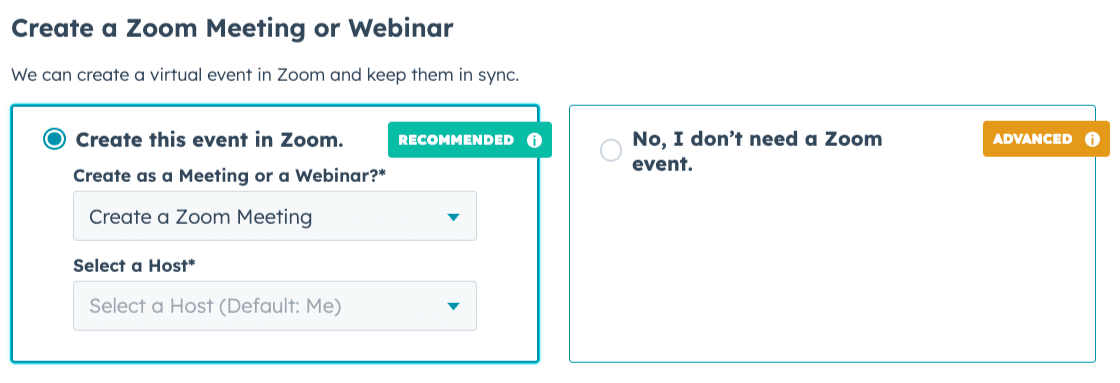
- When you get to the Event Assets screen, choose the option to create a Zoom Webinar or Meeting by selecting it in the dropdown.
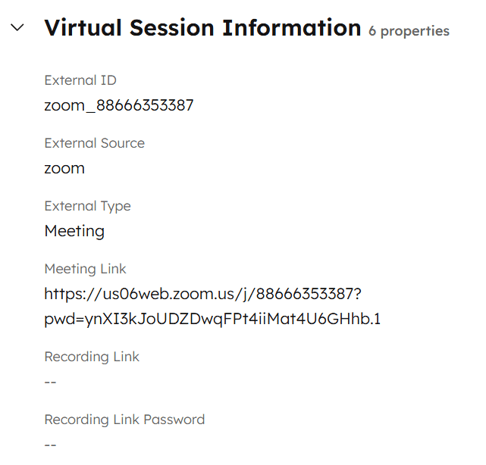
- Check in your Zoom account to confirm that the event was created. If you need to find the Zoom ID of the event you can find it on the event record properties. There is a group called "Virtual Session Information"
This method is helpful if you want ALL meetings or webinars from a specific account to automatically create an event record in HubSpot.
- Navigate to "Zoom Meetings" on the left hand side bar.
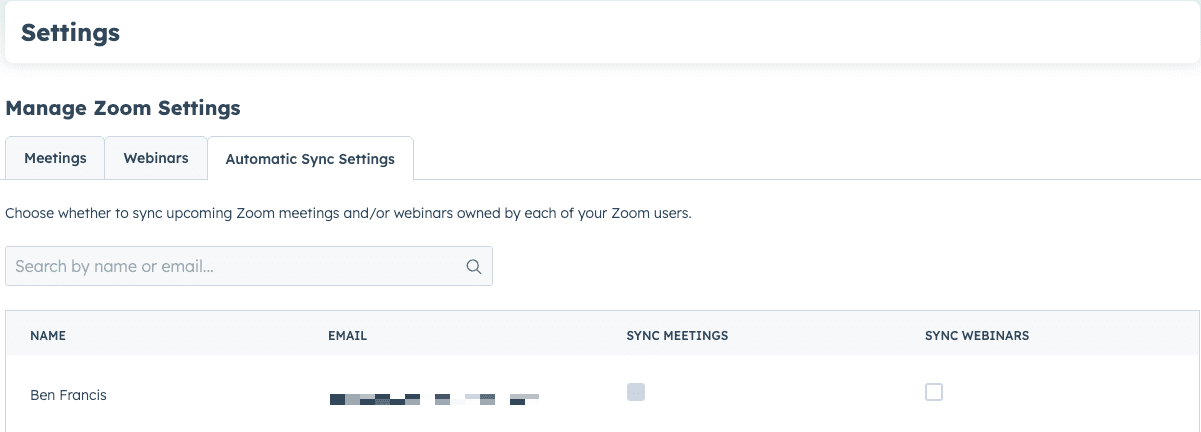
- Select the "Automatic Sync Settings" tab to see a list of users from your Zoom account.
- To the right of the users name and email you will see 2 checkboxes. One for meetings, and one for webinars.
- If you select either of those check boxes, each time that account creates either a meeting or a webinar, it will automatically be synced in as a hapily event object.
When a zoom webinar or meeting is synced with a hapily event, any registrants created for that event will automatically be synced over to Zoom as registrants for the synced meeting or webinar.
If you have a Zoom Registration Page for your meeting or webinar that is synced with a hapily event object in HubSpot, any registrations made through that zoom registration form will also have registrants created for them inside of HubSpot.
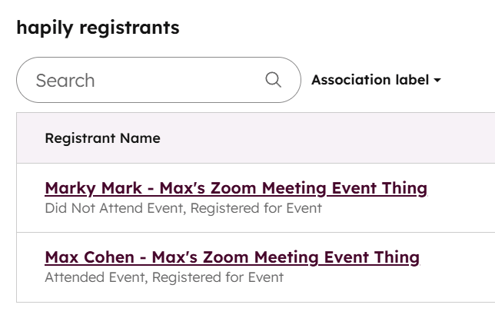
When Zoom Meetings or Webinars conclude, Zoom sends event hapily the participant data. We take that data and update your registrant records to show you who attended and who did not attend. Registrant objects who attended will have their "Status" property set to Attended, and registrants who do not attend will have their "Status" property set to "Did Not Attend". We will also update association labels between the events, contacts, and registrants to reflect if they attended or did not attend.