
Events are hard. Whether you're hosting an event or attending a tradeshow or conference, you need assets like lists, forms, landing pages, and emails. hapily's Event Builder makes the creation of all of the assets you need easier than ever.
You no longer have to waste time building forms, lists, and landing pages. Build a template, select it in the Event Builder, hit 'publish' and go on about your day. No CMS building required!
What Event Builder helps you create:
- Events in HubSpot
- Dynamic Lists lists
- Registration forms
- Landing pages
- Lead capture forms
- HubSpot Campaigns
- Zoom Meetings/Webinars
- Registration confirmation emails & Workflows
Here's how it works: 👇
Event Builder Overview - Watch Video
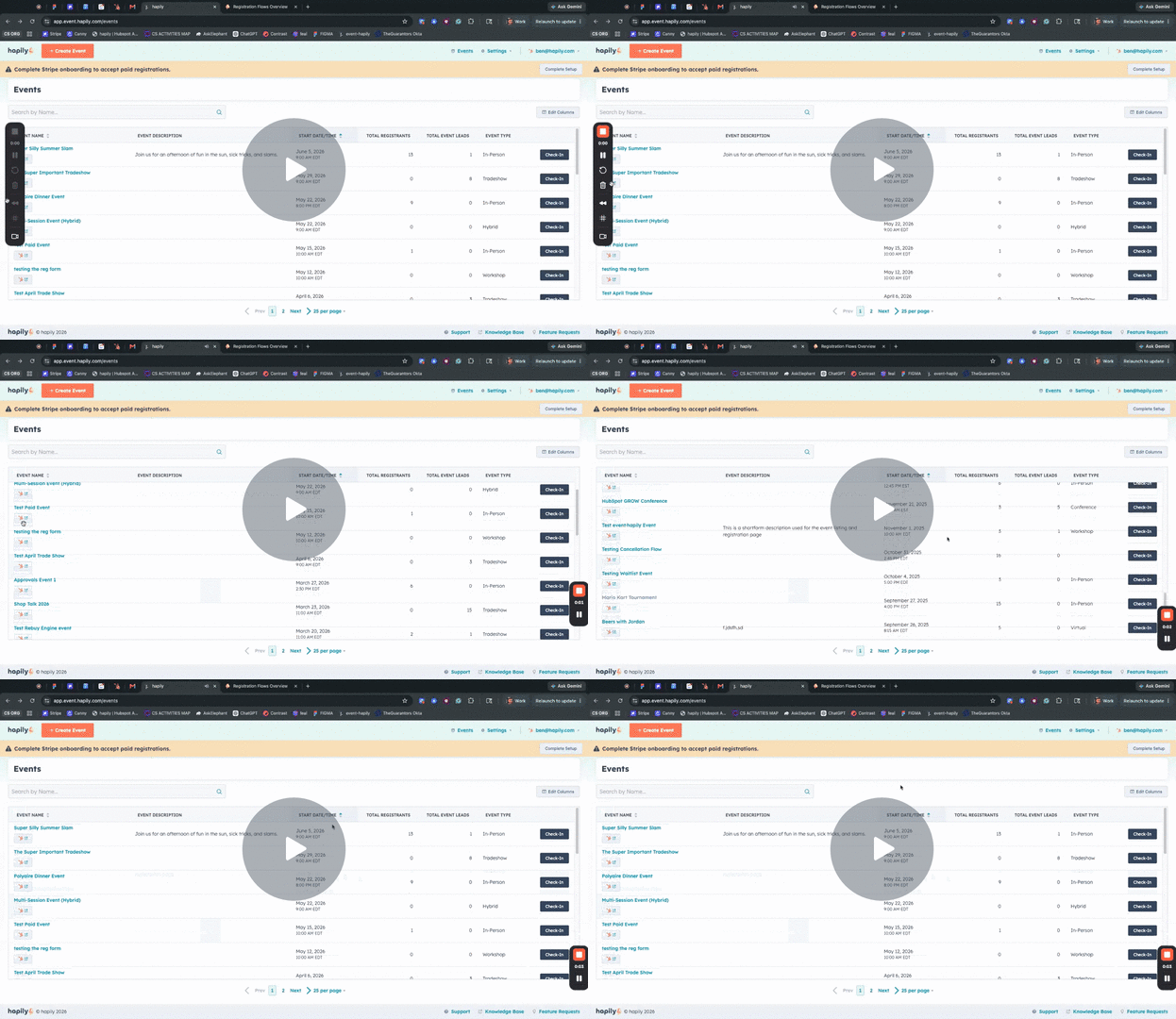
Step 1: Create a New Event
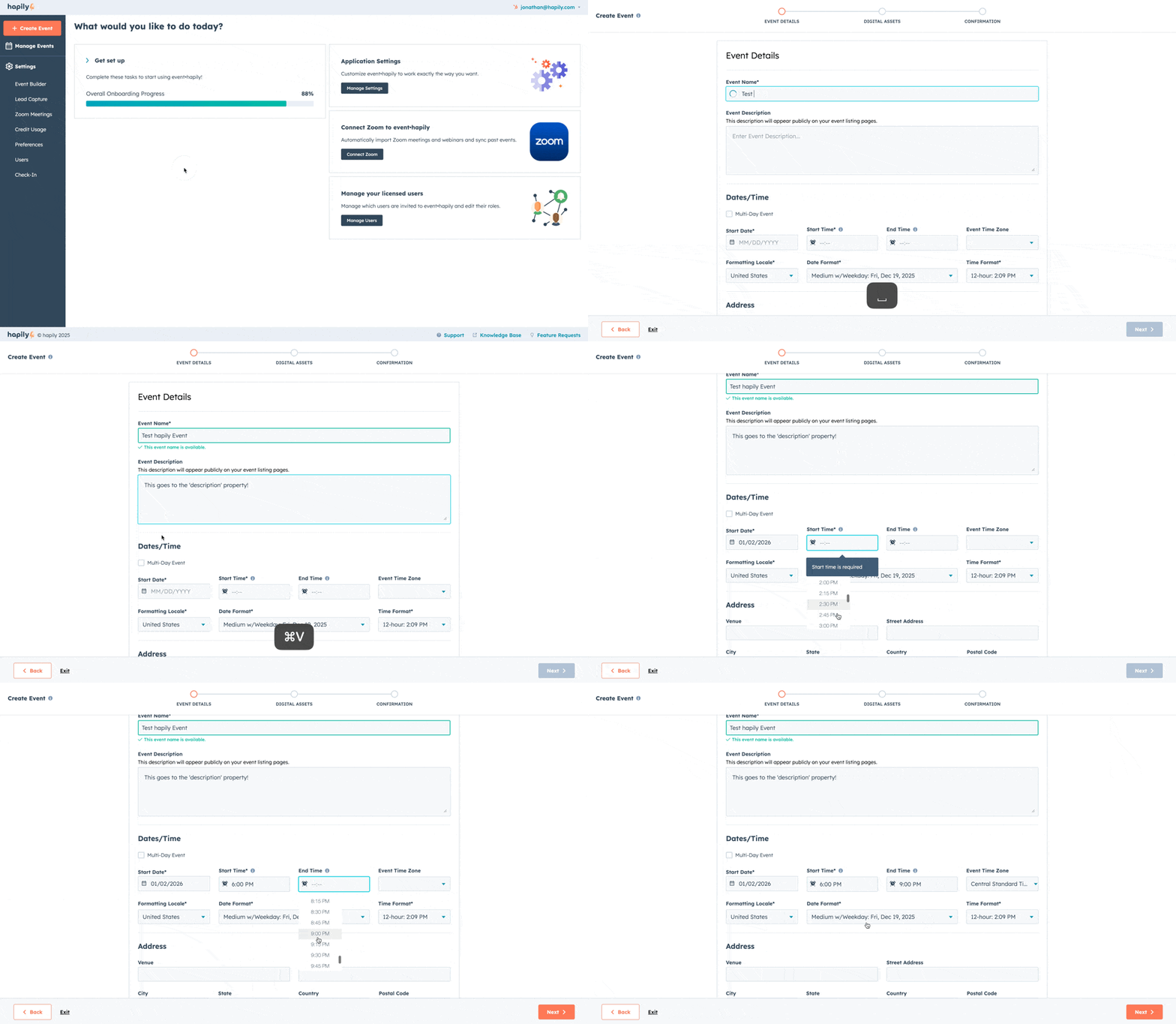
From your admin panel (app.event.hapily), click Create New Event in the top-left corner.
You’ll begin by entering the initial details for your event:
-
Event Name – the title of your event
-
Short Description – a brief overview
-
Start and End Date/Time – set when your event will take place
-
Time Zone – select the correct time zone (important for in-person events)
-
Address – if applicable, enter the venue location
📝 Tip: You can also choose your preferred date/time format, which will determine how these details appear on your event record and any connected assets.
Step 2: Choose Event Assets to Build
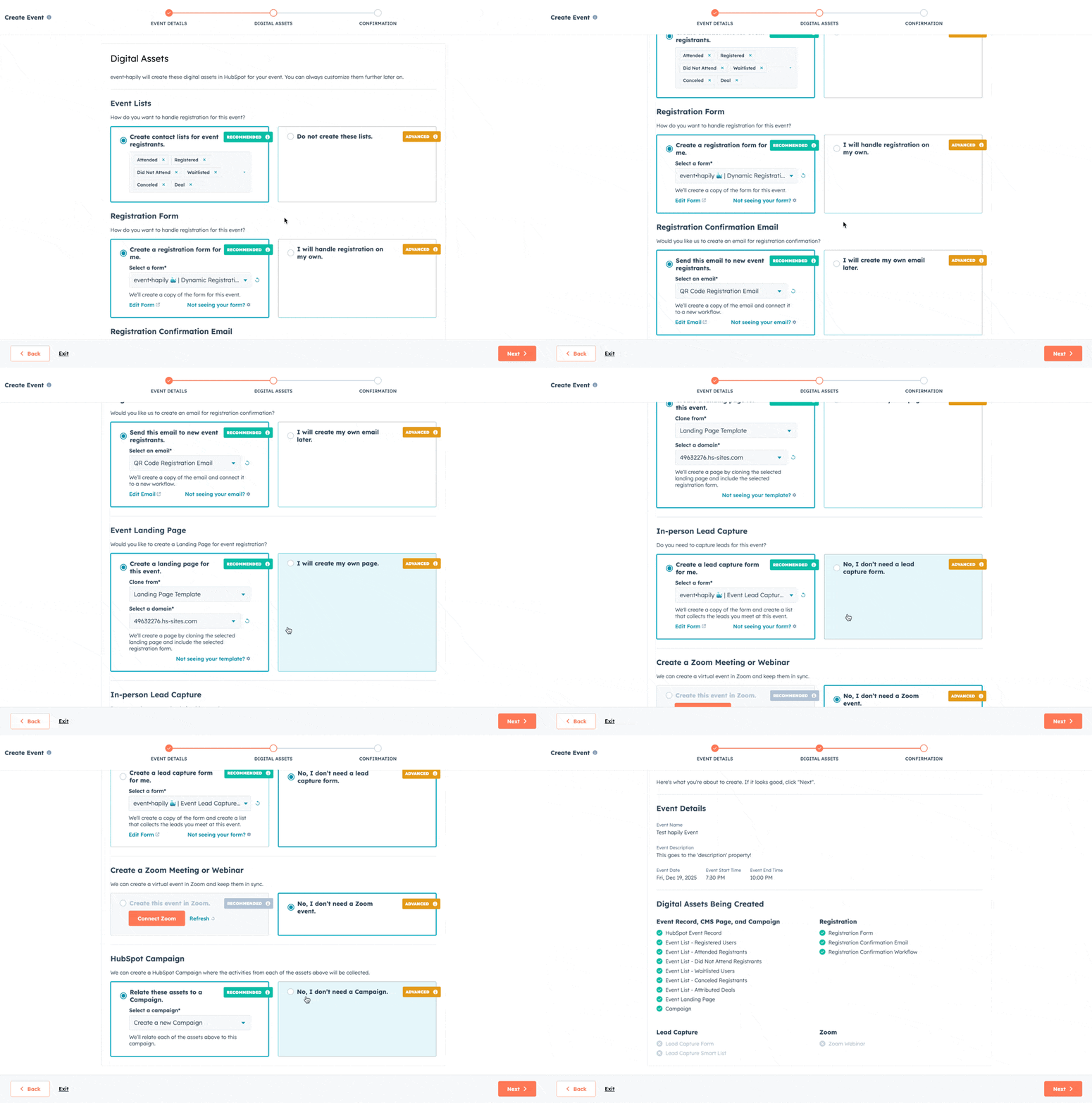
After entering your event details, Event Builder will ask a few setup questions to determine which connected assets to create.
1. Dynamic Lists
Select which dynamic lists you want event·hapily to create: Attended, Registered, Did Not Attend, Waitlisted, Canceled, and/or Deals.
You can deselect any you don’t need.
2. Registration Form
Choose an existing form template to base your registration form on.
Event Builder will automatically create a new copy of that form and associate it with your event record.
3. Confirmation Workflow
Select which confirmation email you’d like to use.
Event Builder will create a new registration confirmation workflow in HubSpot and connect it to your event. You can later customize and activate it directly from HubSpot.
4. Landing Page
Event Builder can also create a new landing page using your existing HubSpot templates.
This page will be linked directly to your event record for easy access and editing.
5. Lead Capture Form (Optional)
You can include a lead capture form that allows your sales team to associate new contacts to the event with the “event lead” association label.
This helps connect leads gathered at the event directly to the related record in HubSpot.
6. Virtual Event Setup (Optional)
If your event is virtual, Event Builder can automatically create a Zoom meeting or webinar and link it to your event.
7. HubSpot Campaign
Finally, you can associate your event with an existing HubSpot Campaign, ensuring that all paid, email, and landing page assets are tracked together for ROI reporting.
Step 3: Review and Create
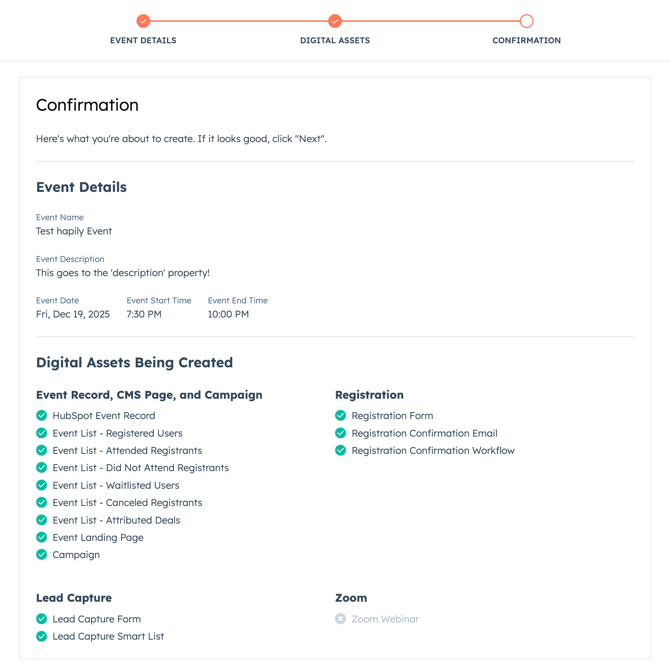
After selecting your preferences, Event Builder will show a summary screen with everything that will be created:
-
Dynamic Lists
-
Registration Form
-
Confirmation Workflow
-
Landing Page
-
Lead Capture Form (if selected)
-
Zoom Connection (if selected)
-
HubSpot Campaign Association
Click Next to confirm and begin building.
Step 4: Review Assets in HubSpot
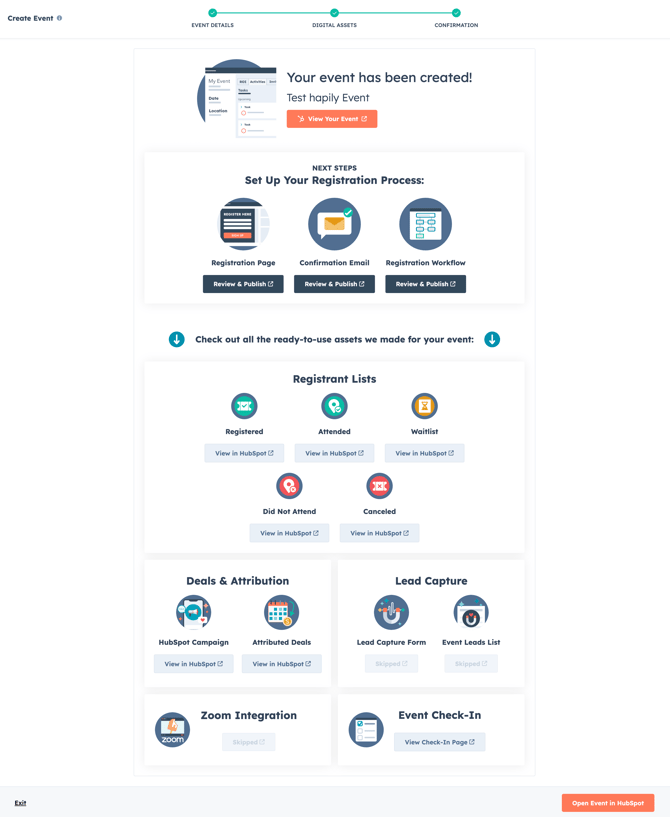
Once complete, Event Builder will:
-
Create your event record inside HubSpot
-
Populate it with your event’s details (name, description, date/time, location, etc.)
-
Add direct links to all connected assets
From the event record, you can:
-
Open your landing page → make edits → publish
-
Open your confirmation workflow → adjust email content → publish
That’s it — your event is ready to go!
Summary
Event Builder saves hours of setup by automatically generating and linking all core event assets in HubSpot.
Once built, you can immediately:
✅ Review and edit your event landing page
✅ Customize and activate your confirmation workflow
✅ Track all event assets in one place
Next Steps: