
Great event follow-up starts with great context.
At trade shows and conferences, where your team may speak with dozens—or hundreds—of prospects in a day, capturing consistent, high-quality lead information is essential.
The Lead Capture Settings inside the event·hapily Admin Dashboard let you customize exactly which HubSpot contact properties your sales reps will fill out when logging leads through the hapily Lead Capture app.
By tailoring these questions to your business, your team can capture richer context, improve follow-up quality, and align event lead data with your broader sales process.
🎥 Video Walkthrough: event·hapily Lead Capture Settings - Watch Video
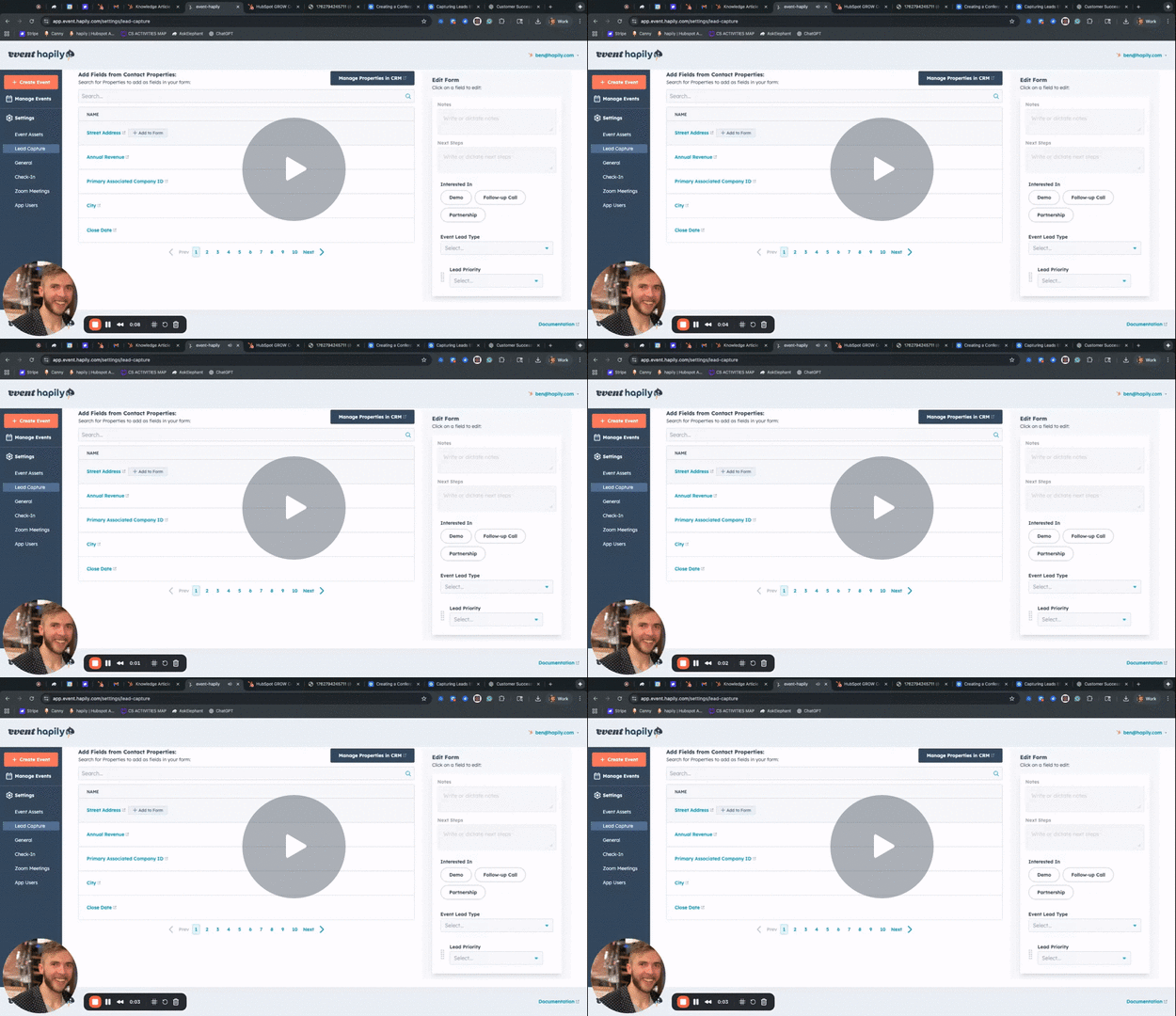
Step 1: Open Lead Capture Settings
-
Navigate to the event·hapily Admin Dashboard at
app.event.hapily. -
Select the Lead Capture Settings tab.
This page controls which fields your reps can fill out when entering or scanning leads in the app.
Step 2: Choose Which Fields to Capture
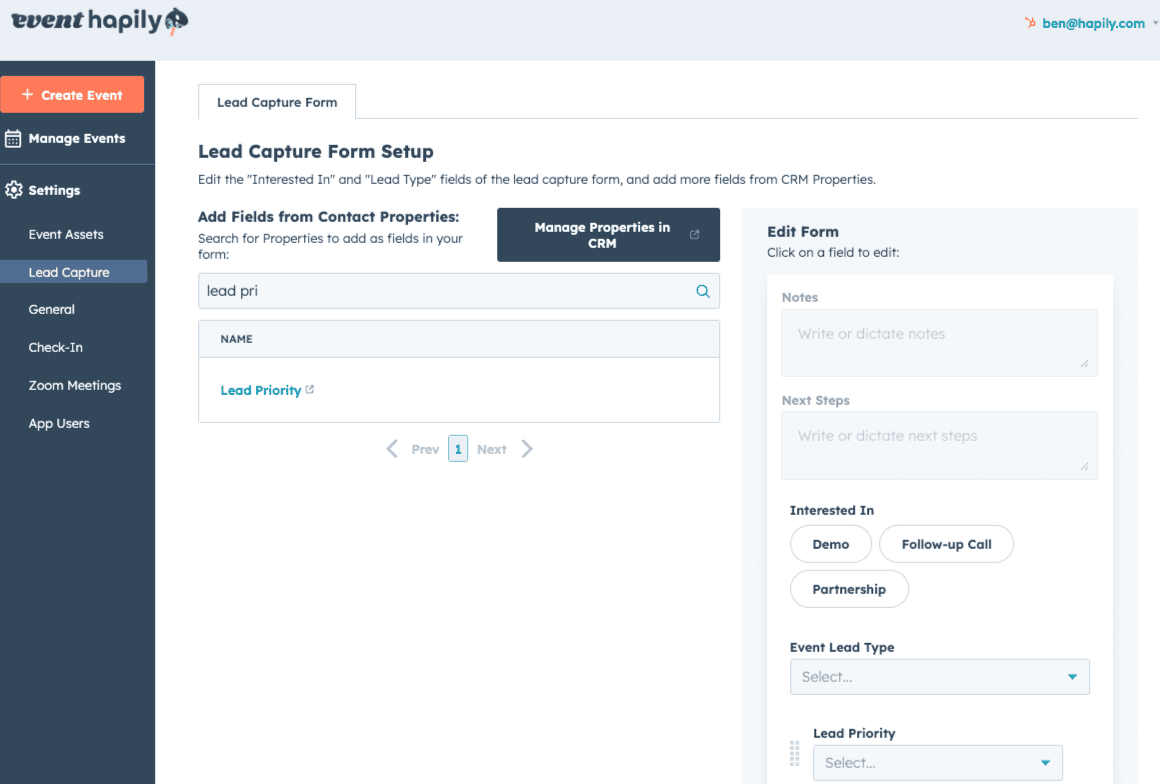
Lead Capture Settings allow you to add any HubSpot contact property to the lead capture form used by your team.
You can include fields such as:
-
Lead Priority
-
Lifecycle Stage
-
Company Name
-
Phone Number
-
Product or Service Interest
-
Notes / What We Discussed
-
Custom Contact Properties your team has created
Simply search for the property you want, select it, and add it to the form.
Step 3: Customize Values for Select Fields
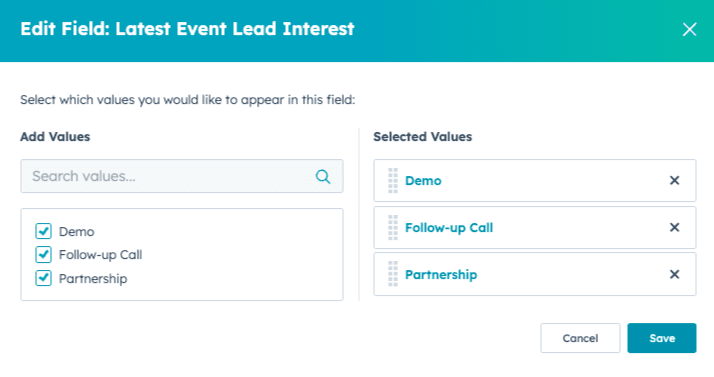
If a contact property uses selectable values (dropdowns, radio buttons, etc.), you can customize:
-
Which values appear in the app
-
The order of values
-
Event-specific variations (e.g., if you aren’t doing demos at this event, you can remove “Requested Demo”)
Examples:
-
Adjust the options for What We Discussed to reflect the event’s offerings
-
Tailor Lead Priority options to match your internal qualification process
-
Add event-specific interest categories or product lines
Step 4: Reorder Questions
The lead capture form can be fully reordered.
To move fields:
-
Drag and drop the properties into the order you prefer.
-
Prioritize the fields your reps should complete first—such as Lead Priority or What We Discussed.
This helps your team follow a consistent and predictable workflow during fast-paced conversations.
Your customized lead capture fields will now appear automatically inside the Lead Capture app for all reps logging leads.
Summary
Using Lead Capture Settings, you can configure event-specific or organization-wide lead capture fields, ensuring your sales reps always collect:
-
Consistent context
-
Relevant qualification details
-
Actionable notes
-
Accurate lead data aligned with your HubSpot CRM
This leads to better follow-up, stronger handoffs, and clearer reporting.