
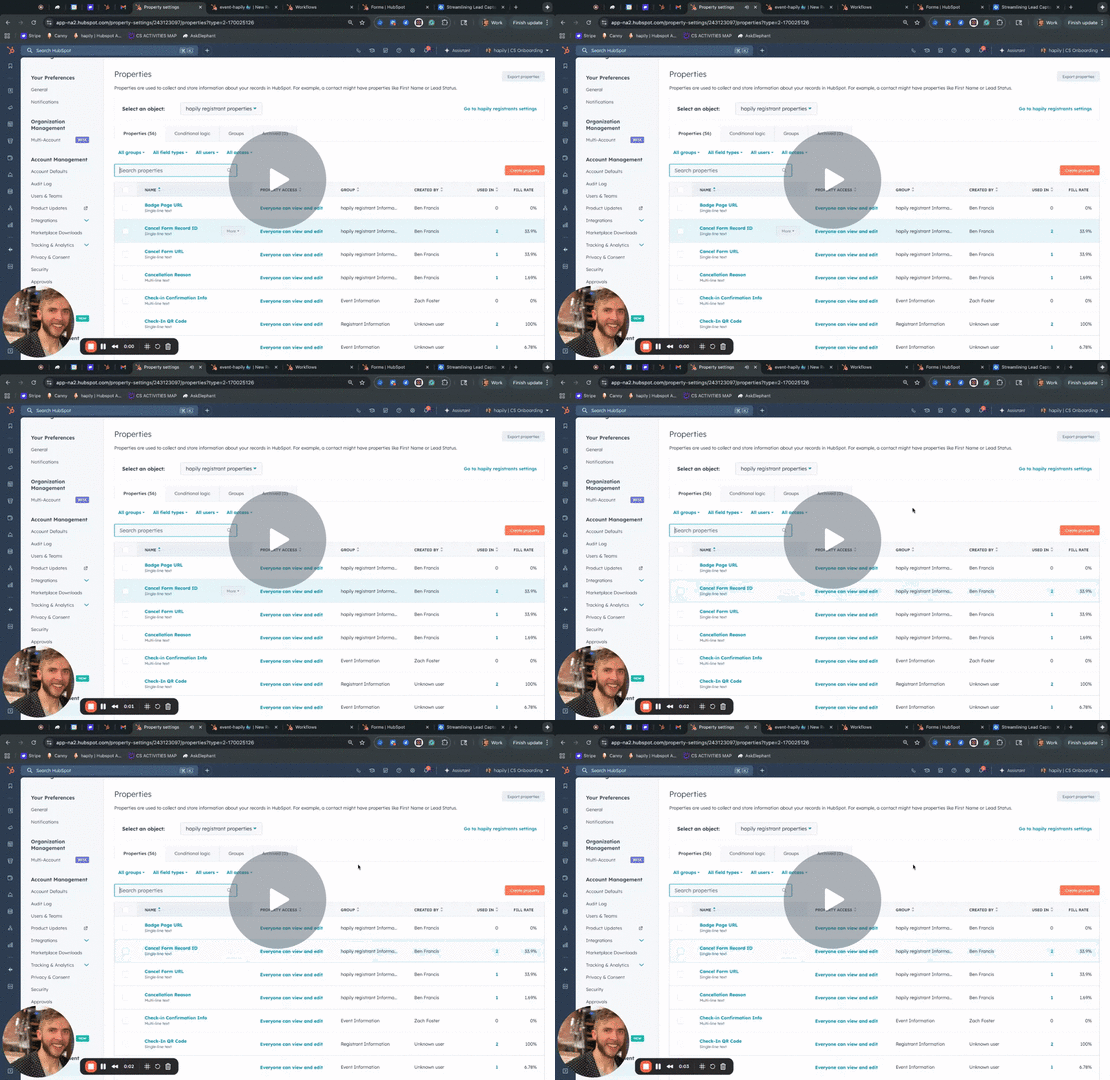
event·hapily 🐳 | Create Post-Event Surveys in HubSpot - Watch Video
Here’s your full Knowledge Base article draft for Creating Post-Event Surveys in HubSpot, formatted in the same professional, readable style as the other hapily KBs (e.g., Manage Event Assets and Build a New Event with Event Builder).
Create Post-Event Surveys in HubSpot
Overview
Post-event surveys allow you to automatically collect feedback from your event attendees — directly on their registrant records in HubSpot.
Using a combination of custom properties, a registrant-based form, and a simple follow-up workflow, you can easily automate post-event survey delivery and tracking inside HubSpot.
🎥 Video Walkthrough:
Watch the Post-Event Survey Setup Tutorial →
Step 1: Create Custom Properties
Start by creating the following custom properties in HubSpot:
1. Record ID for Survey
-
Object: Registrant
-
Field Type: Single-line text
-
Requirement: ✅ Require unique values
This ensures that every registrant has a unique identifier used to write survey results to the correct record.
2. Post Event Survey URL
-
Object: Registrant
-
Field Type: Single-line text
-
Purpose: Stores the unique survey link that will be sent to each attendee.
Step 2: Create Registrant-Based Feedback Properties
You’ll want to capture the feedback data directly on the registrant record.
Common examples include:
-
Event Rating – Dropdown select
Options: Excellent, Good, Neutral, Bad, Never Attend Again -
Event Feedback – Multi-line text
📝 Tip: You can add any additional fields (e.g., “Would you attend again?”, “Favorite session”) as registrant properties.
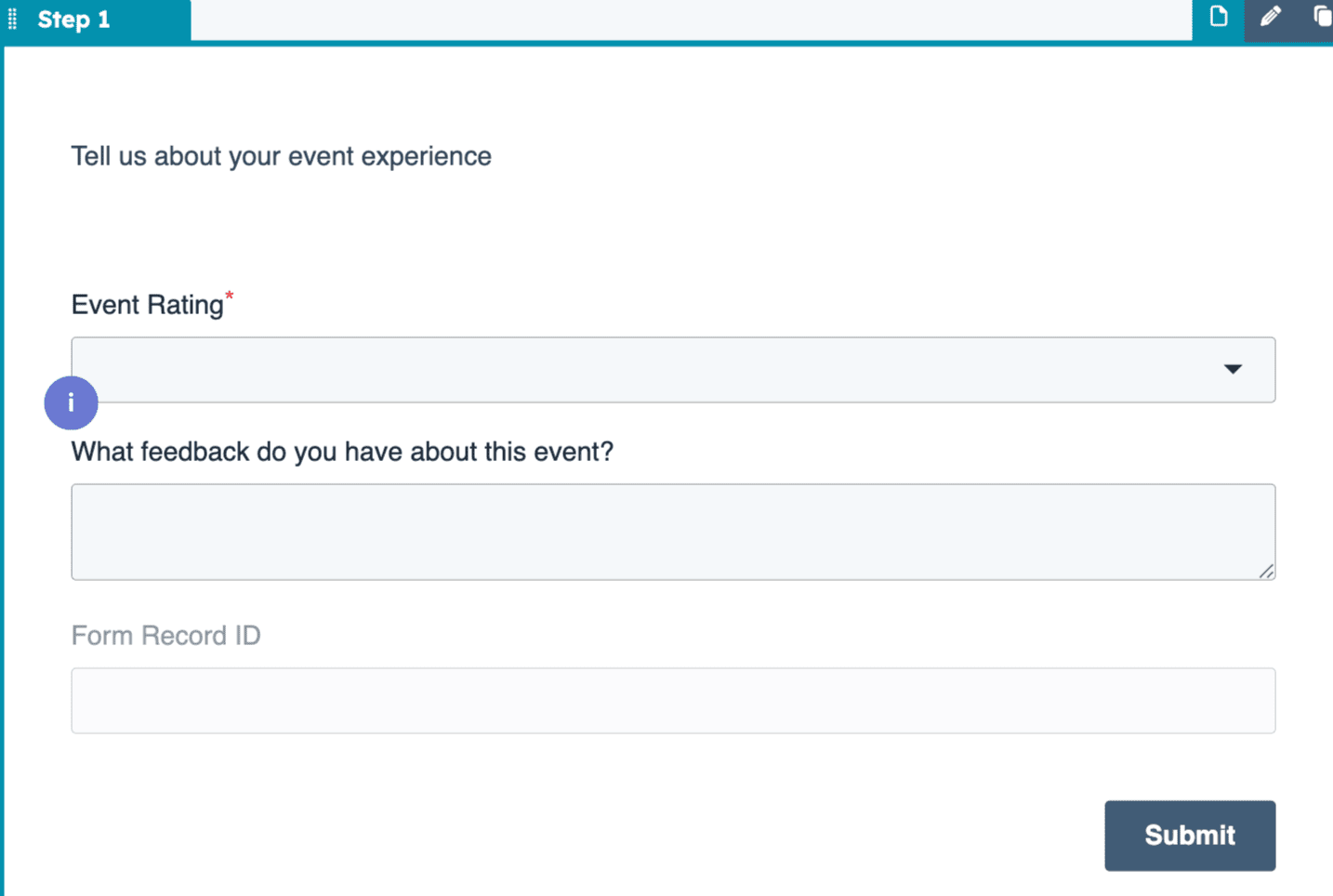
Step 3: Build the Post-Event Survey Form
-
Navigate to Marketing → Forms in HubSpot.
-
Click Create Form (choose either Legacy or Modern — both work).
-
Remove all contact-based fields.
-
Add only registrant-based properties:
-
Event Rating
-
Event Feedback
-
Record ID for Survey (make this field hidden and required)
-
-
Name your form clearly (e.g., Post-Event Survey – Registrant Based).
-
Click Publish when complete.
Step 4: Generate and Store the Survey Link
-
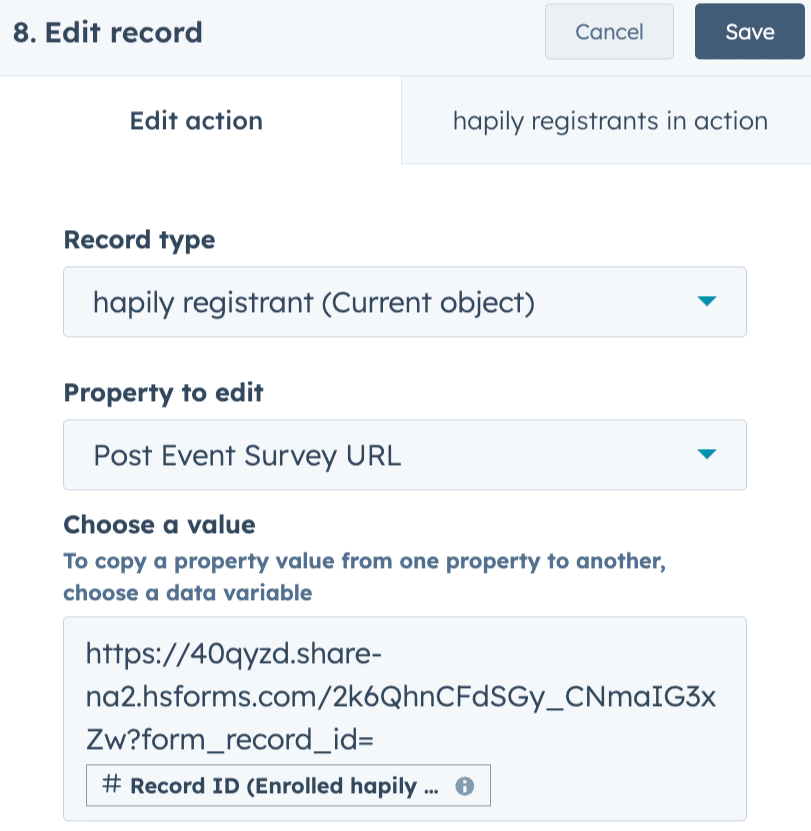
Copy the share link for your new form.
-
Navigate to your “New Registrant Created” workflow.
-
This workflow typically syncs contact and event data to the registrant record.
-
-
Add an Edit Record action.
-
Choose the Post Event Survey URL property.
-
Set its value to your form link + query parameter for the registrant record ID:
https://yourformurl.com?recordIdforSurvey=✅ This tells HubSpot which registrant record to update when a survey is submitted.
Step 5: Create the Post-Event Survey Email
-
Go to Marketing → Email → Create Email.
-
Use any email template you like and name it something like Post-Event Survey – Thank You.
-
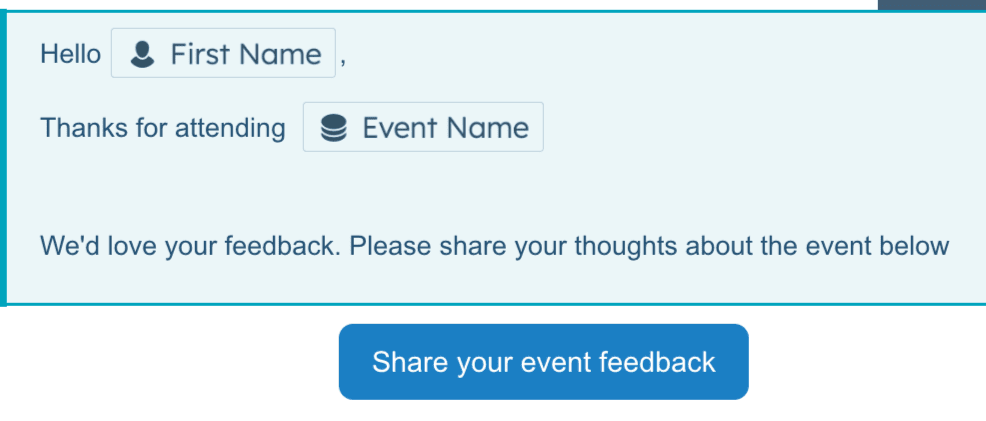
Write your message, for example:
Hi there,
Thanks for attending !
We’d love your feedback — please take a moment to share your thoughts below. -
Add a button and link it to the Post Event Survey URL registrant property.
-
Example: Button → “Share Your Feedback” → Link to registrant.postEventSurveyURL
-
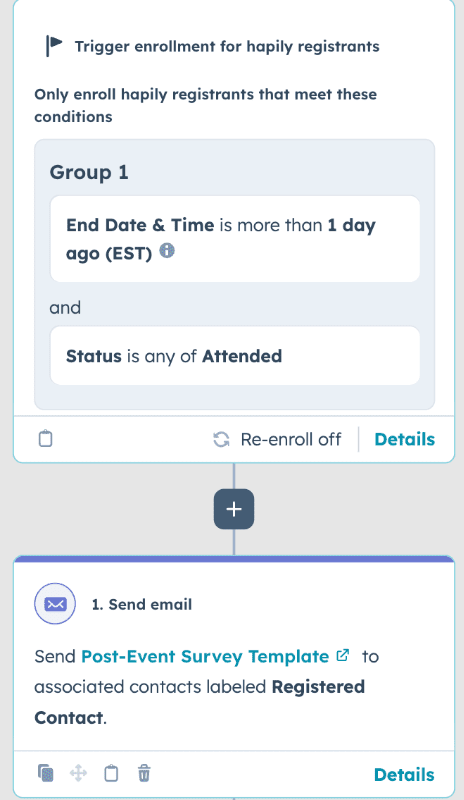
Step 6: Build the Post-Event Workflow
Now create a workflow to automatically send your survey after an event ends.
-
Navigate to Automation → Workflows → Create from Scratch.
-
Set the Object Type to Registrant.
-
Configure enrollment criteria:
-
Event End Date → is in the past
-
Registrant Status → is Attended
-
-
(Optional) Add branches to send unique surveys based on event type or category.
-
Add an Action → Send Email → select your Post-Event Survey email.
-
Review and Publish.
Step 7: Review Feedback
As attendees complete their surveys, their responses will automatically populate the corresponding registrant record fields in HubSpot.
You can use this data to:
-
Create dashboards tracking event satisfaction
-
Trigger follow-up actions based on ratings
-
Identify event improvement opportunities
💡 You could even make a single-object report and embed this onto the hapily event record directly to visualize the event feedback!
Summary
✅ Collect feedback directly on the registrant record
✅ Automatically send post-event survey emails
✅ Personalize each survey with dynamic registrant IDs
✅ Fully automated using HubSpot’s native forms and workflows
Next Steps: