
With the release of Advanced Registration, hapily introduces registration flows. Think of a registration flow as a way to carefully control what types of registrations, or ticket types, are visible and available to specific sets of people.
For instance, you can design a private path for sponsored attendees that bypasses payment while capturing targeted data, while maintaining a standard, separate flow for general admission.
Not hosting Paid events? No problem!
Registration flows allow you to support conditional "forms" based on the type of registration, allow for true guest registration, and facilitate registration on non-HubSpot pages.
This approach allows you to:
-
Restrict specific ticket availability to targeted groups of attendees (e.g., sponsors, VIPs, or general admission).
-
Set granular information requirements on a per-ticket basis while keeping other flows friction-free.
-
Provide specialized, zero-dollar paths for pre-paid segments without exposing free options to the public.
-
Generate standalone registration URLs or embed customized modals into your existing web properties.
- As a bonus, your HubSpot portal tracking code is automatically added to the registration flow so you can retain important conversion and traffic information
🎥 Video Walkthrough:
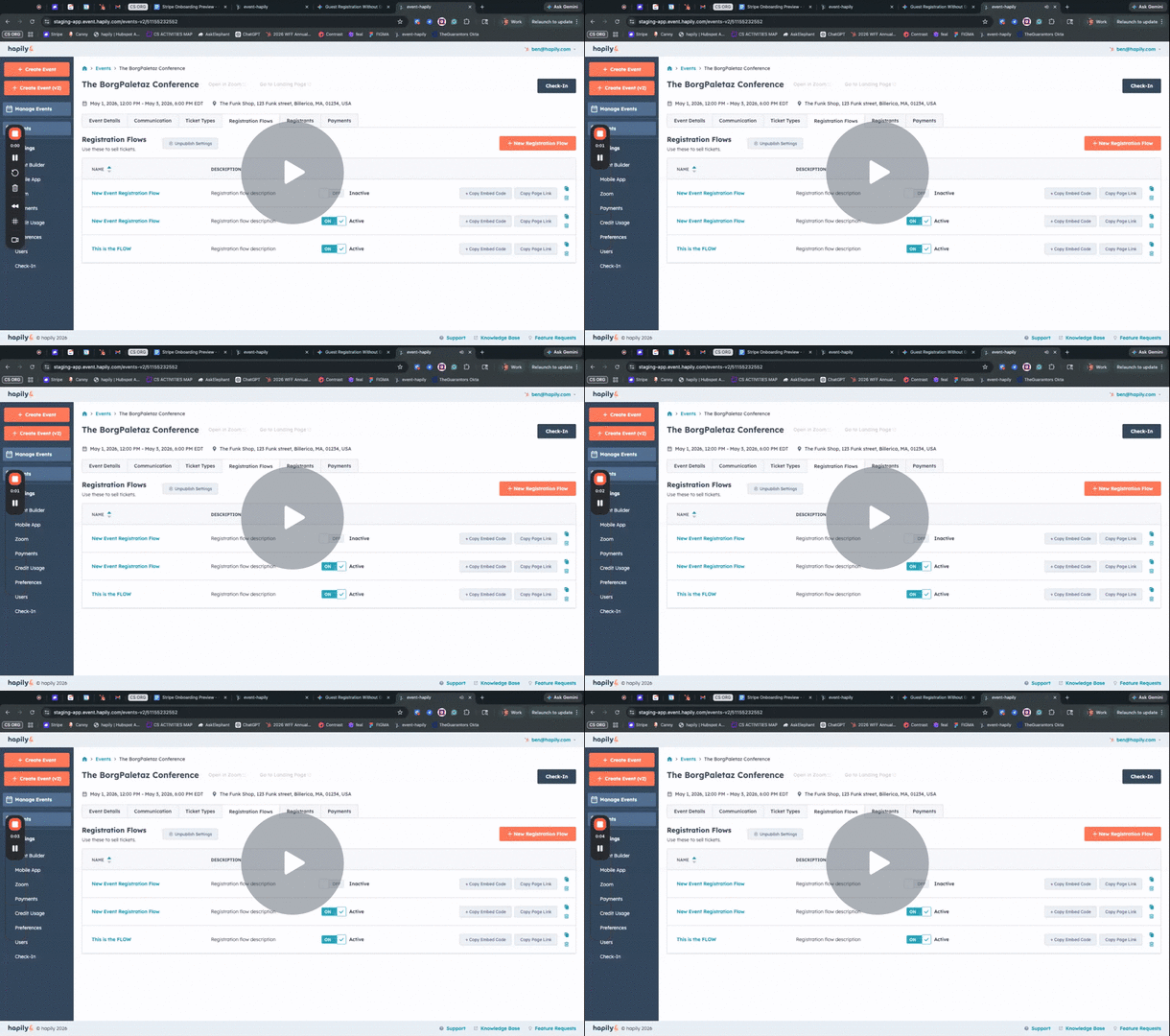
Registration Flows Overview - Watch Video
Step 1: Create or Define Your Ticket Types
-
Navigate to your event dashboard within hapily and ensure your basic ticket or registration types (e.g., Early Bird Tickets, Free Entry, General Admission) are configured.
-
To build a dedicated flow, select New Registration Flow.
-
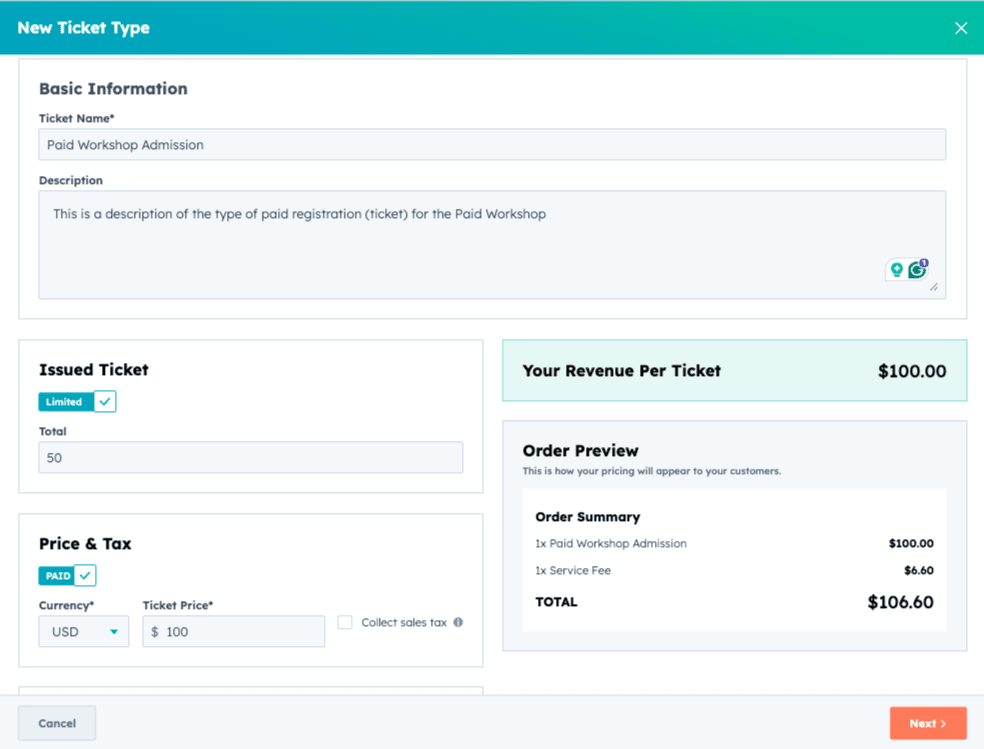
Enter the profile details for your specific segment—for instance, enter Gold Sponsor Ticket in the name field.
-
Input the Total Quantity Available (e.g., 50).
-
Set the ticket price. For pre-paid groups like sponsors whose fees have already been collected outside the platform, configure the fee to $0.
-
Define the required attendee criteria under the individual registration holder settings. Check the boxes to make First Name, Last Name, and Company mandatory so you can validate attendees at checkout.
-
Click Create to finalize your new registration type.
Step 2: Build and Name a Custom Registration Flow
-
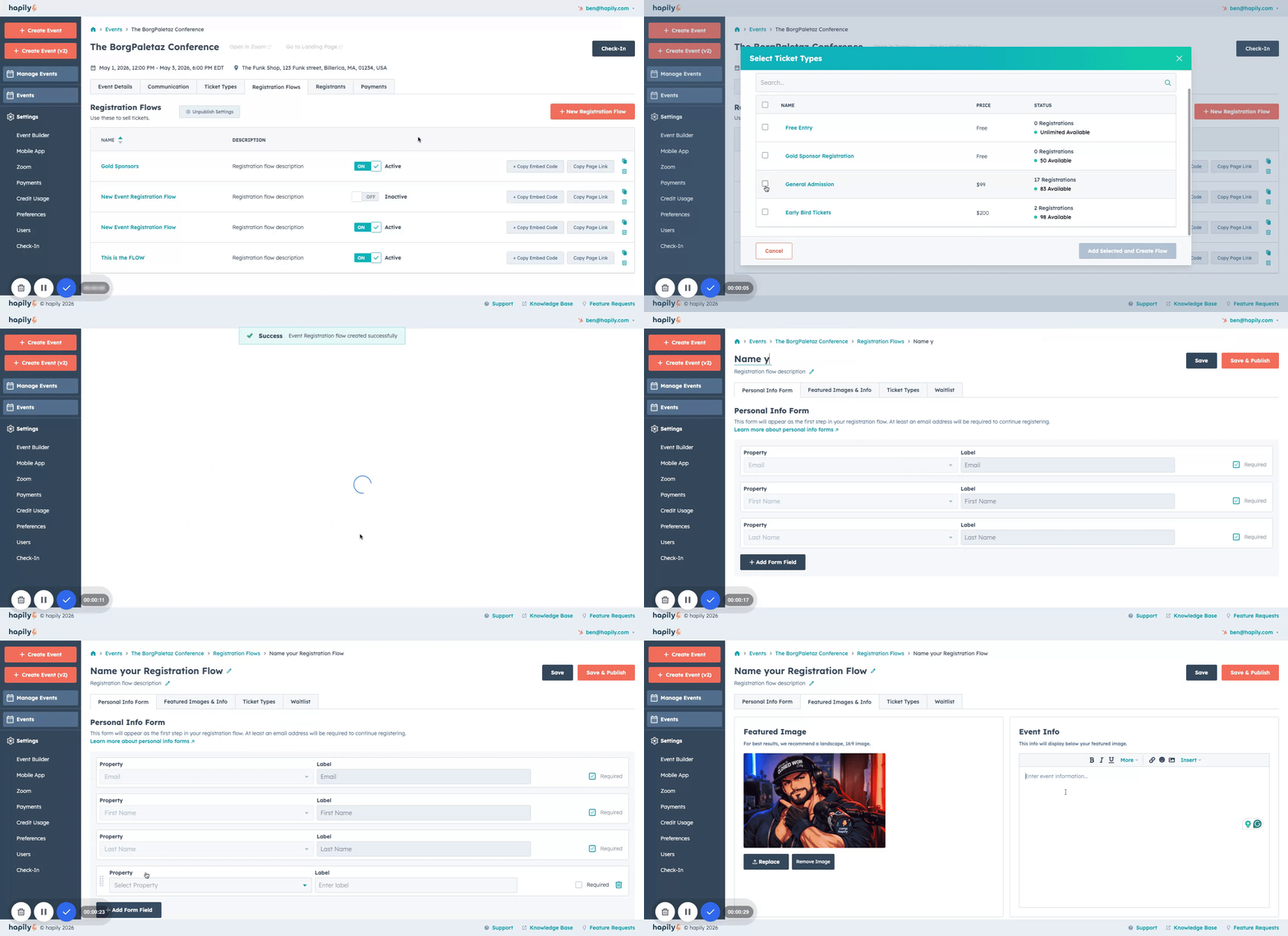
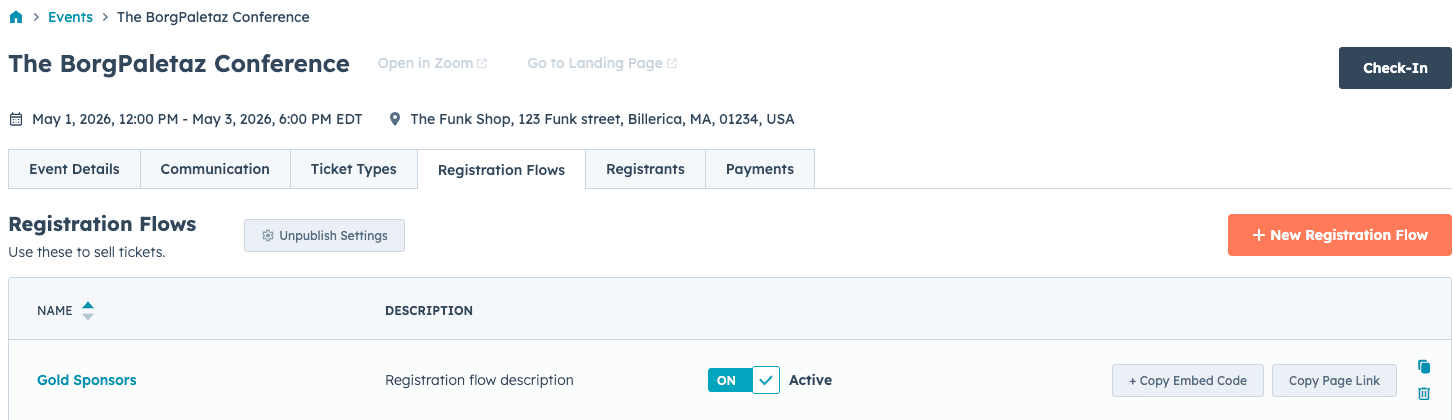
Locate the registration flows section. By default, hapily automatically creates an initial flow containing all available ticket types in an Inactive status. You may activate this to expose everything to everyone, or create a unique flow.
-
Click Create New Registration Flow to design a dedicated registration experience.
-
Provide a recognizable name in the flow name field, such as Gold Sponsors.
-
Under the ticket selection criteria, select only the corresponding ticket type (e.g., Gold Sponsor Ticket) to isolate this path from public view.
Step 3: Define Transaction and Attendee Rules
-
Configure the fields required on the Personal Info form from the person registering for the event.
-
Review your event-level toggles to customize the layout. Here, you can adjust options such as info about the event, change the event image shown for this specific registration flow, and Enable Waitlisting if your allocations fill up.
- Enabling Waitlisting will automatically associate contacts in HubSpot with the event with the association label of 'Waitlisted for Event'
-
Click Save and Publish to make your registration flow active.
Step 4: Distribute and Deploy Your Flow
With your flow successfully published, you can either:
- Embed the HTML for the registration flow on your own webpage
- Share a link to the hapily-generated page for this registration flow - no page needed!
Summary
✅ Using registration flows allows you to segment registration pathways and manage ticket exposure seamlessly.
✅ You can define distinct individual and transaction-level field requirements to fit each audience profile.
✅ Pre-paid paths, such as sponsor allocations, remain isolated from general public admission tickets.