
Overview
Once your event has ended, it’s important to close or unpublish it in HubSpot to keep your event listings up to date.
Unpublishing an event automatically removes it from your public Event Listings Page, helping you maintain a clean and accurate list of current and upcoming events.
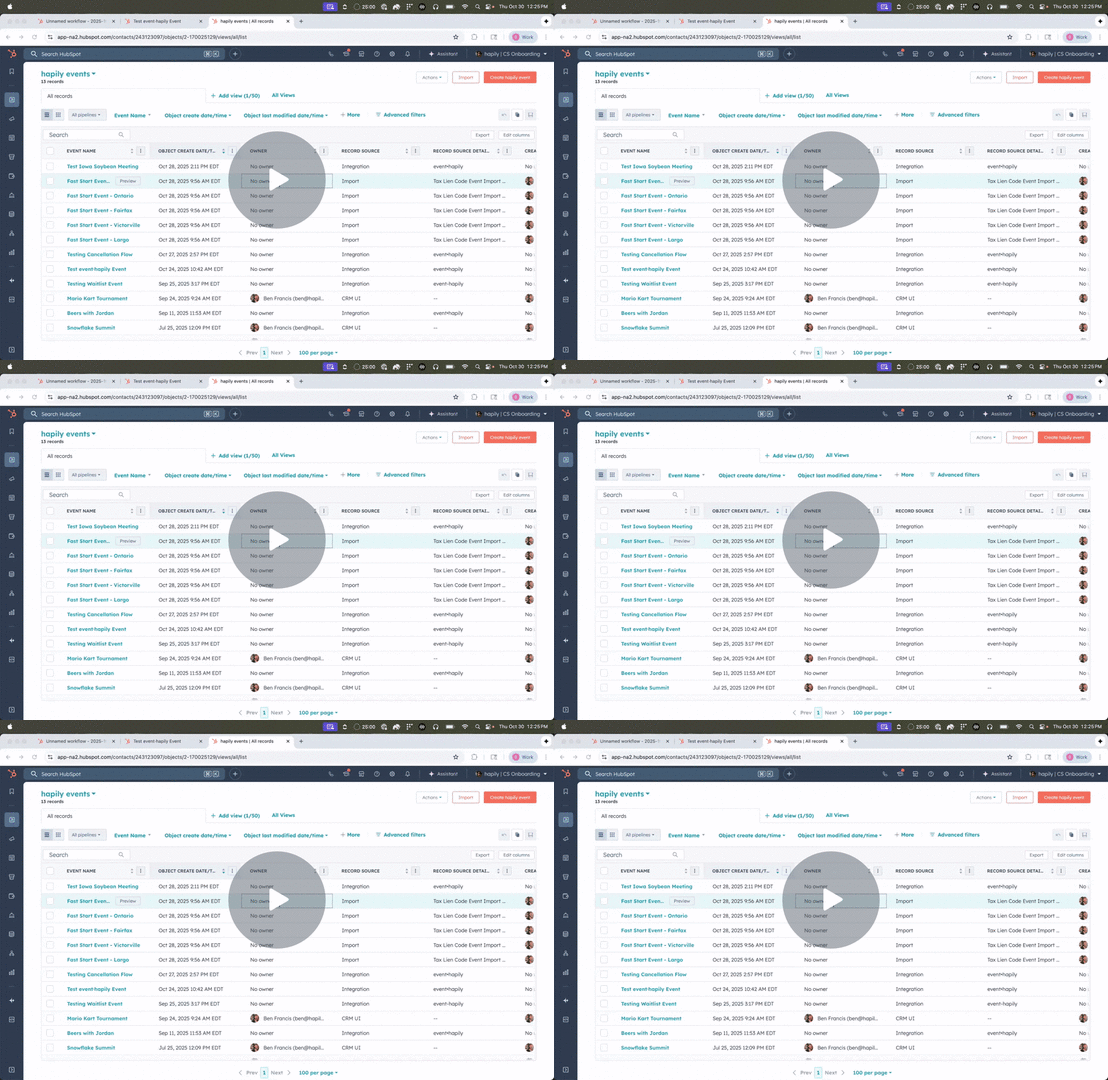
event·hapily 🐳 | Closing Past Events Automatically - Watch Video
Step 1: Create a New Workflow
-
In HubSpot, navigate to the Automation tab.
-
Click Workflows, then select Create workflow from scratch.
-
Set the object type to Event (hapily).
Step 2: Define Enrollment Criteria
-
In the enrollment triggers, choose the Event End Date (
end date) property. -
Set the condition to:
Event End Date → is more than 3 days ago -
(Optional) Turn on Re-enrollment in case an event is republished and later needs to be unpublished again.
📝 Example:
If an event ended four days ago, it will automatically enroll in this workflow and trigger the “unpublish” action.
Step 3: Name and Save the Workflow
Give your workflow a clear name, such as:
Unpublish Event – 3 Days After End Date
Then click Save to continue.
Step 4: Add the Unpublish Action
-
Click + Add Action.
-
Choose Edit property value.
-
Select the Published Event property.
-
Set the value to No (or False, depending on your setup).
This ensures that any event meeting the enrollment condition will automatically have its “Published Event” status updated — effectively removing it from your Event Listings Page.
Step 5: (Optional) Add Follow-Up Actions
You can extend this workflow with other post-event actions such as:
-
Send a feedback email to attendees
-
Send a “Thank You” email to registrants
-
Notify your team via app notification or email
-
Trigger a Slack or WhatsApp message to confirm event closure
Because this is a standard HubSpot workflow, you have access to all of HubSpot’s automation actions.
Step 6: Review and Publish
Once your workflow is configured:
-
Review the enrollment criteria and actions.
-
Click Turn On or Publish to activate it.
From now on, any event ending more than three days ago will automatically unpublish itself — keeping your listings fresh and accurate.
Summary
✅ Automatically unpublishes events that ended more than 3 days ago
✅ Keeps your Event Listings Page up to date
✅ Can trigger optional follow-up emails or team notifications
✅ Uses HubSpot’s native automation tools
Next Steps: