
Turn event engagement into measurable revenue with hapily's attribution settings.
Configure your settings to automatically connect registrations, lead capture, and attendance to sales pipeline activity and booked meetings.
This approach allows you to:
- Define your touch model (e.g., first touch, last touch, or a specific time domain).
- Choose between company-level or contact-level deal attribution.
- Track and label Sourced Deals and Influenced Deals independently.
- Automatically attribute booked meetings to event engagement.
- View comprehensive revenue and pipeline metrics directly on individual event records.
🎥 Video Walkthrough: Watch Video
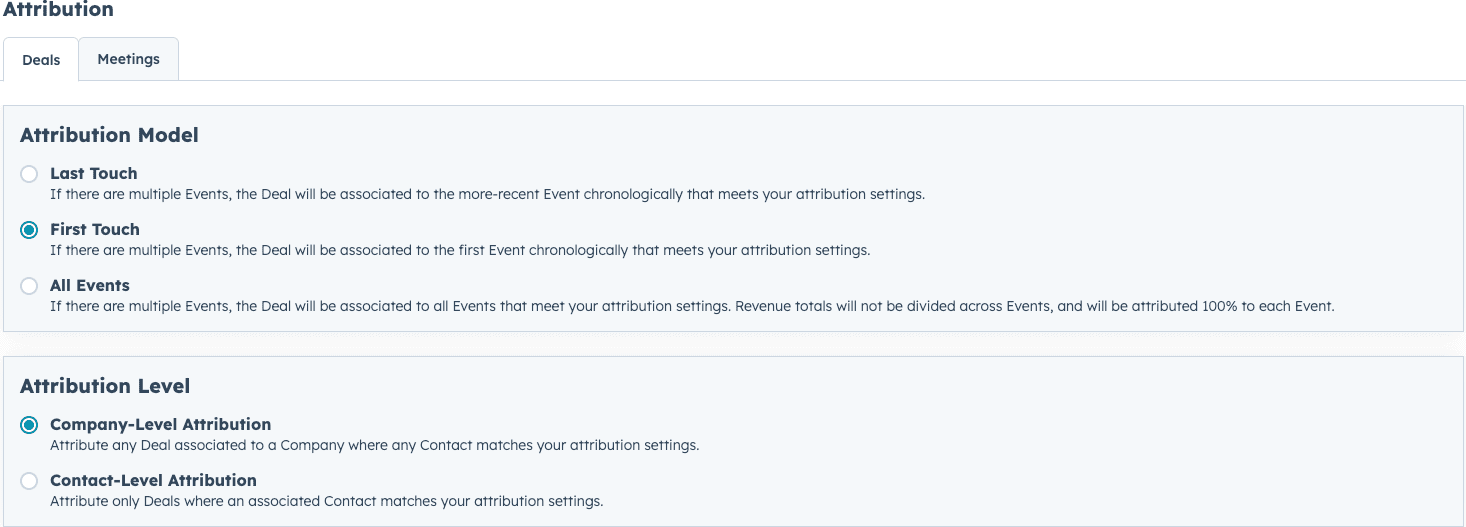
Step 1: Define Your Touch Model and Target Level
- Navigate to your Attribution Settings in hapily.
- Select your preferred touch model (e.g., Last touch, First touch, or All events in a specific time domain) to establish how you want to associate deals with events.
- Choose your attribution target level:
- Company Level: If any person from a company engages with your event, and that company has a qualifying deal, hapily will associate that company's deal directly to the event.
- Contact Level: Requires a tighter connection. For example, if a specific contact engages with your event, hapily will only connect the event to deals directly associated with that specific contact.
Step 2: Configure Sourced Deals
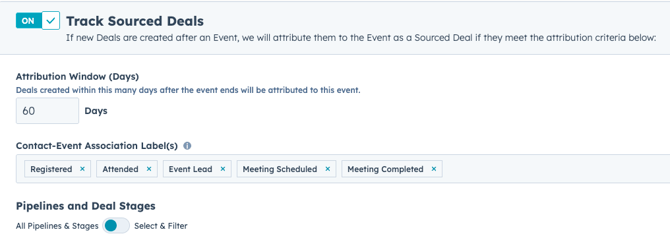
- Toggle on the ability to track Source Deals.
- Set a specific Attribution Window to dictate how long after an event ends the system should listen for a newly created deal.
- Select the target Date Property on your deal (such as Create Date or Close Date) to evaluate against the event date.
- Define the engagement conditions (e.g., registered, attended) required for a deal to automatically receive the Sourced Deal association label.
Step 3: Configure Influenced Deals
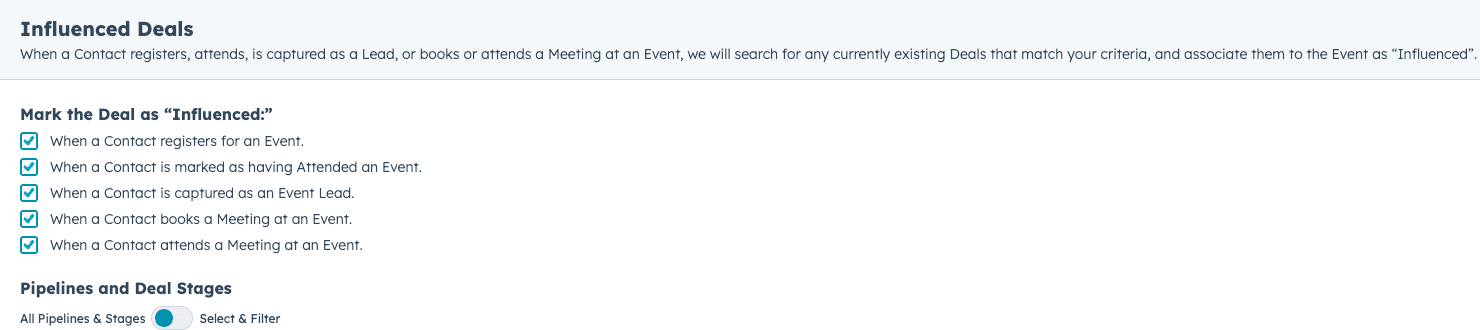
- Toggle on the ability to track Influenced Deals to monitor existing pipeline progress.
- Select the specific level of engagement to track (e.g., whether someone Registers, Attends, or gets tagged as an Event Lead).
- Use the Pipeline drop-down to pick the specific Deal Stages you want to monitor.
- Best Practice: Exclude all pipeline stages that are already won or lost if you only want to track open and active pipelines.
- When contacts meet these engagement conditions and have an open deal in the designated stages, the deal is automatically associated with the event using the Influenced label.
Step 4: Set Up Meeting Attribution
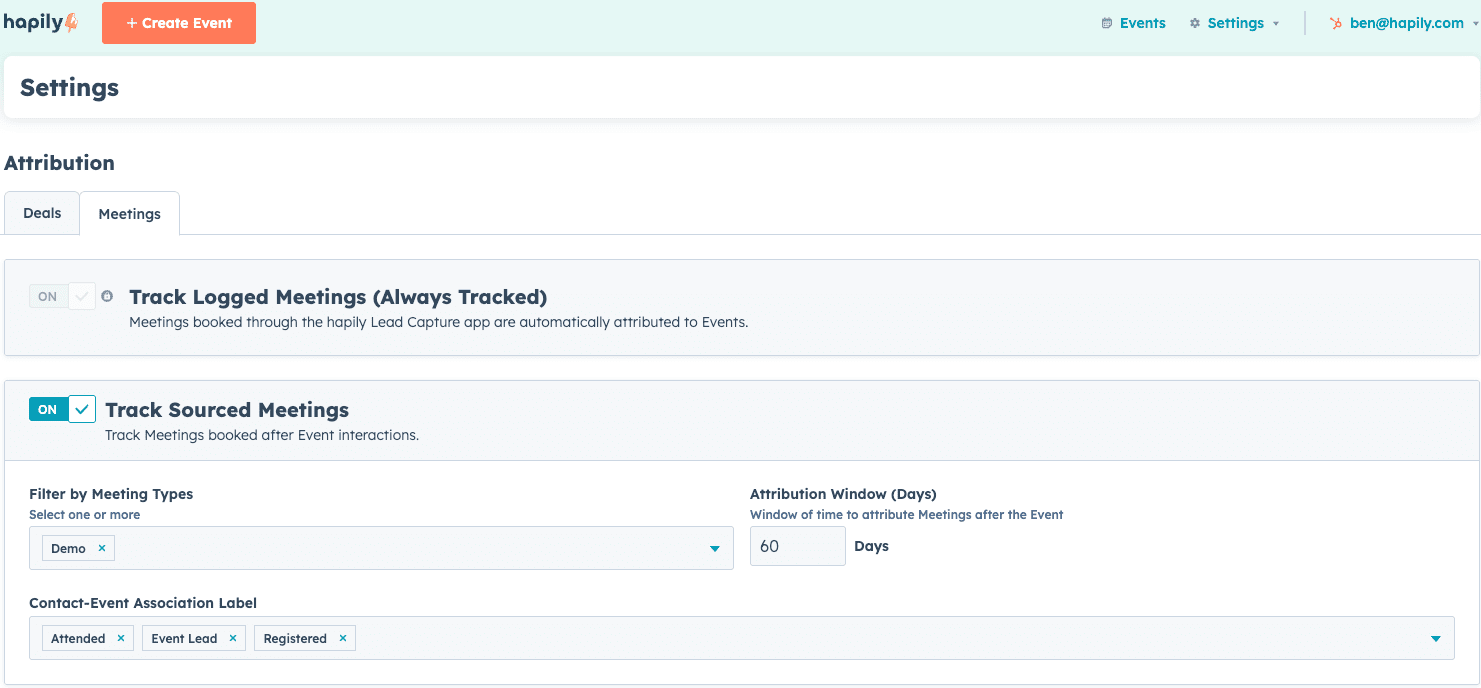
- Enable meeting attribution to track the time it takes for event attendees to move to the next stage of the funnel by booking a meeting with your team.
- Specify the attribution window (e.g., up to 60 days) to listen for a booked meeting after a contact engages with a hapily event.
- Narrow your tracking to specific Meeting Types (e.g., Demos).
- Once a matching meeting is booked by a tagged contact (such as an Event Lead or someone who Registered), it is automatically connected to the event with the Sourced by Event label.
- Note: This listens for any meeting logged to the contact and is not strictly reliant on HubSpot meeting links. Meetings logged directly via the hapily Lead Capture app are also automatically attached to the event.
Step 5: View Attribution Metrics on an Event Record
- Navigate to a specific event record in hapily.
- Click on the Attribution tab.
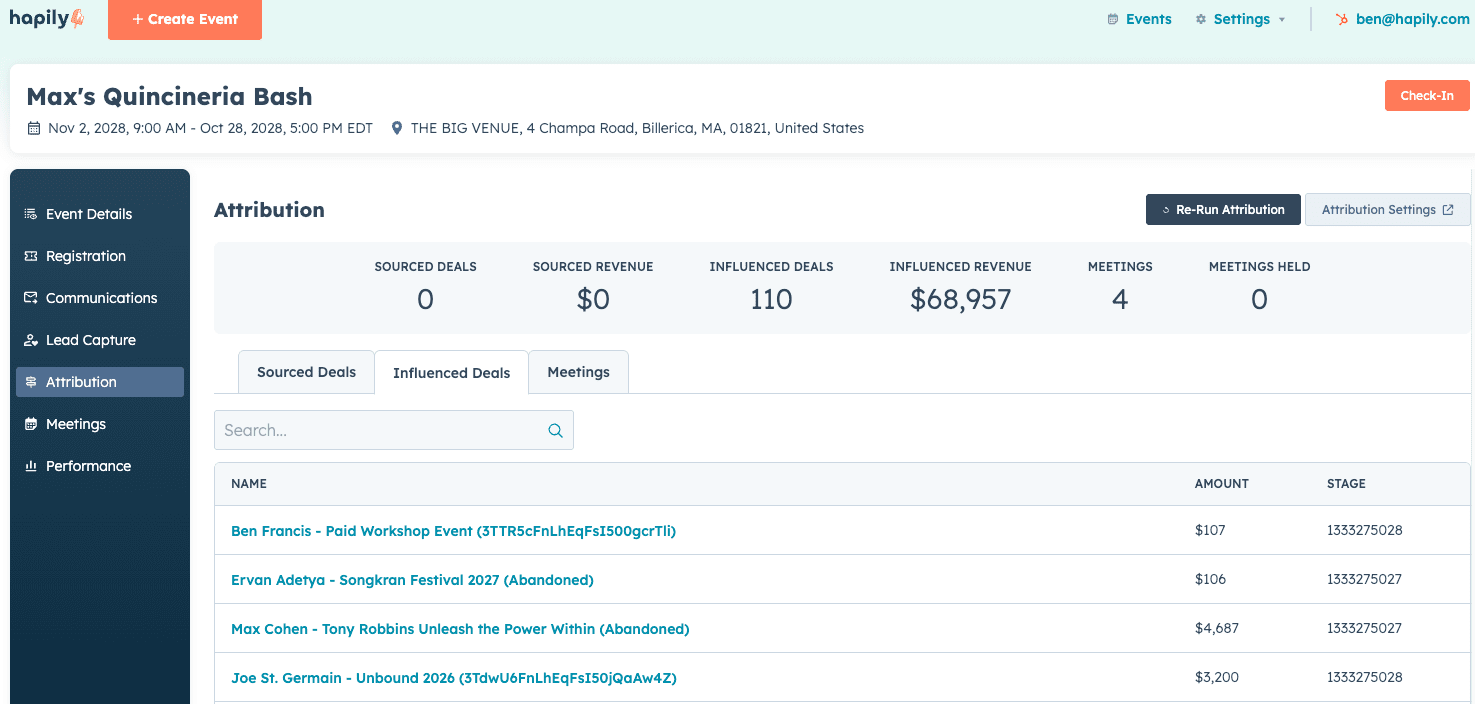
- Review the high-level metrics dashboard, which displays:
- Count and sum total amount of Source Deals.
- Count and sum total amount of Influence Deals.
- Number of Meetings Attributed and Meetings Held.
- Scroll down to view a detailed breakdown of the deals in the pipeline, including the Deal Stage, the Amount, and a direct link to view that deal in HubSpot.
Step 6: Rerun Attribution Manually
- While on the Attribution tab of a specific event, locate the Rerun Attribution button.
- Click this button to manually re-evaluate the specific event against your current account-level settings. hapily will immediately scan for any new deals or meetings that meet the criteria and attribute them appropriately.
Summary
✅ Configure touch models and target levels to map attribution at either the company or individual contact level.
✅ Track Sourced Deals based on a defined post-event attribution window and specific deal date properties.
✅ Track Influenced Deals by listening for event engagement against targeted active pipeline stages.
✅ Automatically attribute booked meetings following event engagement, independent of specific meeting tools.
✅ Review detailed financial metrics and manually rerun attribution directly from the event record's Attribution tab.
Next Steps: