
Every organization captures unique information about their events. The Event Builder in hapily can be easily customized to include additional fields from your hapily Event object in HubSpot — ensuring your team collects the right data every time a new event is created.
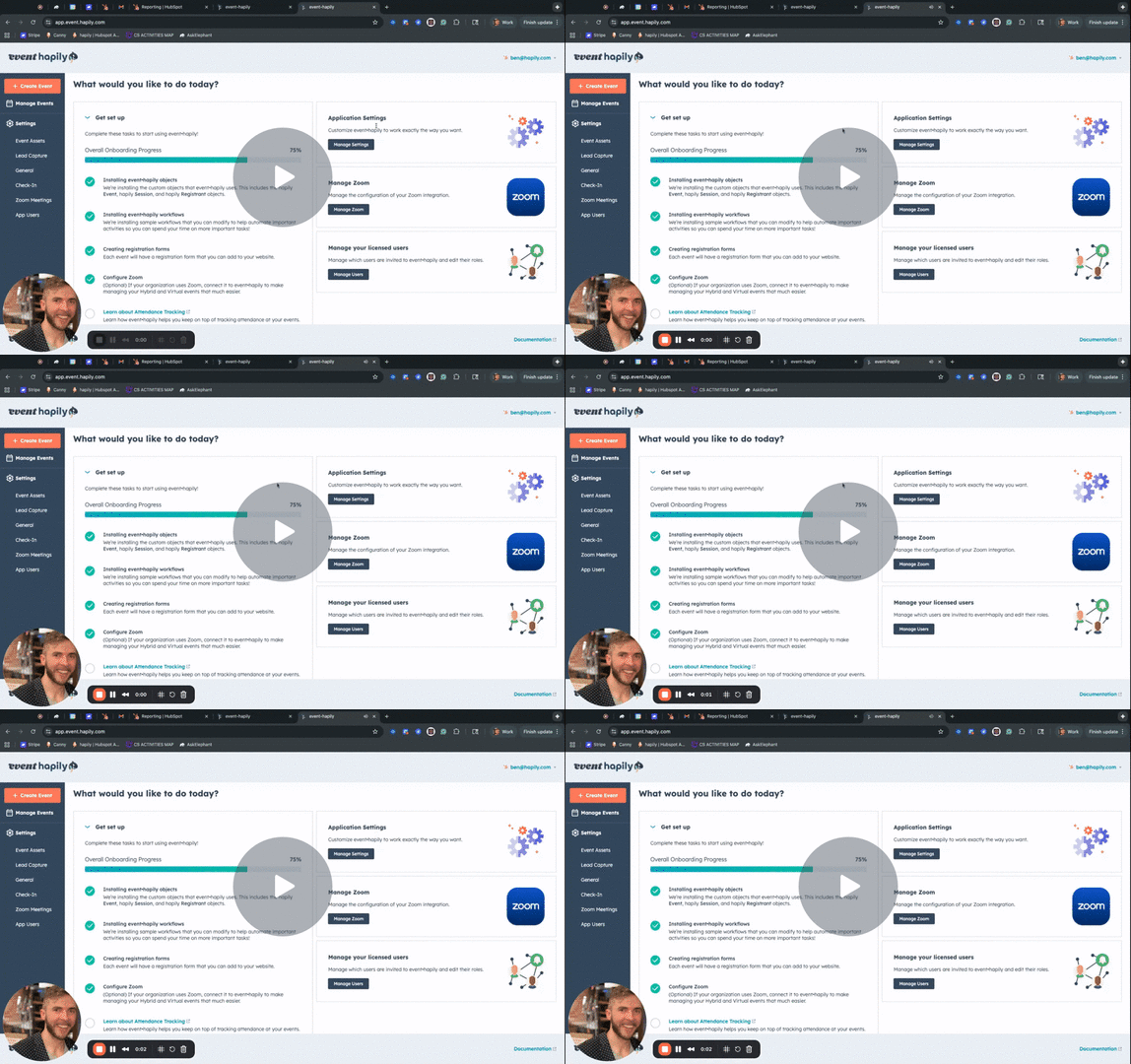
🎥 Video Walkthrough:
Watch the Customizing Event Builder Tutorial →
Step 1: Access the Event Builder Settings
-
From the event·hapily Admin Panel (
app.event.hapily), navigate to the Event Builder section. -
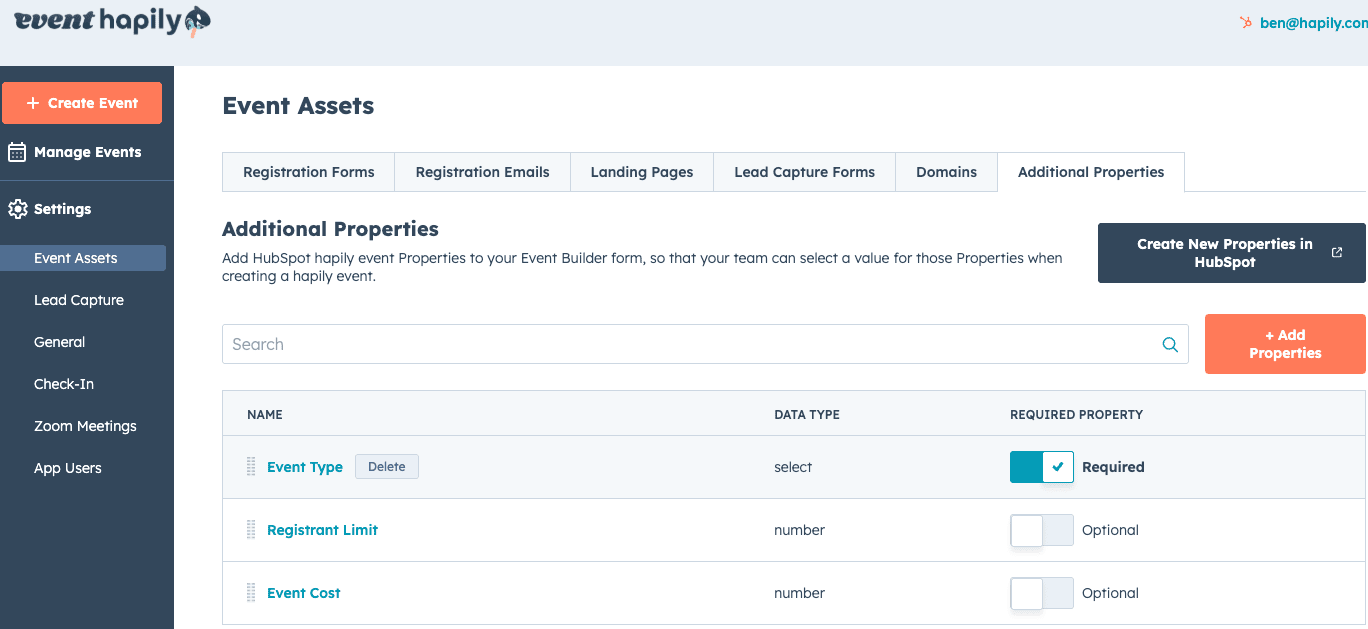
Scroll to the Assets area and click Additional Properties.
Step 2: Add Additional Properties
-
Click Select Properties.
-
From the dropdown list, you’ll see all properties available on the hapily Event object in HubSpot.
-
Choose the properties you’d like to include in the Event Builder — for example:
-
Event Type
-
Registrant Limit
-
Event Cost
-
-
Click Add Selected Properties.
📝 Tip: These properties will now appear in your Event Builder workflow whenever someone creates a new event.
Step 3: Set Properties as Required or Optional
After adding properties:
-
Use the toggle beside each property to mark it as Required or Optional during event creation.
-
Required properties must be filled out before an event can be created.
-
Optional properties can be left blank and updated later.
Step 4: Create New Event Properties (Optional)
If your team needs to track data not currently included on the hapily Event object, you can create a new property directly from this same screen:
-
Click Create New Property.
-
Define the field type (e.g., text, number, dropdown).
-
Save your new property.
-
Add it to the Event Builder using the same process as above.
Step 5: Use the Updated Event Builder
Once your custom properties are added and saved:
-
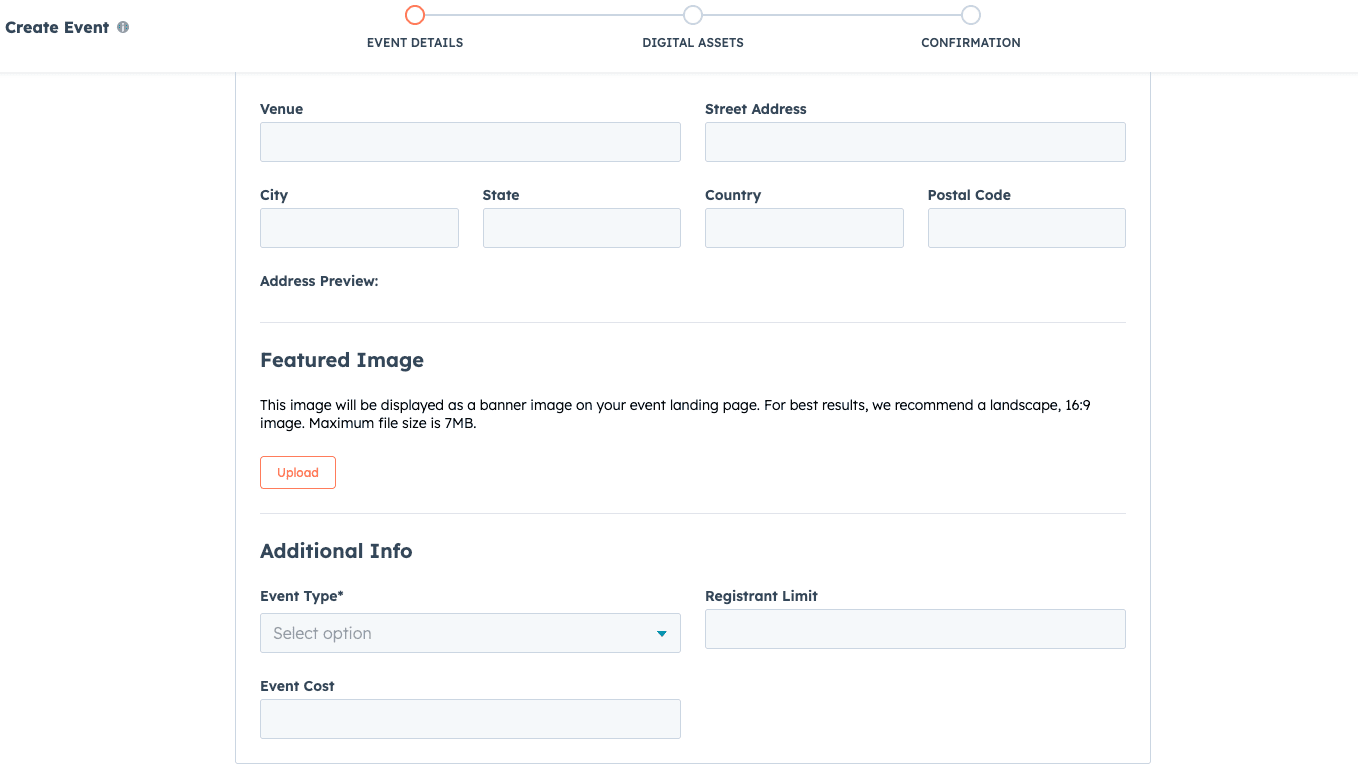
Go to Create Event in the Event Builder.
-
You’ll now see your additional fields included in the setup process.
-
Example: Featured Image, Event Type, Registrant Limit, or Event Cost.
-
-
Complete the fields as needed when creating new events.
Next Steps: