
Before your sales team can use the hapily Lead Capture app, an Admin must create an event record in HubSpot and mark it as available for lead capture.
This ensures that any leads collected on-site - via badge scans or manual entry - are automatically associated with the correct event.
This guide walks you through the simple setup steps using Event Builder.
🎥 Video Walkthrough:
Watch the “Create an Event for Lead Capture” Tutorial →
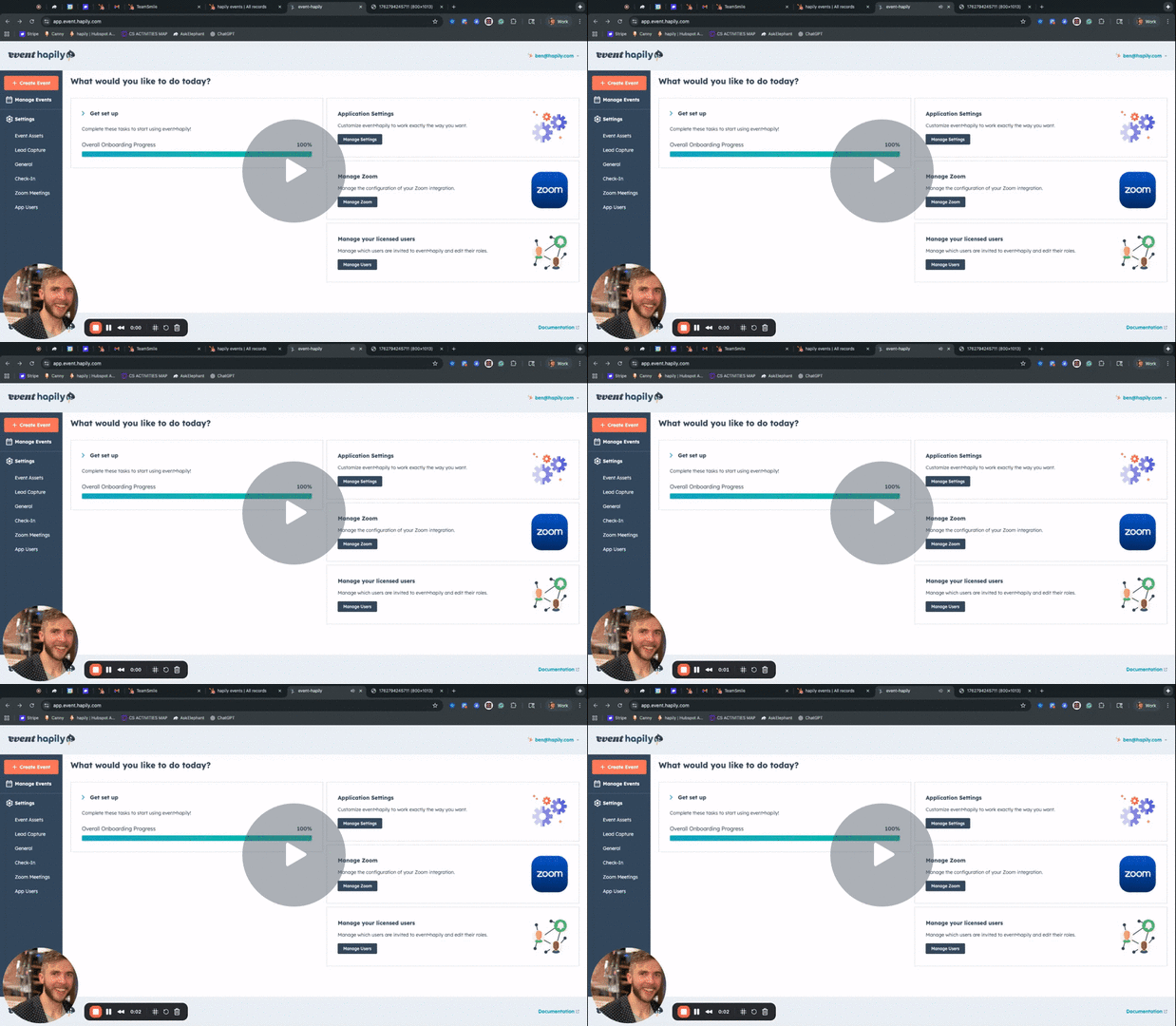
Step 1: Open Event Builder
-
Go to the event·hapily admin portal: app.event.hapily
-
Click Create Event to start a new event setup.
Related Knowledge Base Article - Event Builder Overview
Step 2: Enter Basic Event Details
Fill in the key information your team needs to identify the event inside the app:
-
Event Name – e.g., HubSpot Grow Conference
-
Date & Time – single-day or multi-day
-
Location – choose the correct time zone
-
Event Type – select from your configured event type options
These details will appear for your sales reps inside the Mobile Lead Capture app.
Step 3: Skip Registration Assets (Lead Capture Does Not Require Them)
If your event is only being used for on-site lead capture, you do not need landing pages, forms, or workflows. If you're hosting other events at this conference/tradeshow, then you may want to create new lists, landing page, email, etc.
When Event Builder asks whether you want to create registration-related assets:
-
Select No
-
Click Next
This keeps the event lightweight and focused on lead collection only.
Step 4: Create the Event Record
Click Next and allow Event Builder to generate the event.
Once complete, you’ll be taken to the newly created Event Record in HubSpot.
Step 5: Enable the Event for Mobile Lead Capture
To make this event available to your sales reps inside the Mobile Lead Capture app:
-
Open your event record.
-
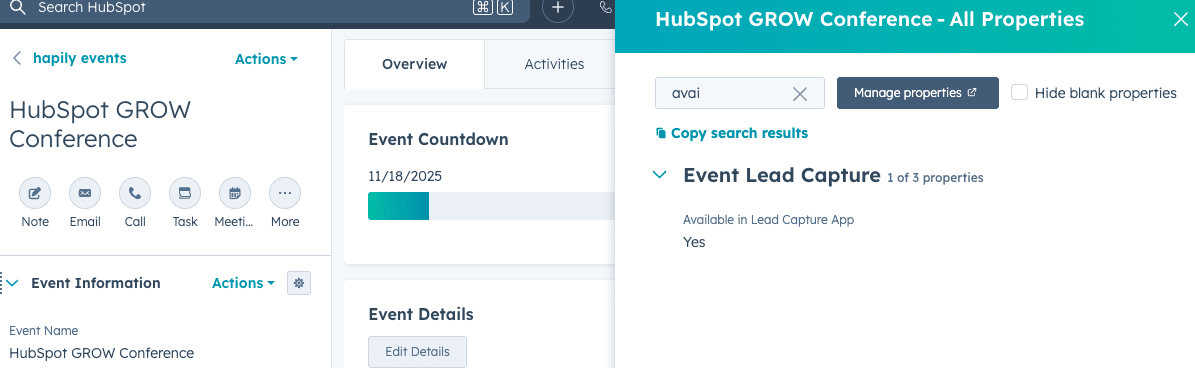
Find the property:
Available in Lead Capture App -
Set this property to Yes.
This adds the event to the list of available events inside the mobile app, allowing reps to log leads against it.
Summary
By following these steps, your event is now ready to be used inside the event·hapily Mobile Lead Capture application.
Your sales team can now:
✅ Select the event inside the app
✅ Scan badges or manually capture leads
✅ Automatically associate leads to the correct event
✅ Track event lead quality and ROI inside HubSpot