
Offline payments let you collect event registration fees outside of the hapily payment flow. Instead of processing credit cards immediately, hapily creates a HubSpot deal at checkout so your team can invoice registrants via ACH, wire transfer, or another offline method.
Use offline payments to:
- Set up offline payment methods alongside or instead of credit card and wallet payments.
- Automatically create a deal in a designated HubSpot pipeline upon registration.
- Enable your finance team to collect payment via invoicing, ACH, wire transfer, or any other offline method.
🎥 Video Walkthrough:
Offline Payment Event Registration Setup - Watch Video
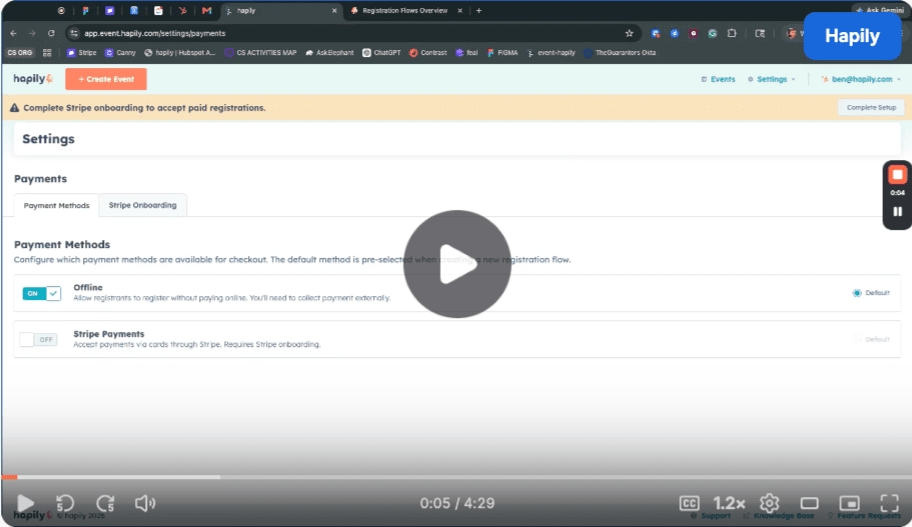
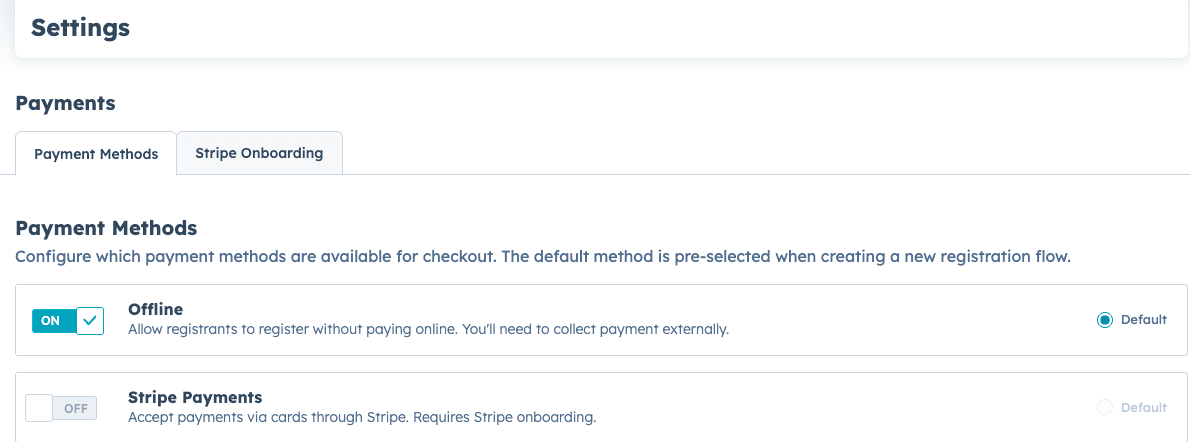
Step 1: Navigate to Global Payment Settings
- Open your hapily app.
- Navigate to the Settings tab.
- Select the Payments option.
- Toggle the switch to enable Offline payment methods alongside or instead of your Stripe integration options.
Step 2: Create Registration Types
- Navigate to your specific event.
- Go to the Registration Types section.
- Create your registration types (e.g., VIP Pass, General Admission).
- For each registration type, configure the Cost, Quantity, availability dates, and any specific information you need to collect from attendees.
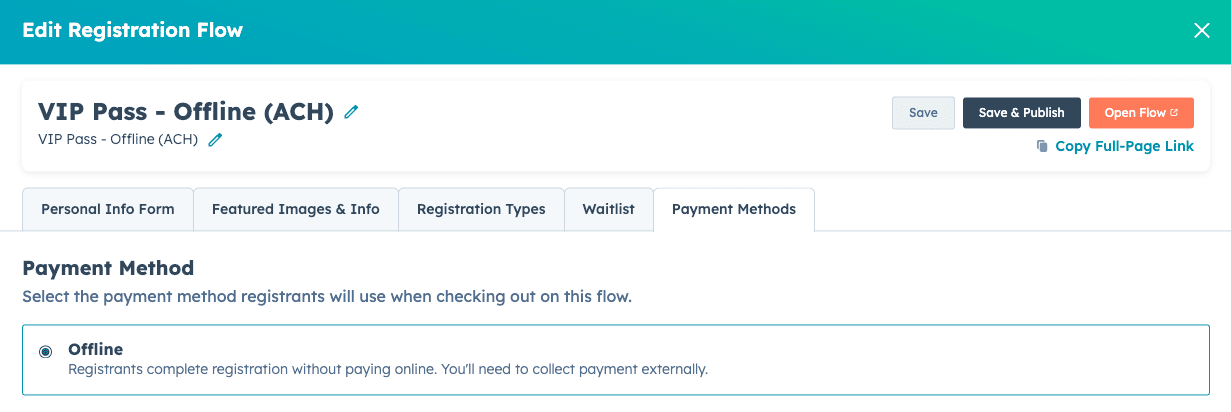
Step 3: Configure Registration Flows
- Navigate to the Registration Flows section for your event.
- Select an existing flow or create a new one.
- In the flow editor, select which Registration Types are available and set any per-transaction quantity limits (e.g., a maximum of 2 per transaction).
- Navigate to the Payment Methods tab within the flow.
- Select the Offline payment method to bypass immediate transaction processing and trigger the creation of a deal in HubSpot.
Step 4: Registrant checkout experience
- Registrants navigate through your event registration flow as usual, entering their details and selecting their registration types.
- At checkout, they complete the booking without entering payment information. A confirmation is displayed once the registration is submitted.
Step 5: Post-registration deal creation in HubSpot
- After a successful registration, the contact and their registration details appear within your event in HubSpot.
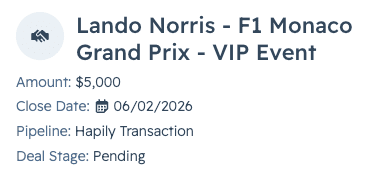
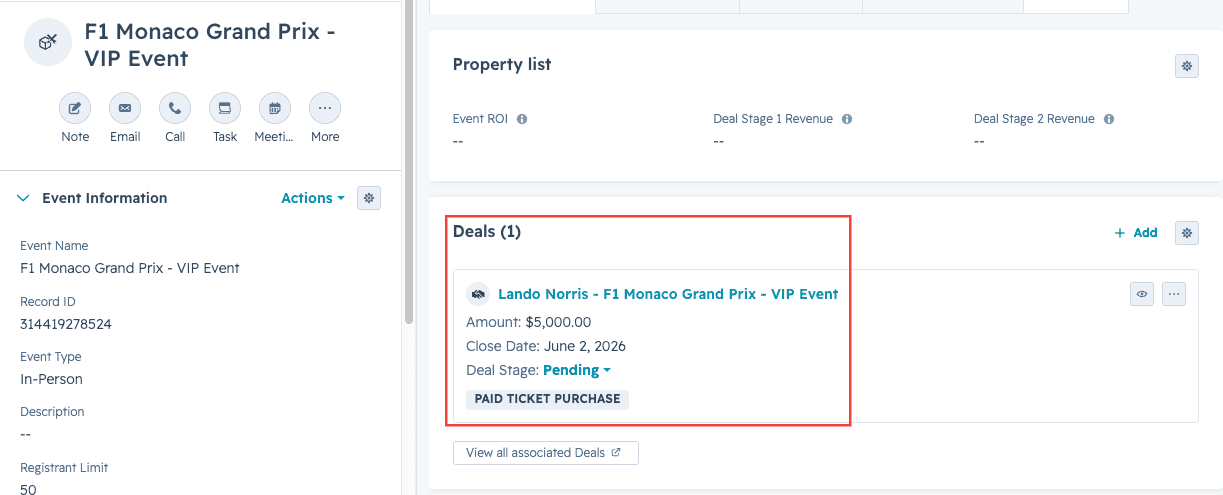
- A new deal is automatically created for the primary registrant (the person who completed checkout).
- Navigate to the hapily Transaction Pipeline.
- Locate the new deal in the Pending stage.
- If the deal does not appear, confirm that the Offline payment method was selected in the registration flow and that the registrant completed checkout.
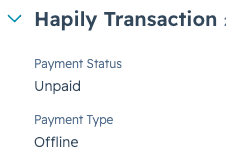
- Review the deal details, which include the registrant's contact record and line items for each purchased registration type. Your team can now send an invoice or initiate an ACH/wire transfer to collect payment.
Summary
✅ Enable the offline payment method in your global hapily settings.
✅ Create your event registration types, specifying cost and quantity.
✅ Configure your registration flow to use the offline payment method.
✅ Allow registrants to complete checkout without immediate payment.
✅ Use the automatically generated HubSpot deal to track and invoice offline payments.
Next Steps: