
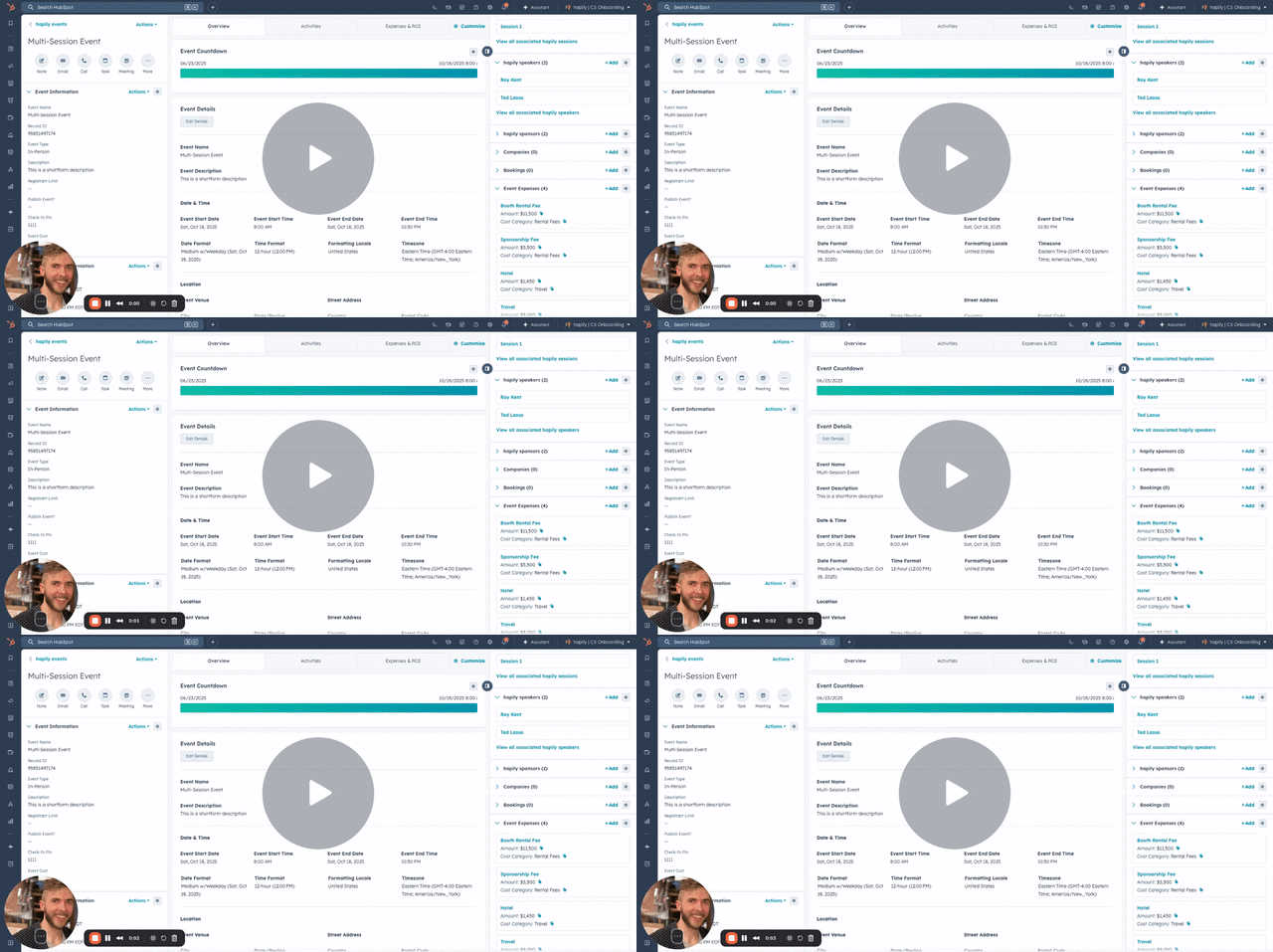
The hapily Speaker object allows you to connect your event content and presenters directly to your event records in HubSpot. With the Speakers object, you can see which speakers engaged with multiple events over time.
Using the Speaker custom object, you can associate contacts as speakers, track their participation across multiple events, and dynamically display speaker information on your event registration pages.
🎥 Video Walkthrough:
Watch the hapily Speakers Overview →
Understanding the Speaker Object
The hapily Speaker custom object represents an individual serving as a speaker or presenter for an event.
Each Speaker record includes:
-
Name
-
Company
-
Job Title
-
Headshot / Image
-
Associated Contact (in HubSpot)
-
Associated Event(s) or Session(s)
This setup allows you to:
-
Track the same speaker across multiple events
-
Manage speaker details from one central record
-
Display accurate, up-to-date information on registration and event landing pages
Step 1: Add Speakers to an Event
-
Open your Event Record in HubSpot.
-
Locate the hapily Speakers section in the right-hand sidebar.
-
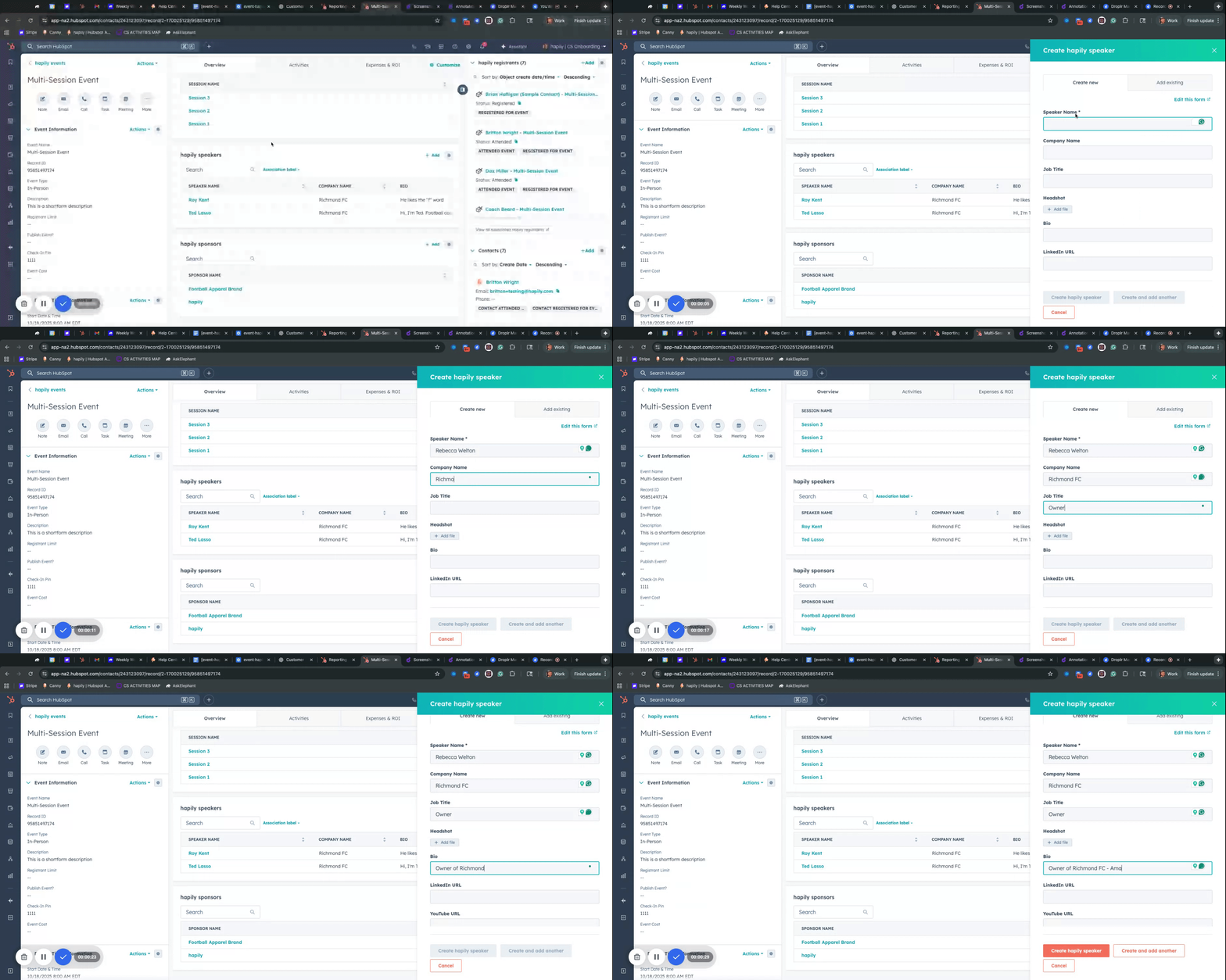
Click Add Speaker.
-
Enter the following details:
-
Speaker Name
-
Company / Organization
-
Job Title
-
Headshot (for event page display)
-
-
(Optional) Associate to Contact — link this speaker to an existing HubSpot Contact record.
-
(Optional) Associate to Specific Session — if your event has multiple sessions, associate the speaker to one or more.
Step 2: Reuse Speakers from Previous Events
You can easily reuse existing speakers who have presented at other events:
-
From the hapily Speakers module on your Event Record, click Add Existing Speaker.
-
Search for and select the desired Speaker record.
-
Associate them with your new event or session.
This makes it simple to track recurring presenters and their historical participation.
Step 3: Display Speakers on Your Landing Page
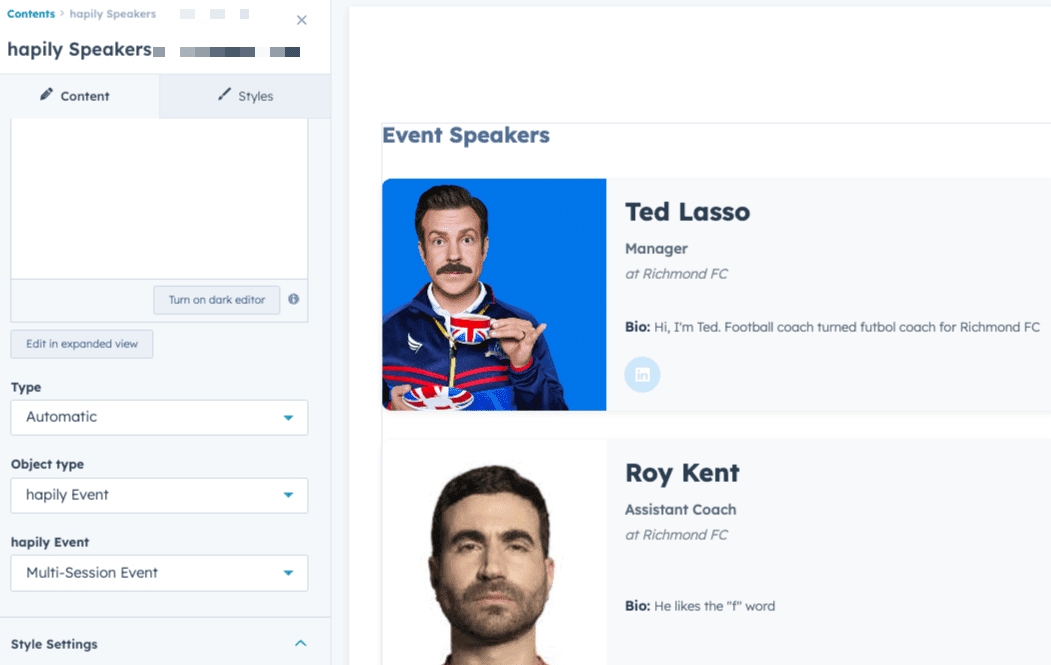
Event·hapily includes a hapily Speakers module that you can add to your HubSpot landing pages.
-
In your HubSpot page editor, add the hapily Speakers module.
-
Choose how to display your speakers:
-
Specific Event: Manually select an event to pull speakers from.
-
Dynamic Page: Automatically show speakers linked to the event that the page references.
-
-
Add optional Rich Text above the list (e.g., “Meet Our Speakers”).
-
Adjust accent colors or layout to match your brand style.
Step 4: Preview and Publish
Once your speakers are associated and styled:
-
Preview your event landing page.
-
Confirm that the speakers’ names, headshots, and job titles appear as expected.
-
Publish your page to make updates live.
📝 Tip: You can continue adding or editing speaker records anytime — the changes automatically update on the associated event page.
Summary
✅ Manage all speakers centrally using the hapily Speaker object
✅ Associate speakers to events and sessions
✅ Display speakers dynamically on HubSpot landing pages
✅ Reuse speaker records across multiple events
✅ Customize the look and feel to match your brand
Next Steps: