
Plan availability
Product Variants are part of the Advanced Pricing family of features in the quote•hapily Enterprise plan.
Step 1: In HubSpot, create Product properties for each variant attribute
For each product variant attribute (e.g. Brand, Color, Model Year) create a Product property in HubSpot. Product variant attributes must be one of the following types:
- Single checkbox
- Radio select
- Dropdown select
Step 2: Select the Product Variant price adjustment
Product Variants are Price Book Price Adjustments.
- Open the Price Books list in the quote•hapily Admin: https://app.quote.hapily.com/price-books
- Select a Price Book.
- Add your product to the Price Book if it's not already a member of it.
- Click on the "pencil" icon next to the price you want to adjust.
- Select "Product Variant" from the "Override By" list.

Step 3: Select your Variant Properties
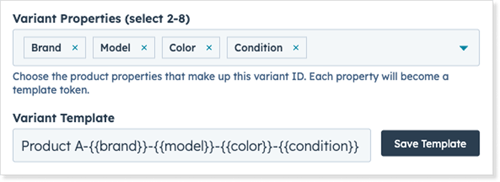
- Select between two and eight Product Properties to be your Variant Properties.
- As you select the properties, quote•hapily will build a Variant Template for you following a common pattern: "id--". You can adjust this, but each selected property must be included in the Variant Template.
- When you've completed selecting your Variant Properties, click "Save Template."
Step 4: Download the sample price sheet
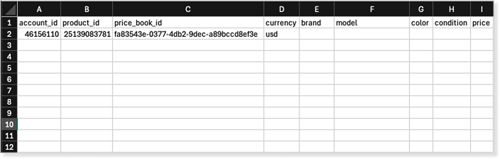
Click "Download Starter File." The file downloaded will include the necessary columns for the price sheet you will upload later, as well as a row including the values you should use for product_id, price_book_id, and currency.
Step 5: Complete your price sheet
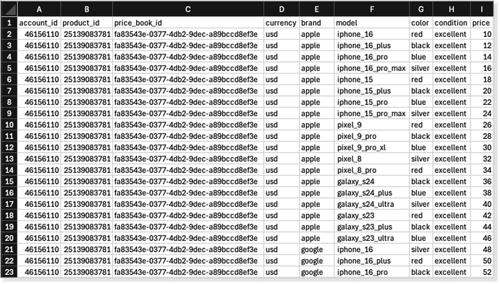
For each variant price you want to set, include a row in this spreadsheet. The values for product_id, price_book_id, and currency should be copied to each row in your sheet.
Save the sheet as a CSV.
⚠️ WARNING: If you drag the rows for these fields down, the values may increment automatically and that will break the import.
Step 6: Upload your price sheet
- Return to the Override Price dialog.
- Click "Upload and replace prices."
- Select your completed price sheet.
Note: Uploading your sheet will replace the existing Product Variants.
The upload will begin immediately, followed by the processing of your sheet. When complete, the download button will confirm the number of prices uploaded and a Variant Search area will appear.

Variant Search
You can search for prices by selecting values from the Variant Properties.
Changing Product Variant Properties
Once set, Product Variant Properties cannot be changed. If you need to redefine your Product Variant structure, you will need to Reset the price adjustment for the product and begin the process anew.