You can also use Product Variants in Bundles.
Managing Product Variants in multiple Price Books — and in Bundles — is straightforward.
Products can be assigned to multiple Price Books. And Products automatically use the same variant template and set of variant properties in each Price Book.
Uploading Variants for Multiple Price Books
You can upload a single variant spreadsheet that can include prices across those price books.
If you haven't already, make sure you're familiar with the steps outlined in How to Set Up Product Variants.
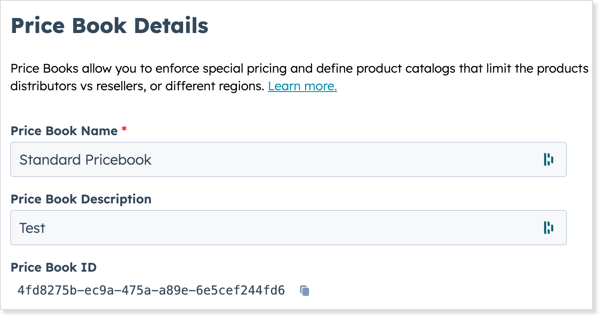
When you upload your variant spreadsheet, it can refer to different Price Books — you just need to include the correct Price Book ID in the sheet. You can copy the Price Book ID from any Price Book Details screen:
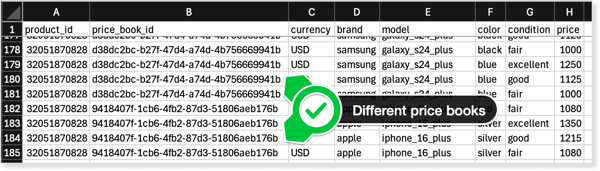
Once you've built your combined Product Variant import file, you can upload it from any Product Variant adjustment dialog.
Bundle Options and Price Books
The same process applies to managing Product Variants in multiple Bundles or Bundle Options.
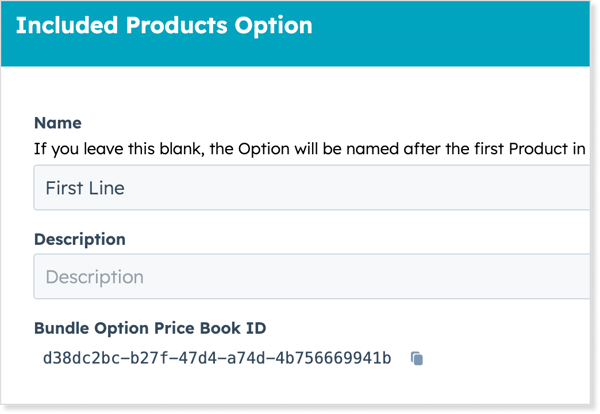
When you create a Bundle Option, quote•hapily automatically creates a Price Book specifically for it (it's there, even though it doesn't appear when you view the list of Price Books).
You can copy the Bundle Option Price Book ID from the Bundle Option Products panel: