
Configuring your session settings in hapily ensures you consistently capture all necessary details during the session creation process. By linking these settings to your CRM, you maintain clean, organized, and standardized data for all your events.
This configuration allows you to:
- Define the required data fields when building a new session.
- Manage and map session details directly to HubSpot properties.
- Customize standard data capture points like capacity, tags, topics, and times.
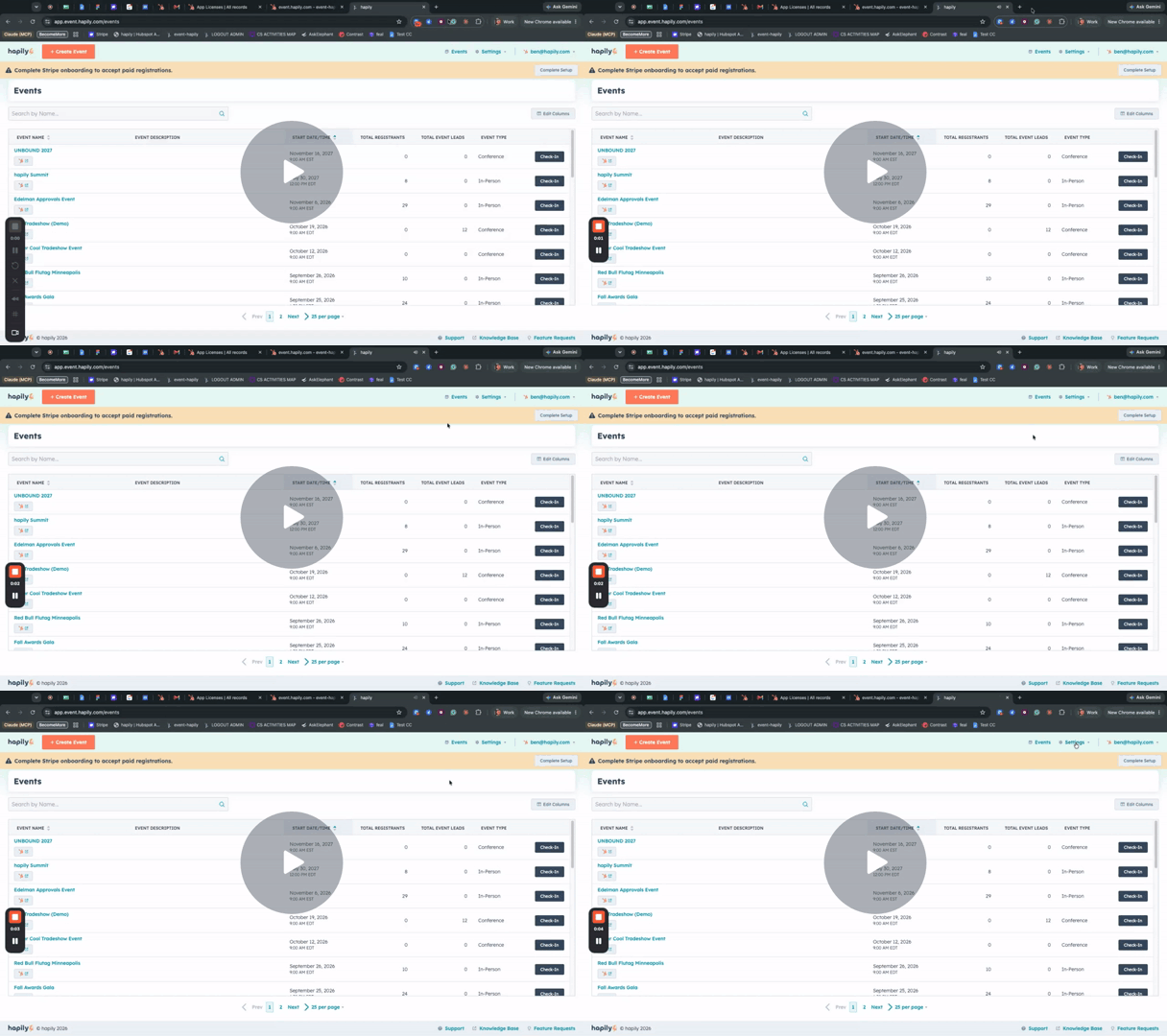
Session Settings Overview - Watch Video
Step 1: Access Session Settings
- Navigate to the Settings tab within your hapily dashboard.
- Select Session Settings from the available menu options to access your configuration controls.

Step 2: Manage Properties in the CRM
- From the Session Settings page, click the option to manage properties in the CRM.
- You will be redirected to your HubSpot portal specifically for that session object.
- Add, edit, or manage the properties you need to track for your event sessions.
Step 3: Configure Session Information Fields
- Return to the hapily Session Settings menu.
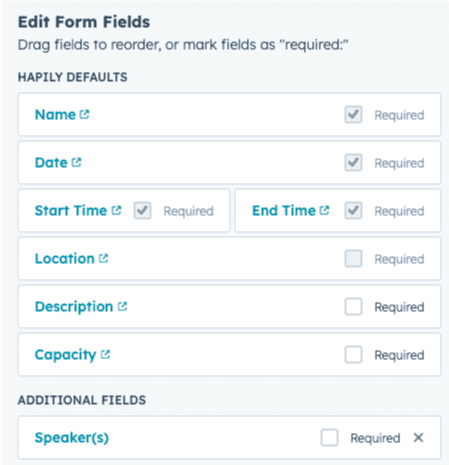
- Configure the essential properties you must capture when building a session, including the Name, Date, Start Time, and End Time.
- Select any additional fields you want to render at the point of creation, such as Description, Capacity, Tag, Topic, Type, or whether the session is Required.
- Once saved, these customized fields will render dynamically whenever you go into an event and create a new session.
Next Steps: