
This article walks you through how to format your CSV, generate the correct hapily Registration Trigger, and import the records into HubSpot so event•hapily can automatically create (and label) registrants.
This process allows you to:- Create historical registrant records
- Apply correct registration behaviors (registered, walk-up, pending, waitlisted)
- Ensure your reporting, lists, and workflows reflect accurate registration data
Step 1: Prepare Your CSV File
Create a CSV file that contains the following required properties for each Contact you want to backfill:

|
Property |
Description |
|---|---|
|
First Name |
Contact’s first name |
|
Last Name |
Contact’s last name |
|
|
Contact email (used as unique identifier) |
|
hapily Registration Trigger* |
JSON value defining what action event•hapily should take (see step 2 for instructions on creating the correct value) |
You may also include any optional contact fields (e.g., Job Title), as long as:
-
The property exists on the Contact in HubSpot
-
The property exists on the hapily Registrant in HubSpot
-
The property is setup to be copied to the hapily Registrant via the workflow “event•hapily | New Registrant Created”
📌 Tip: The email field will be the unique token used to update existing contacts.
Step 2: Generate the “hapily Registration Trigger” Value
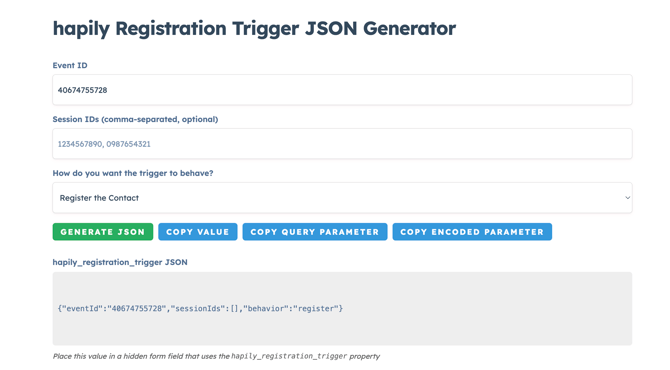
Each row in your CSV requires a hapily Registration Trigger JSON payload.
-
Enter the following:
-
Event ID: hapily Event Record ID
-
Session IDs (optional): hapily Session Record IDs
-
Behavior (choose one)
-
-
Copy the generated JSON (hapily_registration_trigger JSON) and paste it into the CSV’s hapily Registration Trigger column for each appropriate row.
|
Behavior |
Key |
What It Does |
|---|---|---|
|
Register the Contact |
register |
Creates the registrant record and marks the contact as Registered |
|
Create Walk-Up Registration |
walkup |
Creates registrant + marks the person Registered AND Attended |
|
Create Pending/Delayed Registration |
pending |
Associates the contact to the event with the label Pending Registration |
|
Put Contact on Waitlist |
waitlist |
Associates the contact to the event with the label Waitlisted for Event |
Step 3: Import the CSV Into HubSpot
-
In HubSpot, go to Contacts → Import
-
Choose Import a file
-
Upload your CSV
-
Import as Contacts
-
Select Email as the unique identifier to ensure you update existing contacts
HubSpot will:
-
Update existing Contacts where emails match
-
Create new Contacts where needed
📌 Tip: For detailed instructions on importing CSV files, check out HubSpot’s guide for the HubSpot Import Tool.
Behind the Scenes: How event•hapily Processes the Backfill
Once contacts are imported:
-
The hapily Registration Trigger value fires
-
event•hapily creates the correct hapily Registrant record
-
The appropriate status and association labels are applied
-
The workflow “event•hapily 🐳 | New Registrant Created” copies custom mapped contact properties (such as Job Title) onto the registrant
Your events will now reflect accurate registration and attendance data.
Summary
Backfilling registrants allows you to:
✔ Import historical registration and attendance data
✔ Automatically generate correct registrant statuses and associations
✔ Update existing contacts using email as the unique identifier
✔ Include custom fields when supported by your New Registrant Created workflow
Next Steps